

-
Go to
<project>/assets/images/and replace app_icon.png with your own logo. -
Go to
<project>/assets/images/and replace loading_image.png with your own logo which show as a placeholder image for product image( A square(24×24 or 370×370 or any) shape png image would be ideal- ). -
Go to
<project>/assets/images/and replace splash.png with your own logo which show as a splash image. This image should be your logo with a background with height and width of a phone screen. Example: w-374 x h-812. -
Go to
<project>/android/app/src/main/res/drawable/notification_icon.pngand replace notification_icon.png with your own logo ( A square(24×24 or 370×370 or any) which show as a Notification Icon image.
To change the app icon in Flutter using Android Studio, follow these additional steps after configuring the Image Asset:
Step 0: Ensure Gradle Sync is Complete
• When you open the android folder in Android Studio, wait for Gradle to finish building.
• If it’s stuck, manually trigger it by clicking “Sync Project with Gradle Files” (in the top-right corner of Android Studio).
• You can also build the app once using:
flutter build apk
• Once the build process is done, continue with the steps to open Resource Manager.
Step 1: Open Asset Studio
- Follow the previous steps to open Asset Studio (by selecting Image Asset in the Resource Manager).
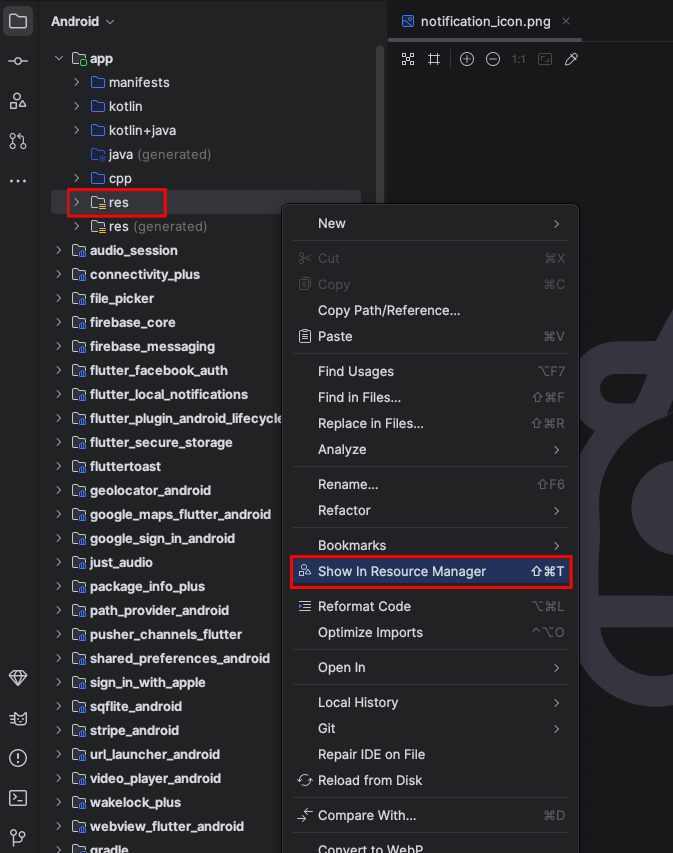 Screenshot
- Ensure Icon Type is set to Launcher Icons (Adaptive and Legacy).
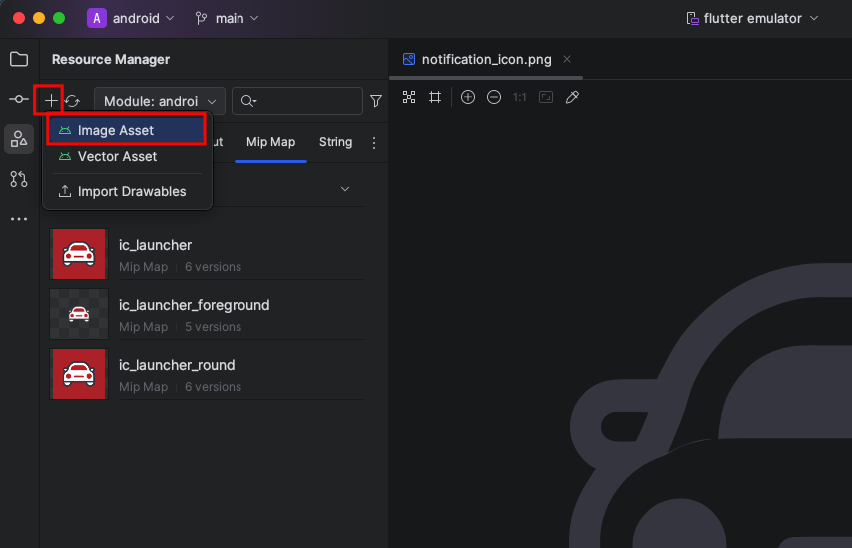 Screenshot
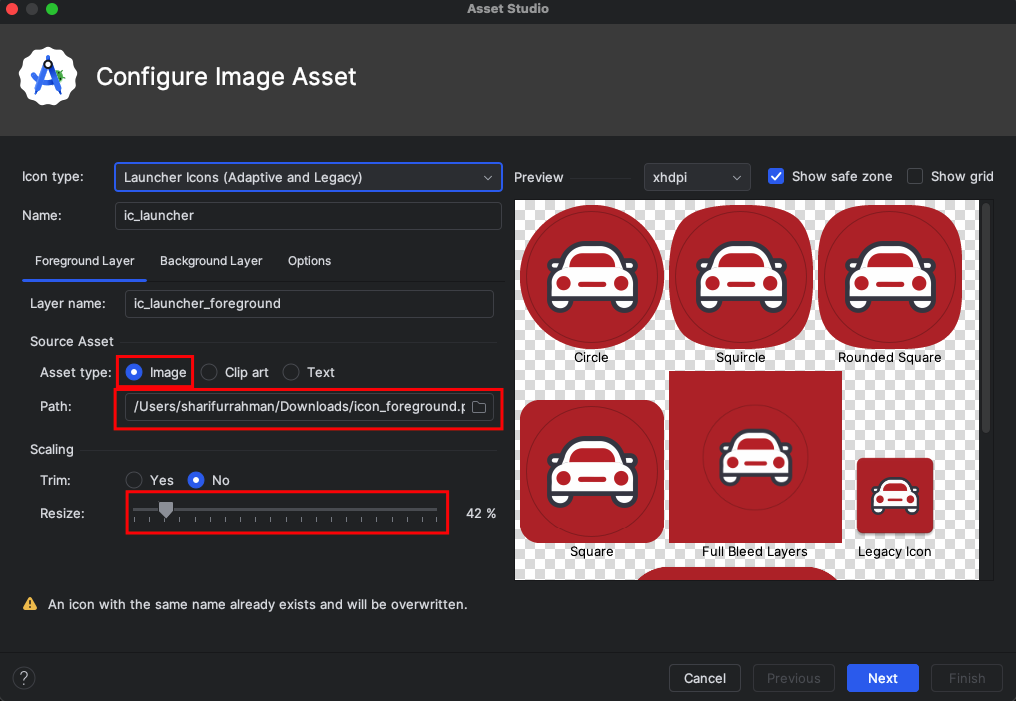 Screenshot
Step 2: Change the Background Colour
-
Click on the Background Layer tab in the Configure Image Asset window.
-
You will see a Colour Picker or an option to enter a HEX colour code.
-
Choose your desired background colour.
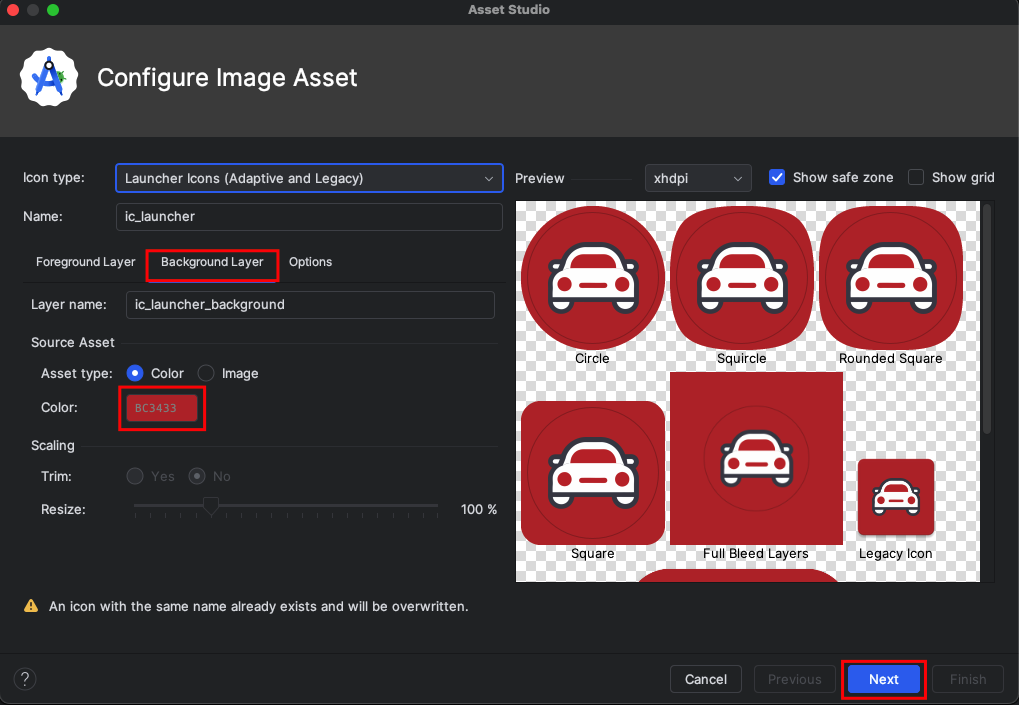 Screenshot
- Click Next, then Finish.
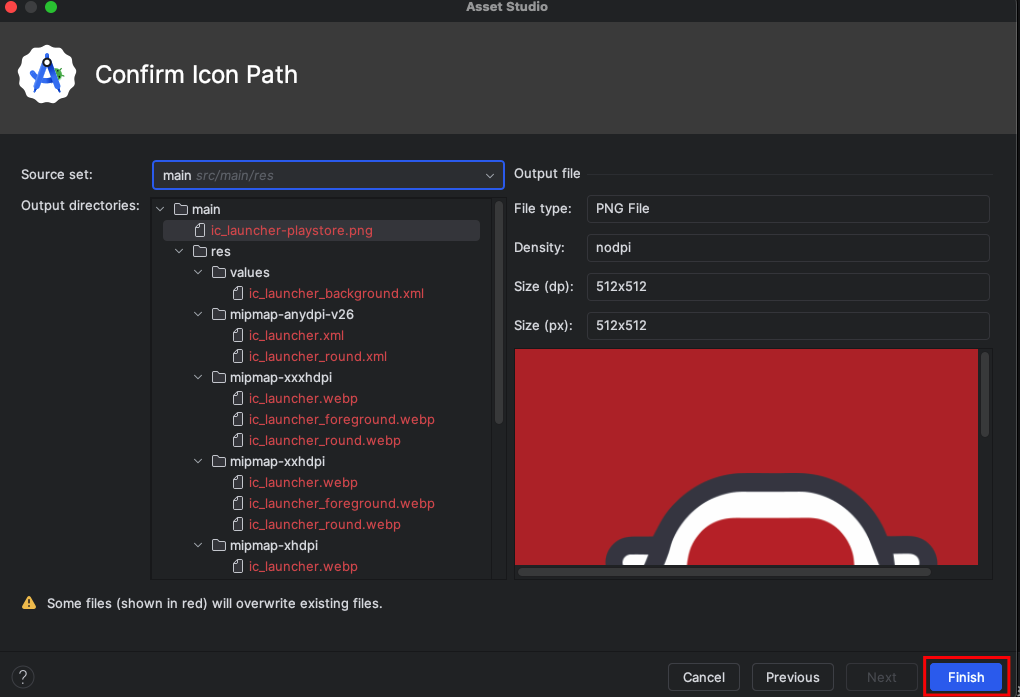 Screenshot
Step 3: Rebuild and Run the Project
-
Run the following command in the terminal:
flutter clean flutter pub get -
Run the app to see the updated launcher icon with the new background colour.
Step 4: Change the IOS Icon
-
Replace the following image with your desired image-
assets/images/app_icon.png -
Run the following command in the terminal:
flutter pub run flutter_launcher_icons -
Run the app to see the updated launcher icon.