

Live Chat
Jump to: How to configure Pusher Api Keys · Live chat from vendor dashboard · Live chat from website
How to configure Pusher Api Keys
Step 01:
To get pusher api keys, you have to go to pusher.com
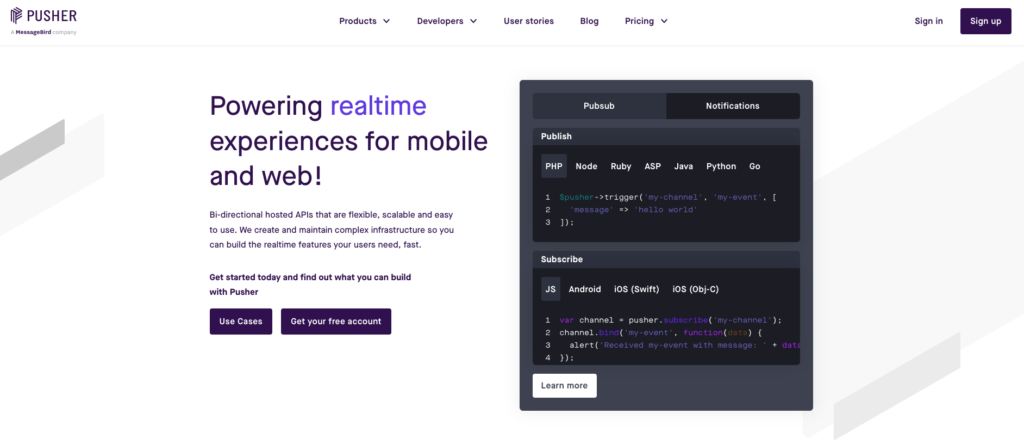 Screenshot
Step 02:
after signup/login you will see this screen, then click on manage button
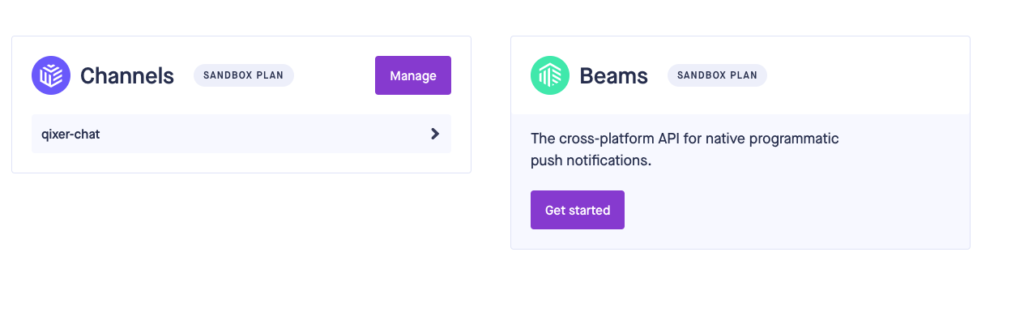 Screenshot
Step 03:
click on create app button and create a new app for your website, make sure you select stack as like below.
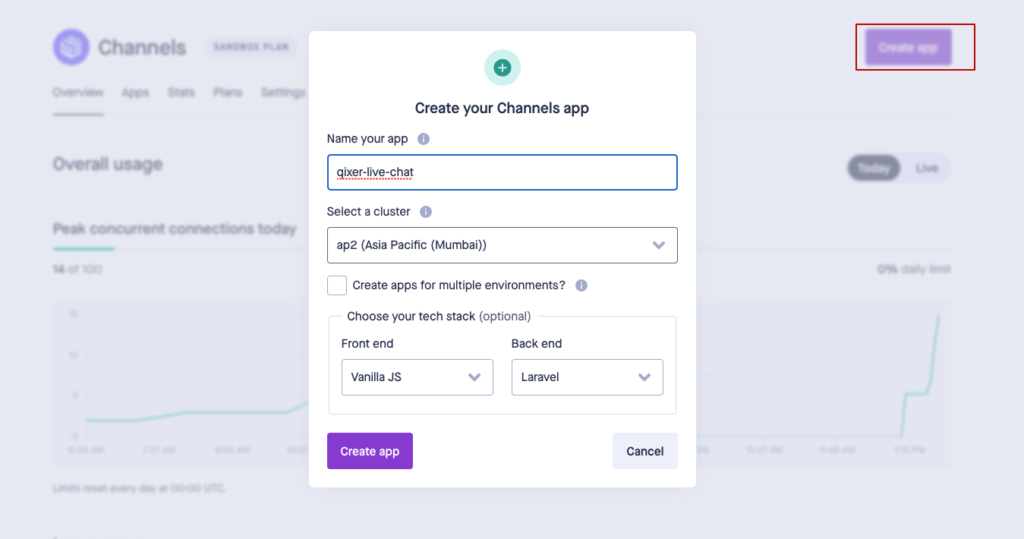 Screenshot
Step 04: after create app you will see below page, now click on App Keys to get app keys for your website
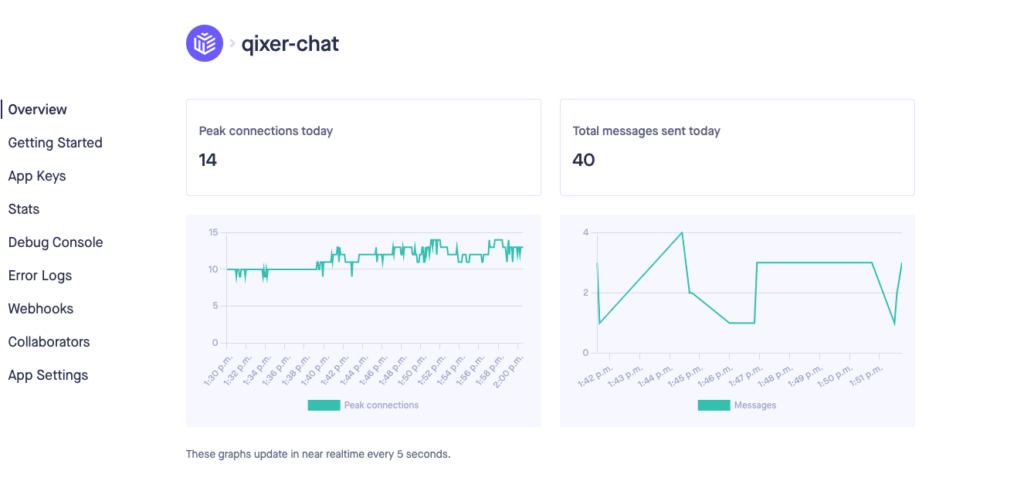 Screenshot
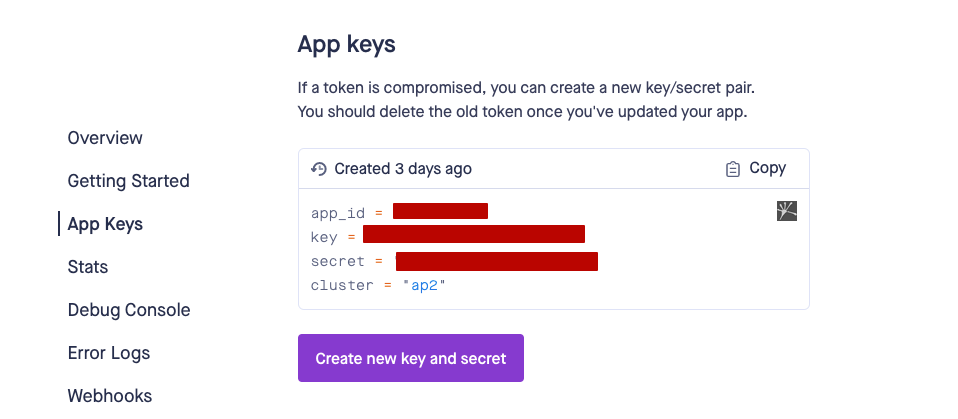
Step 05:
now you will see you app keys as like this screenshot
 Screenshot
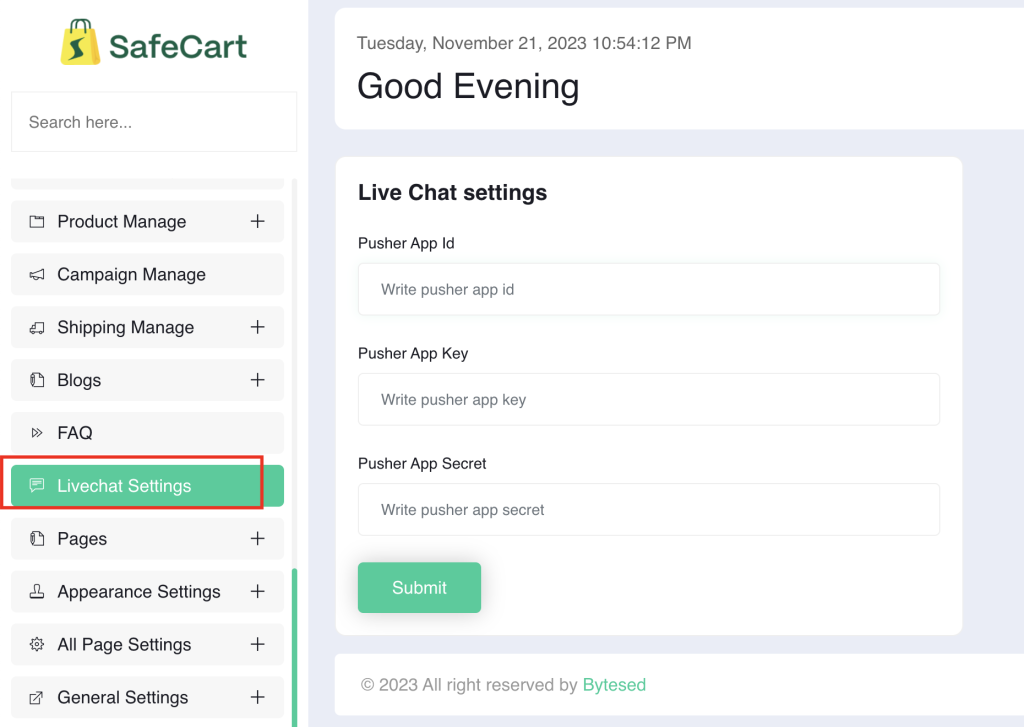
Step 05:
Go to your admin panel “General settings > Livechat Settings” now add your all api credentials.
 Screenshot
that's all for setup live chat addon
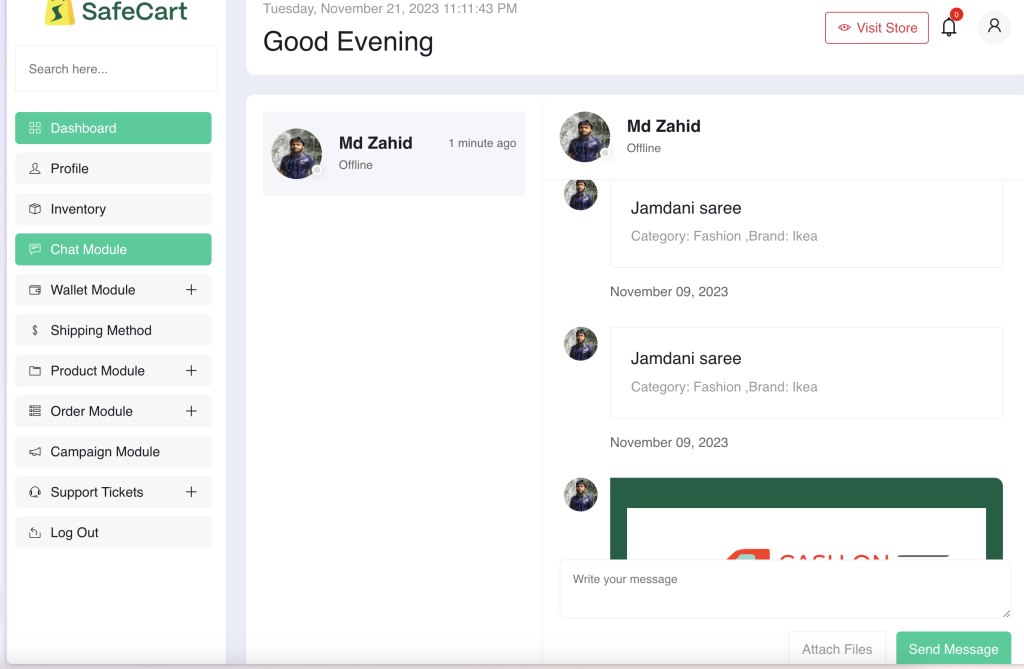
Live chat from vendor dashboard
Vendor will get a menu in vendor panel name live chat to discuss with customer.
 Screenshot
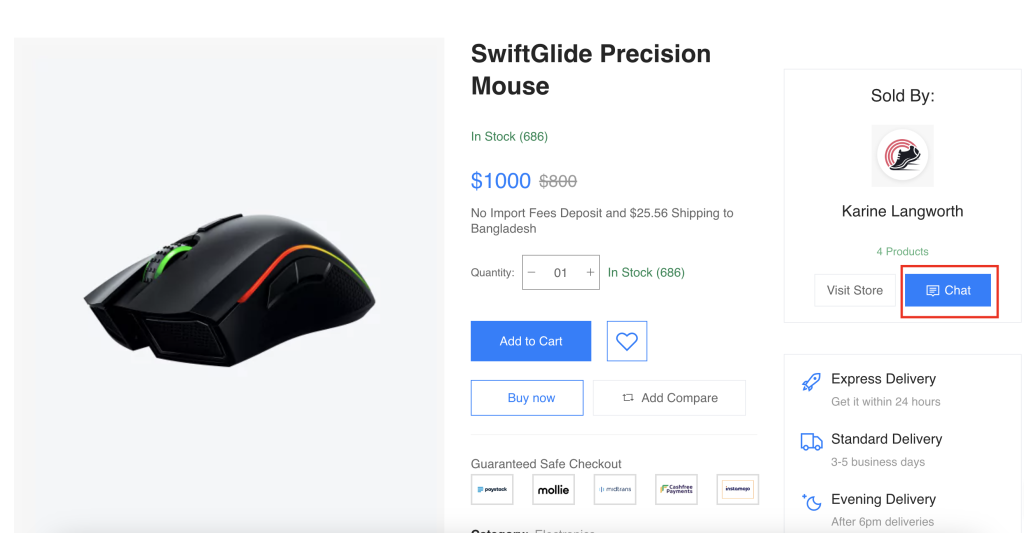
Live chat from website
customer we will get option to initiate chat with vendor from any product details page
 Screenshot
once customer click on chat button it will show live chat option like below image to continue live chat with seller
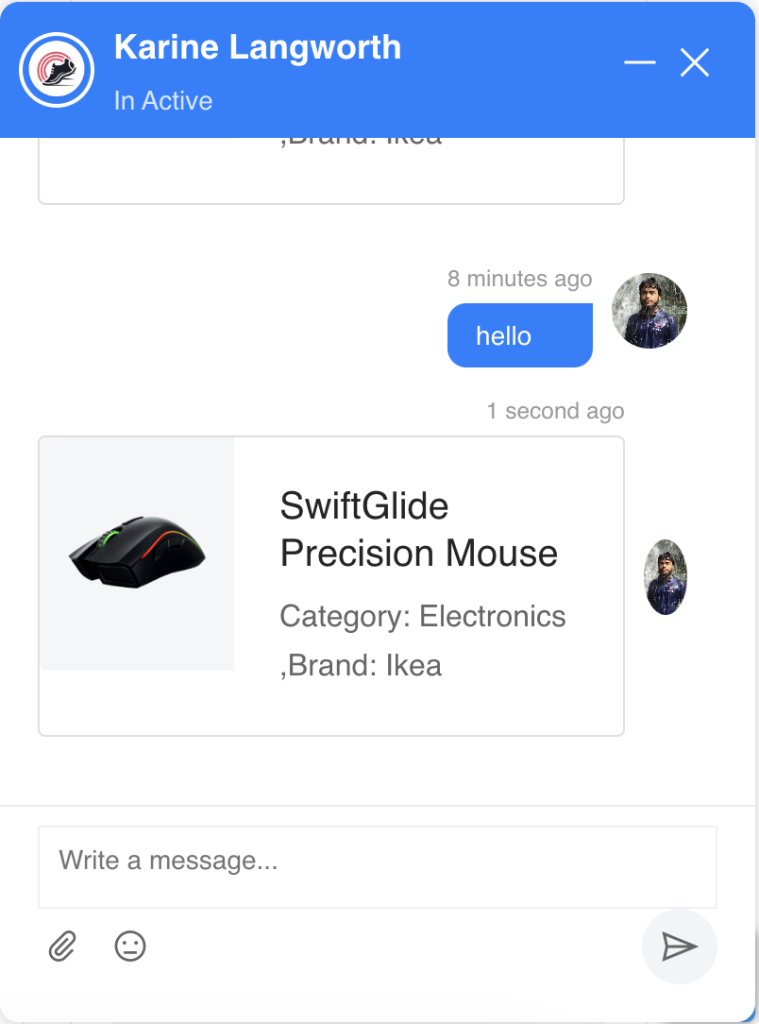 Screenshot