

Menu Manage
Jump to: Create a new menu · Add new item to menu
Create a new menu
This cms comes with Drag & Drop menu builder you can build your own menu easily, To create a new menu go to ” Appearance Settings> Menu Manage”.
Step 01: create a menu, give it a title and select language
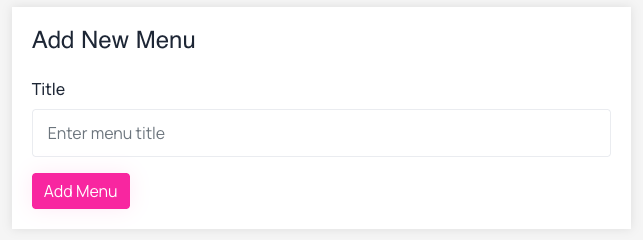 Screenshot
Step 02: edit menu as per your need,
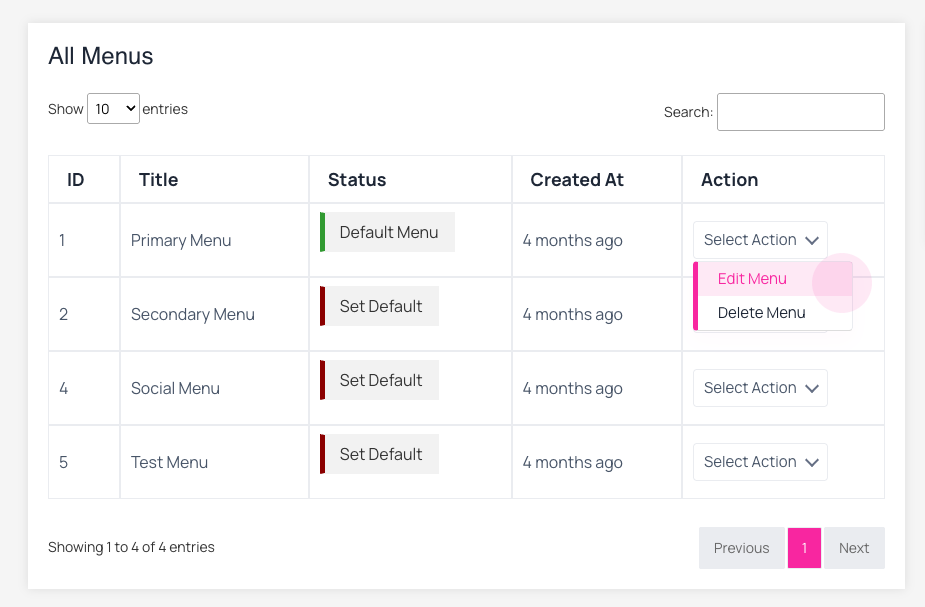 Screenshot
Step 03: customise me as per your need. select which page you want to add in the menu, then click on add to menu, it will be added at the bottom of the menu. now you can drag it any where your need. you can make drop download menu as well by drag menu item to right.
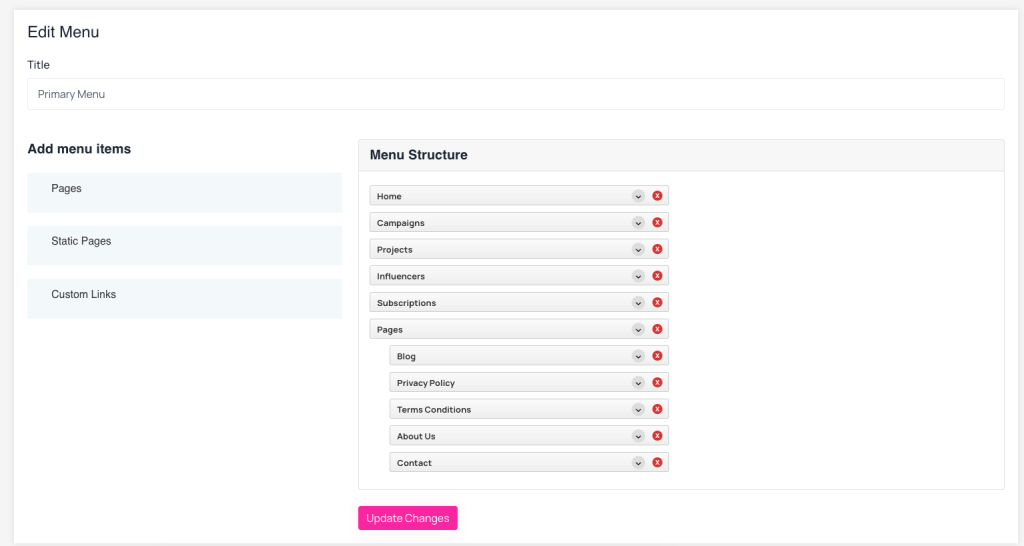 Screenshot
Add new item to menu
Select the page you want to add in the menu, click on add to menu, it will added at the bottom of the menu.
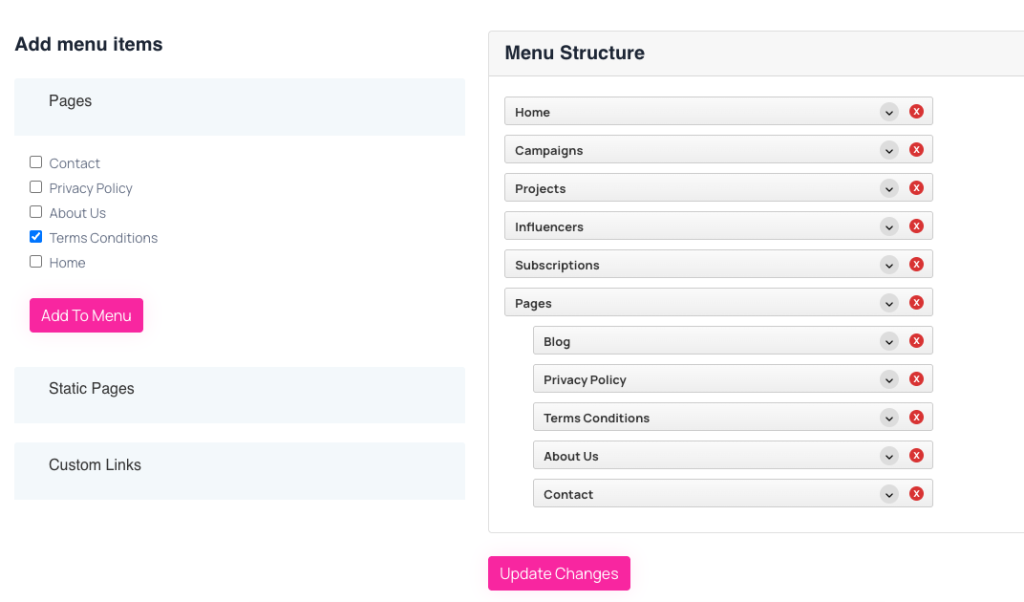 Screenshot
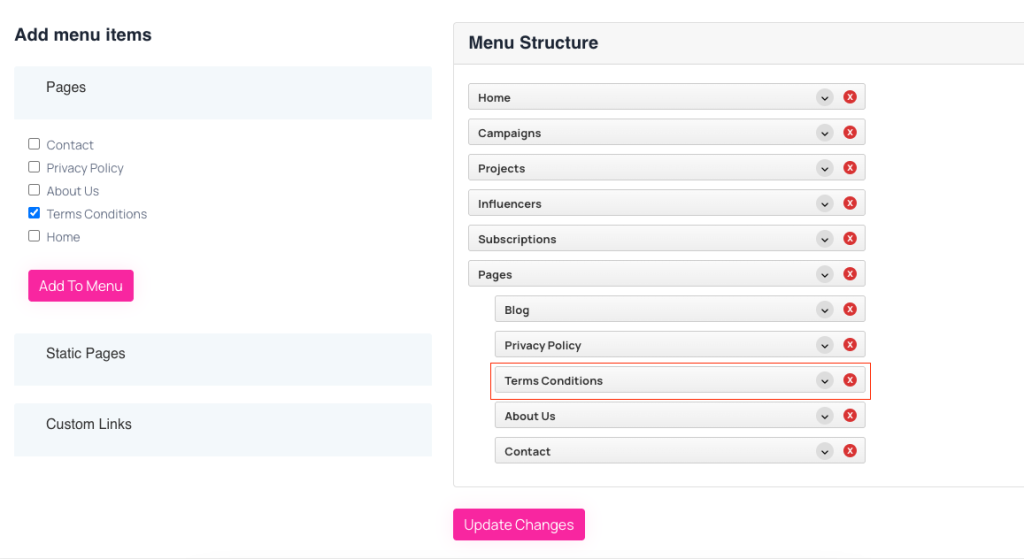
Set menu order:
drag menu item to up to down and leave it where you need.
 Screenshot
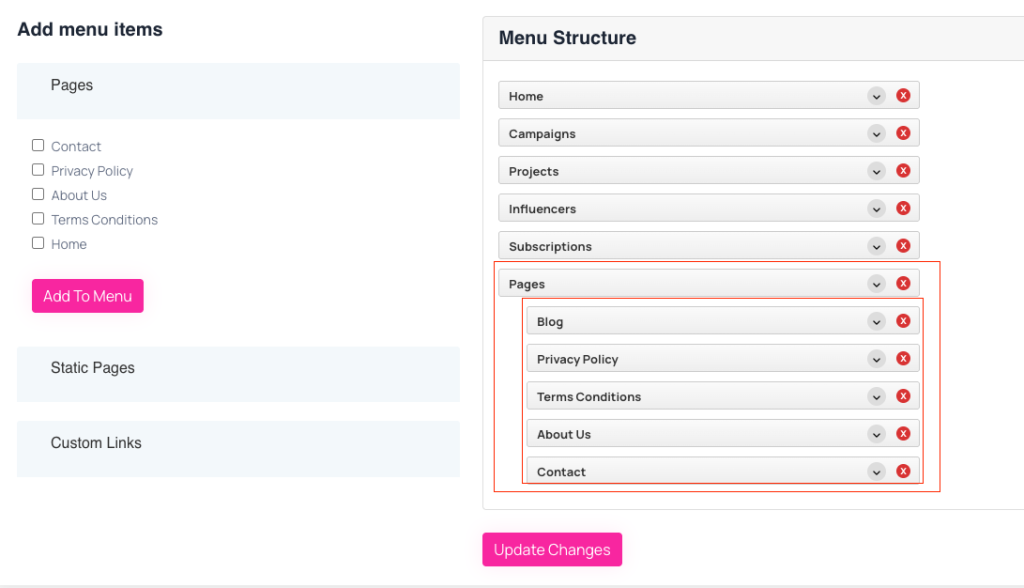
Create Dropdown:
drag the item you want to make dropdown, drag it to right right and you will see it nested to the top item. in this way you can make dropdown menu, you can also add multiple dropdown
 Screenshot
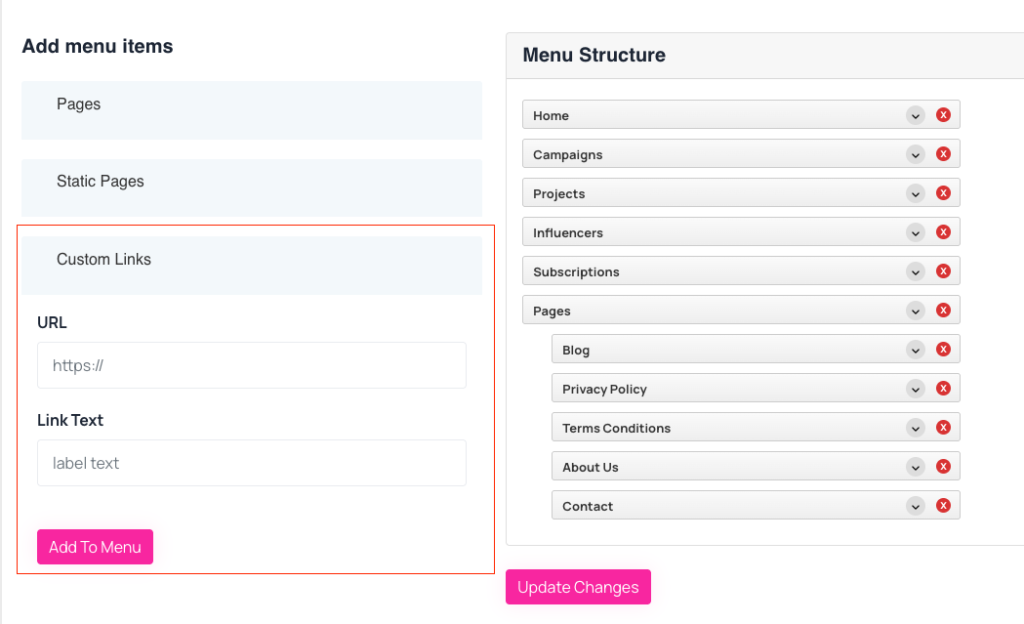
Add a custom url as a menu item
 Screenshot