

Basic Settings
Jump to: Cache Settings · Custom Ccss · Custom js · How to change home page variant? · Site Identity · Typography Settings · Site Basic Settings · Social Login Settings · Check One Click Update · Database Upgrade · How to change navbar global variant?
Cache Settings
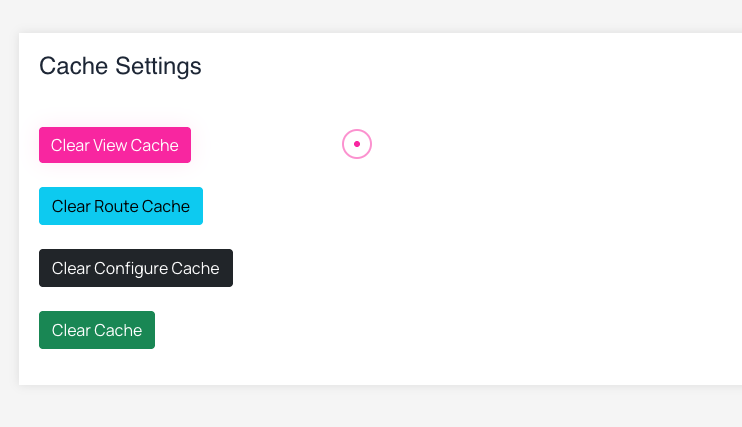
sometime you need to clear your system cache, this cms comes with option to do it from admin panel. go to “General Settings > Cache Settings” .
 Screenshot
-
Clear View Cache: this will clear all of cache view.
-
Clear Route Cache: this will clear all of route cache of Laravel framework.
-
Clear Configure Cache: this will clear all of configure cache of Laravel framework
-
Clear Cache: this will clear all kind of cache in the Laravel framework
Custom Ccss
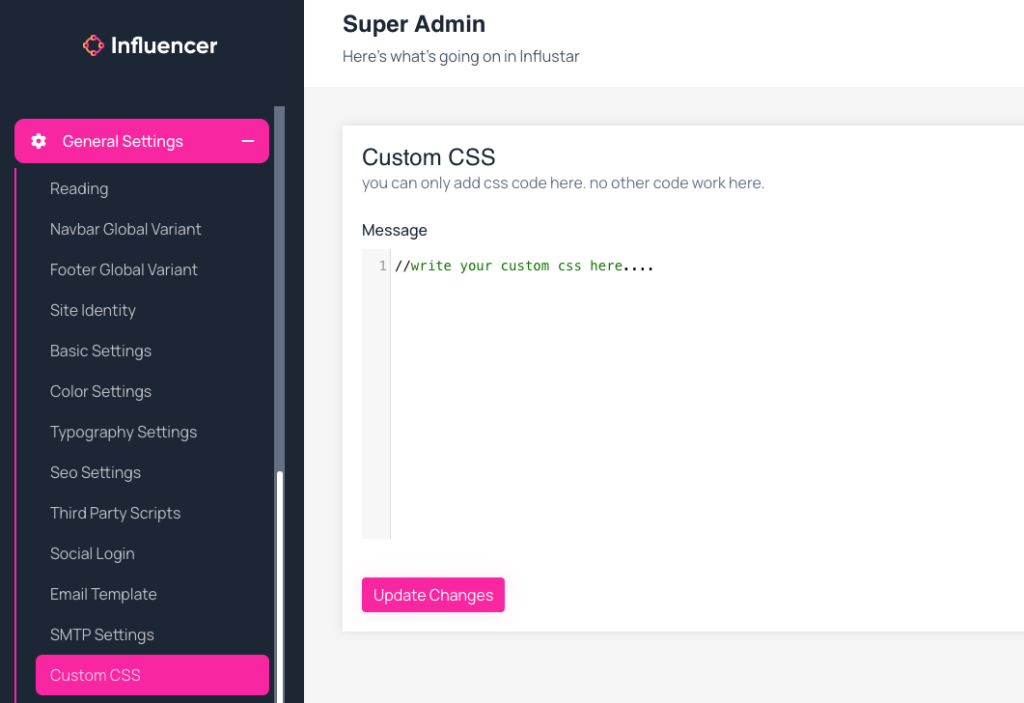
This cms comes with option to add you own css to change or customise anything in the website. goto “General settings > Custom CSS”, add you own css code here and go to website you will see changes as per your css code.
NT:: some time you see it not change then clear your browser cache by ctrl+shift+r ( window ) cmd+shift+r ( macos ).
 Screenshot
custom css
Custom js
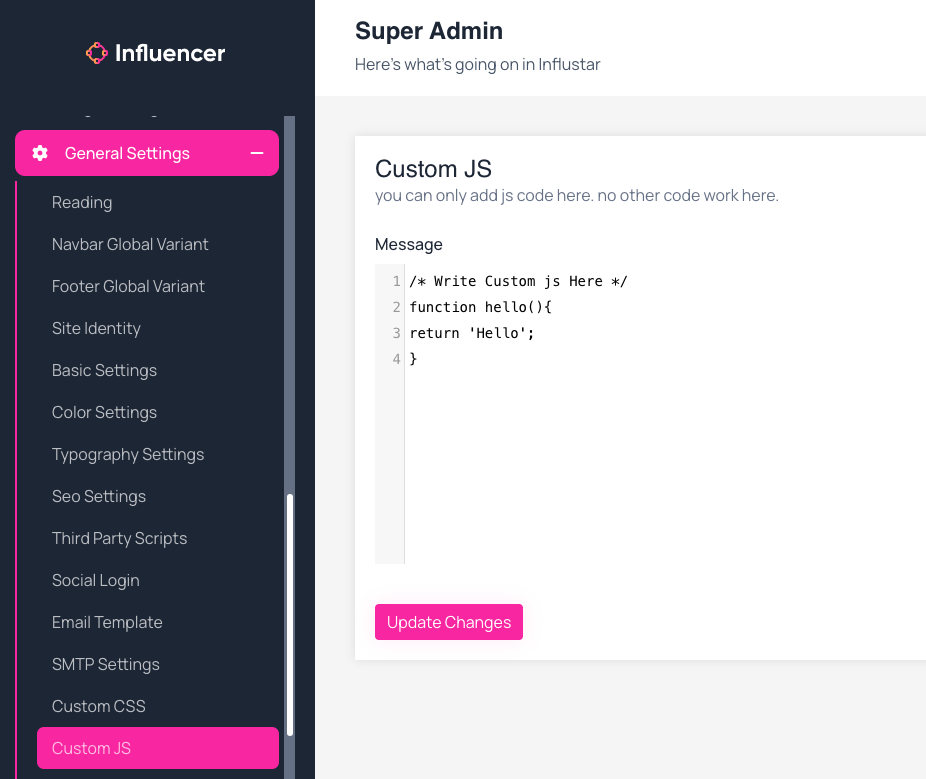
This cms comes with option to add you own js to change or customise anything in the website. goto “General settings > Custom Js”, add you own js code here and go to website you will see changes as per your js code.
NT:: some time you see it not change then clear your browser cache by ctrl+shift+r ( window ) cmd+shift+r ( macos ).
 Screenshot
How to change home page variant?
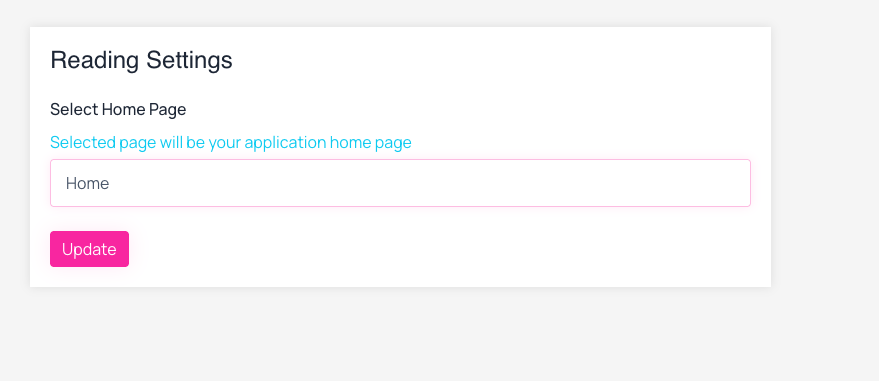
Login to your admin panel, then go to “General Settings -> Reading” now select the page from the dropdown, which you want to set as home page.
 Screenshot
Site Identity
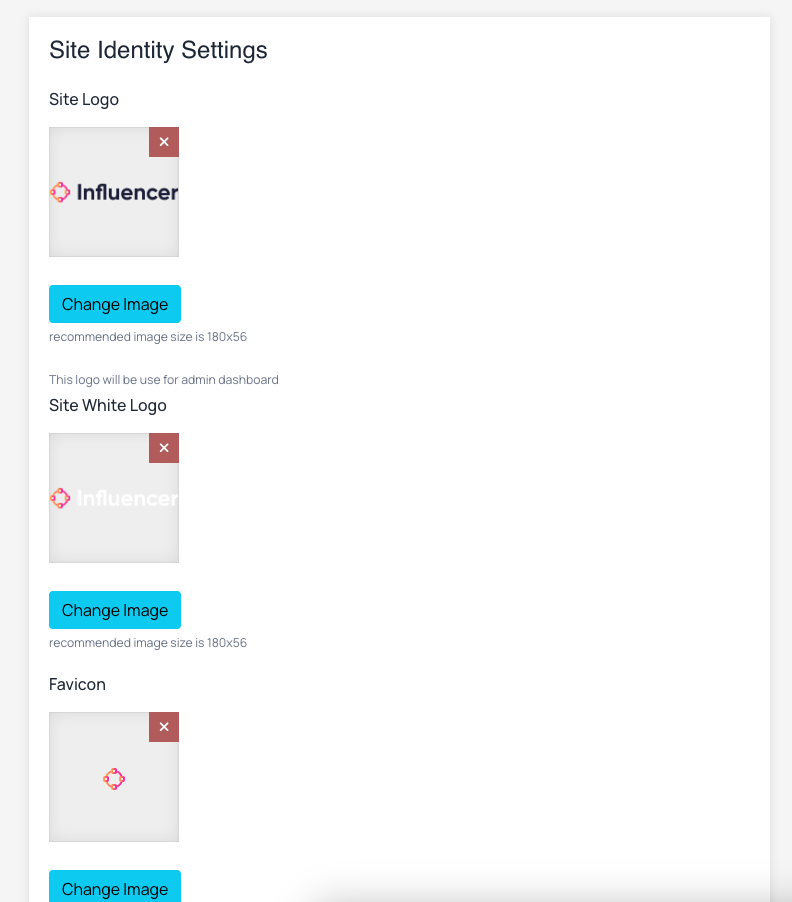
Login to your admin panel, then go to “General Settings -> Site Identity” now you can choose your site logo, Site white logo and favicon from here.
 Screenshot
Typography Settings
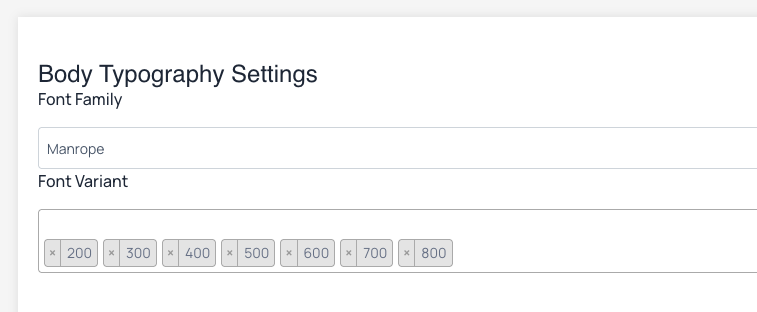
This script comes with option to use google fonts as you choice, it has included over 500+ google fonts, to use your chosen fonts for the cms, you have to go to “General settings > typography settings”
Setup body fonts:
body font means, the font will be use all paragraph and inline element the website. when ever you select a font family you must have to set font variant for the font family, otherwise it the font change not work.
 Screenshot
Setup Heading fonts:
you can use separate font family for heading tags example (h1-h6), or you can keep same font for body and heading, by disable heading fonts.
heading fonts selection
Site Basic Settings
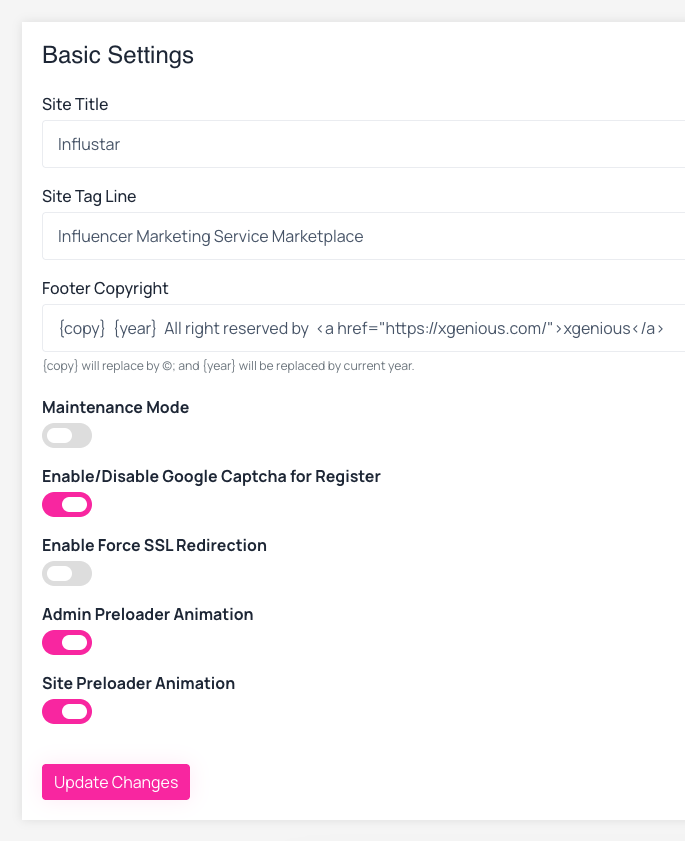
Login to your admin panel, then go to “General Settings -> Basic Settings” for basic setup. Here you can update your site title, tag line, copyright text, maintenance mode etc.
 Screenshot
Social Login Settings
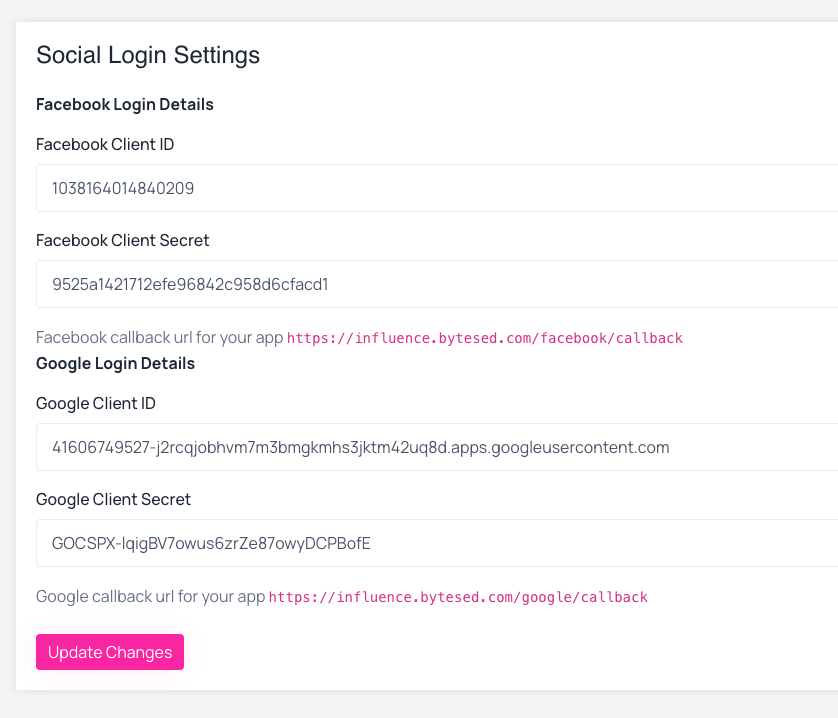
Login to your admin panel, then go to “General Settings -> Social Login” now setup your social credentials and callback url.
 Screenshot
Check One Click Update
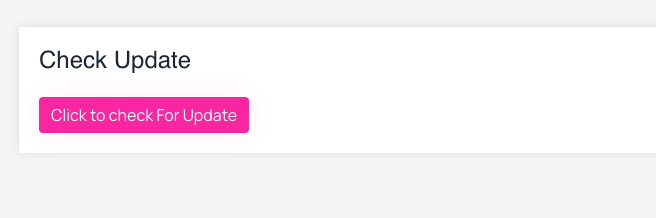
Login to your admin panel, then go to “General Settings -> Check Update” for one click update script latest version see the image.
 Screenshot
Database Upgrade
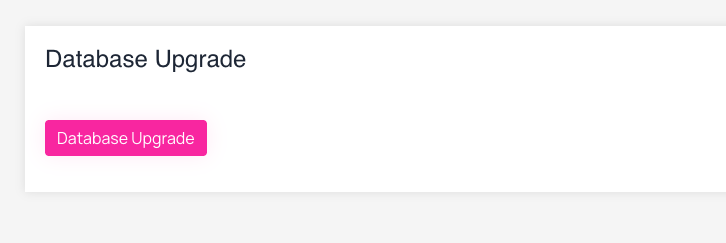
Login to your admin panel, then go to “General Settings -> Database Upgrade” for one click update your database see the image.
 Screenshot
How to change navbar global variant?
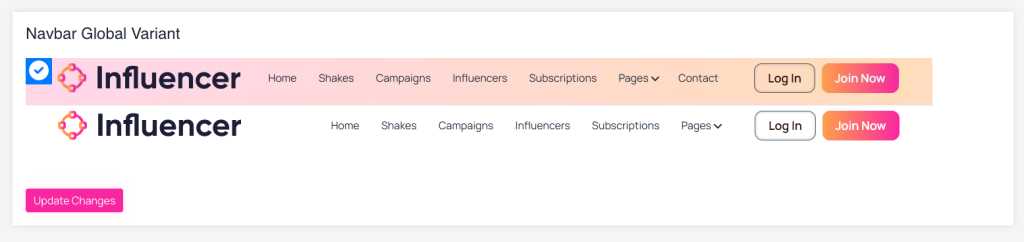
Login to your admin panel, then go to “General Settings -> Navbar Global Variant” now select the navbar listed below.
 Screenshot