

Appearance Settings
Jump to: 404 Page Manage · Color Settings · Footer Global Variant · Form Builder · Maintain Page Manage · Media Images Manage · Menu Manage · Navbar Global Variant · Typography Settings · Widget Builder
404 Page Manage
This cms you can 404 page manage easily, go to ” Appearance Settings> 404 page Manage”.
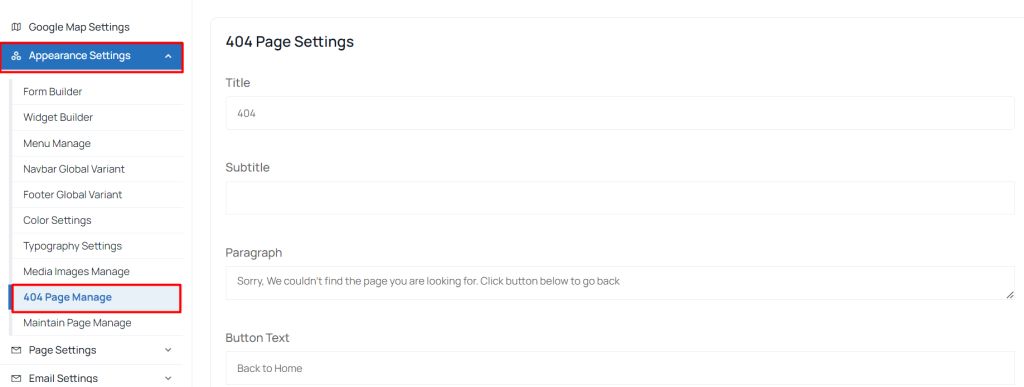 Screenshot
Color Settings
This cms comes with Color settings you can set easily, go to ” Appearance Settings> Color Settings”.
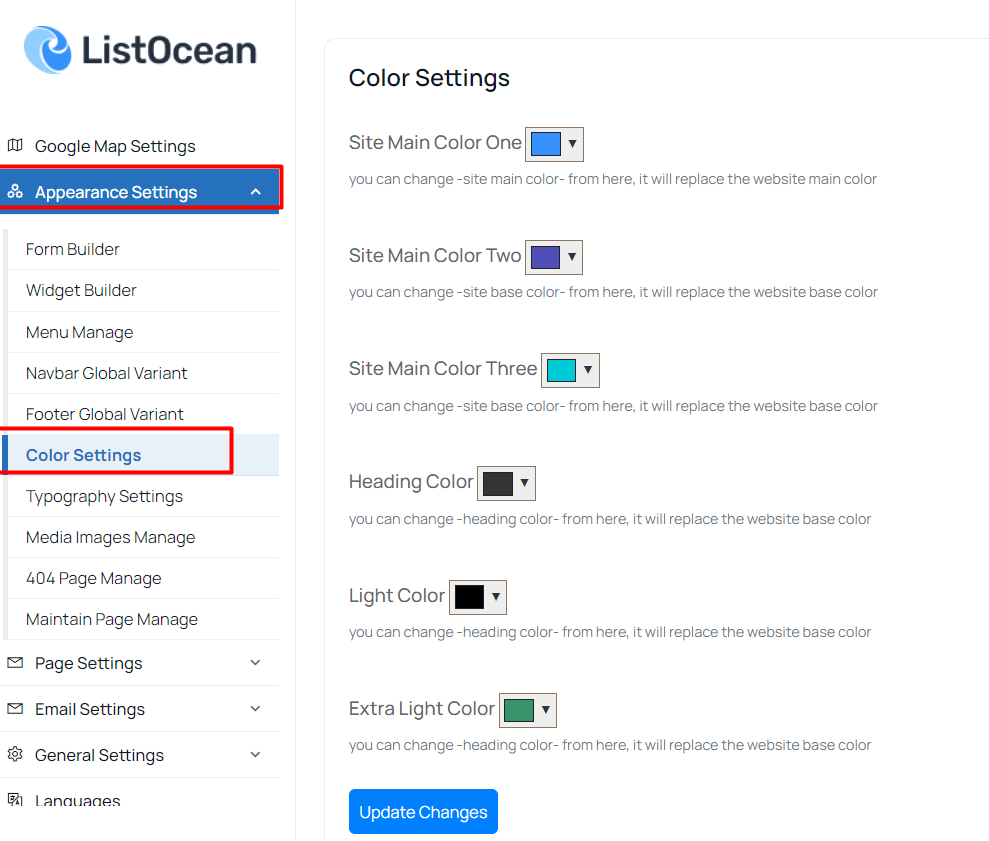 Screenshot
Footer Global Variant
This cms comes with footer global variant you can set easily, go to ” Appearance Settings> Footer Global Variant”.
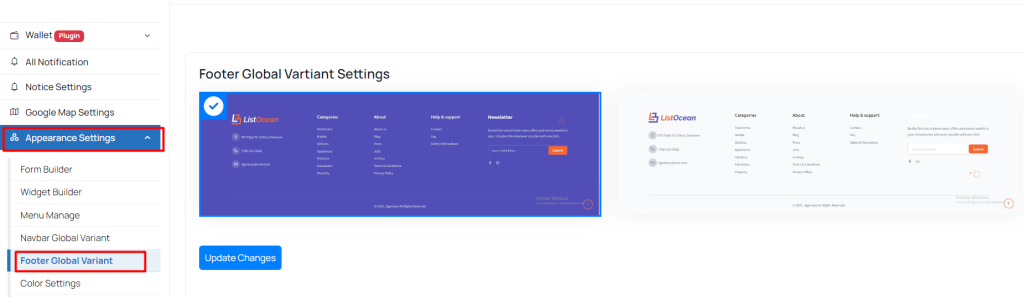 Screenshot
Form Builder
From Version 3.0.0 you can build your own custom form, for your purpose with our custom form builder. go to admin panel “Appearance Settings > Form Builder “
Create New Form
Edit Custom Form
edit custom forms
Maintain Page Manage
This cms you can maintain page manage easily, go to ” Appearance Settings> Maintain Page Manage”.
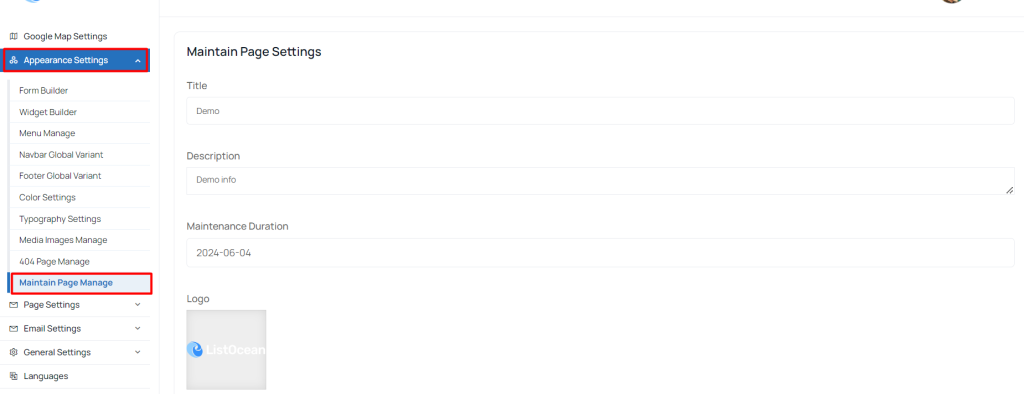 Screenshot
Media Images Manage
This cms you can Media Images manage easily, go to ” Appearance Settings> Media Images Manage”.
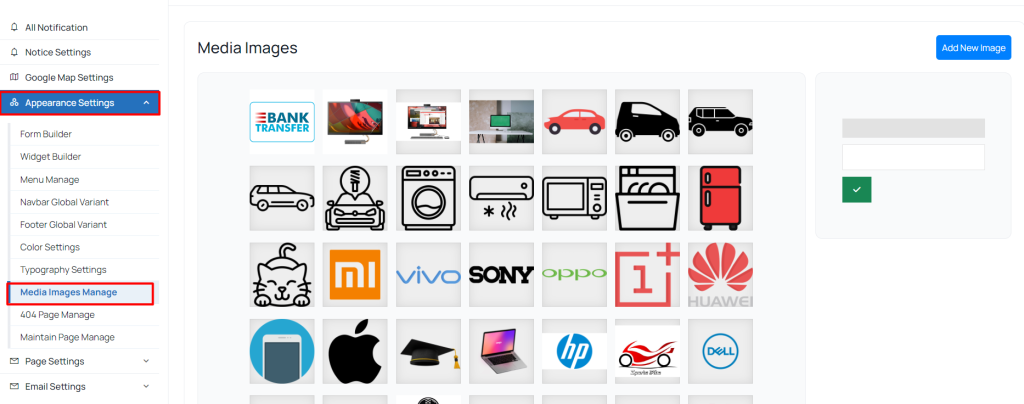 Screenshot
Menu Manage
This cms comes with Drag & Drop menu builder you can build your own menu easily, To create a new menu go to ” Appearance Settings> Menu Manage”.
Step 01: create a menu, give it a title and select language
create a menu Step 02: edit menu as per your need,
edit menu Step 03: customise me as per your need. select which page you want to add in the menu, then click on add to menu, it will be added at the bottom of the menu. now you can drag it any where your need. you can make drop download menu as well by drag menu item to right.
Add New Item To Menu
select the page you want to add in the menu, click on add to menu, it will added at the bottom of the menu.
add item to menu
Set menu order:
drag menu item to up to down and leave it where you need.
set menu order
Create Dropdown:
drag the item you want to make dropdown, drag it to right right and you will see it nested to the top item. in this way you can make dropdown menu, you can also add multiple dropdown
create dropdown
Add a custom url as a menu item
custom url in menu item
Navbar Global Variant
This cms comes with navbar global variant you can set easily, go to ” Appearance Settings> Navbar Global Variant”.
 Screenshot
Typography Settings
this script comes with option to use google fonts as you choice, it has included over 500+ google fonts, to use your chosen fonts for the cms, you have to go to “Appearance settings > typography settings”
Setup body fonts:
body font means, the font will be use all paragraph and inline element the website. when ever you select a font family you must have to set font variant for the font family, otherwise it the font change not work.
set font for body Setup Heading fonts:
you can use separate font family for heading tags example (h1-h6), or you can keep same font for body and heading, by disable heading fonts.
heading fonts selection
Widget Builder
this cms comes with drag & drop widget builder, which help you to build our own footer as you want. go to admin panel ” Appearance Settings > Widgets Builder” .
Step 01: Drag any widget to the widget area. then give all the content for widget and save it.