

To run this script you must need VPS with MySQL root access to create databases automatically for tenants. From version 1.1.2, shared hosting installation is also supported, but you must create the database manually on shared hosting.
Step 1
Download the file from CodeCanyon and extract it on your PC. You will get these folders:
- Documentation
- Installable File
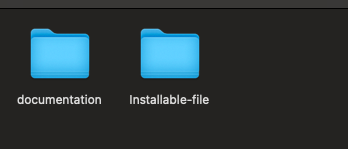 Installable folder contents
Open the installable folder. You will get a zip file. Upload it to your server using FTP or File Manager.
 Upload zip file
Step 2
- Log in to your cPanel and go to MySQL Database Wizard.
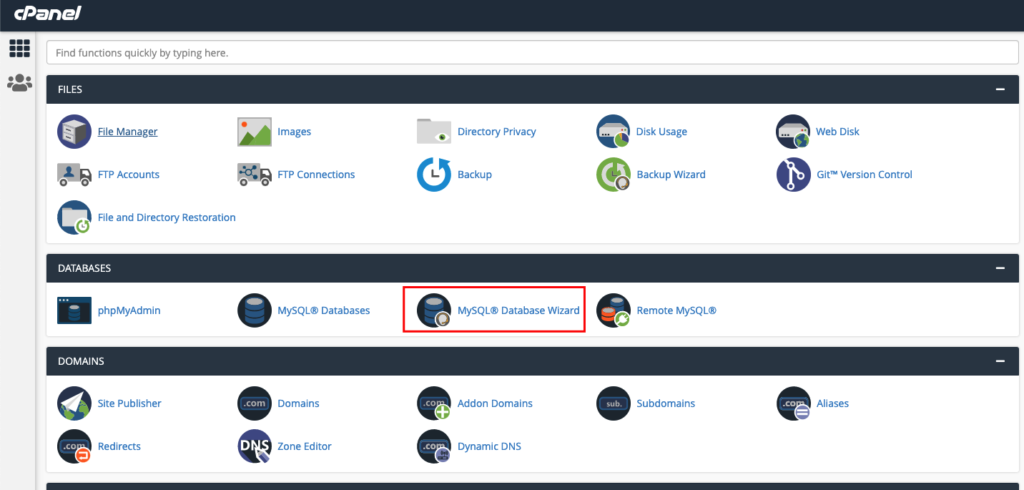 cPanel MySQL Database Wizard
- Create a database.
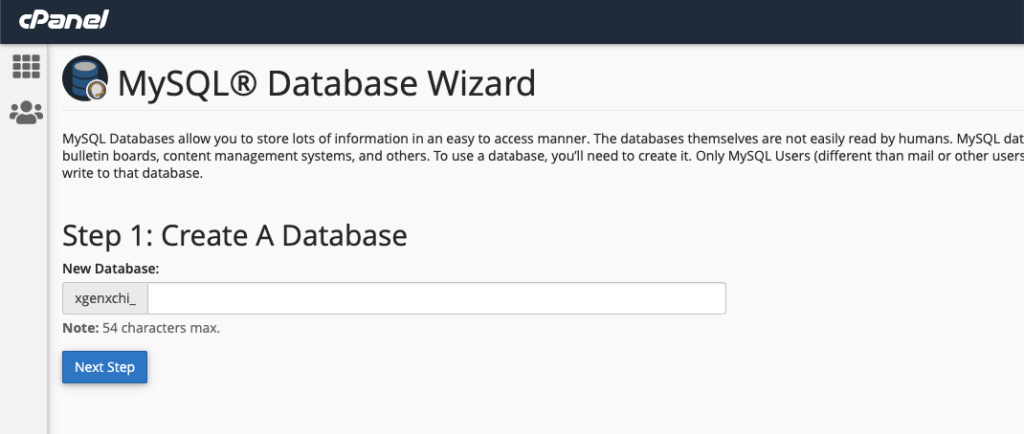 Create a database
- Create a database user. Keep the password — you will need it during installation.
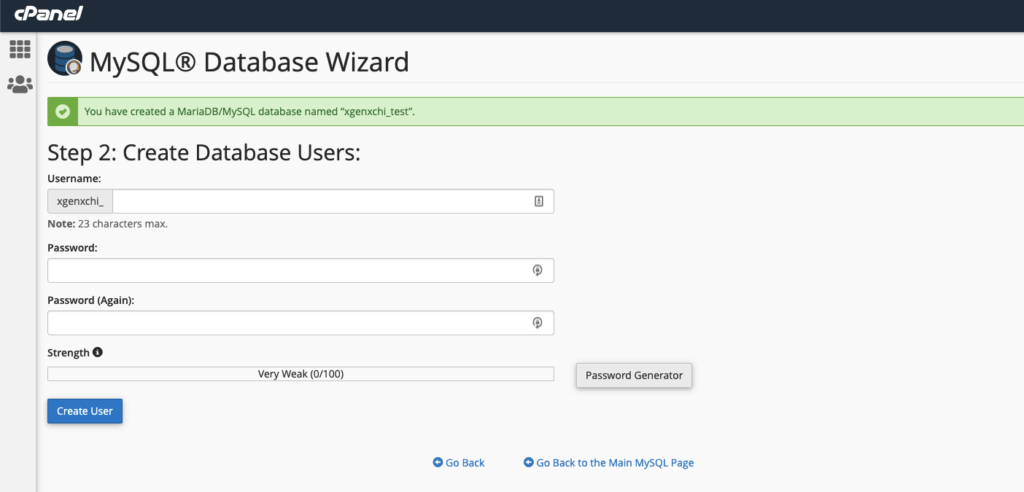 Create database user
- Add the user to the database. Check all privileges, click "Make Changes", then "Next Step".
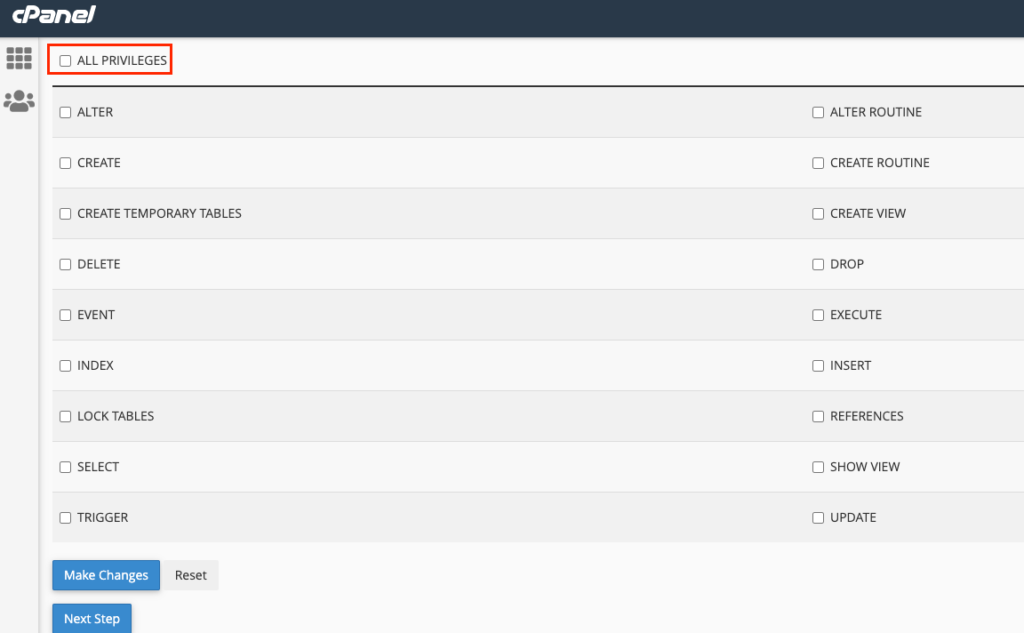 Add user to database
Keep the database name, username, and password in a note.
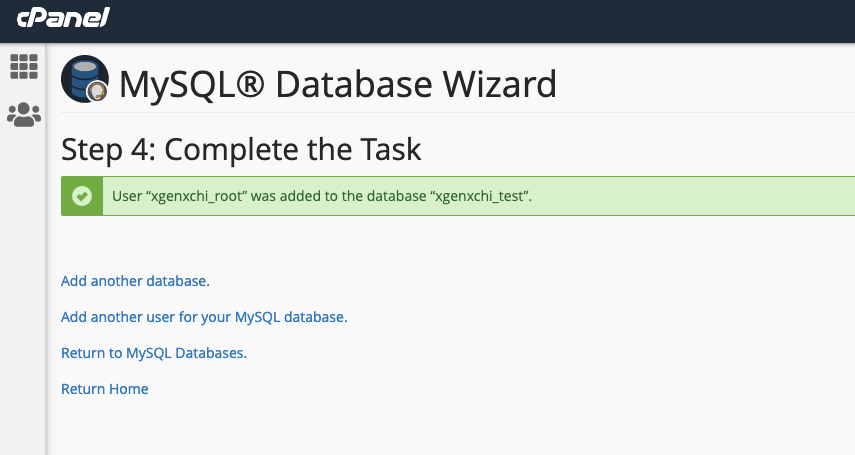 Database details saved
- Upload the installable file to the server.
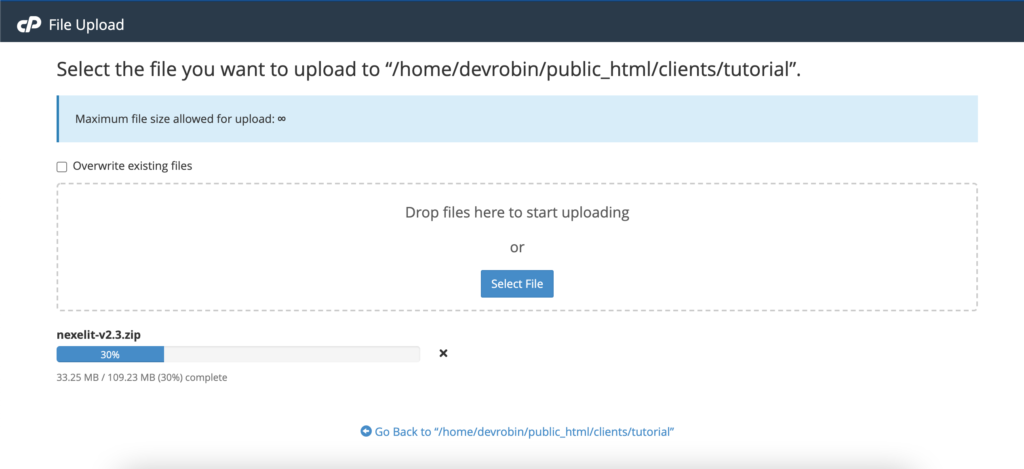 Upload to server
- Unzip the installable file on the server.
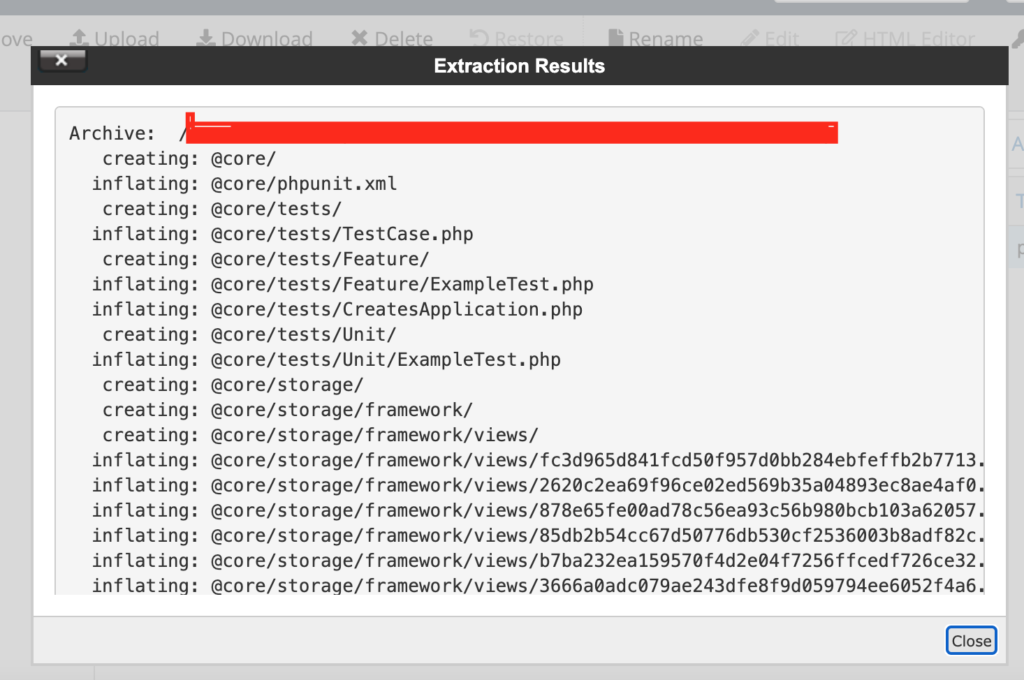 Extract zip file
- Check the permission of
index.php— make sure it is set to0755.
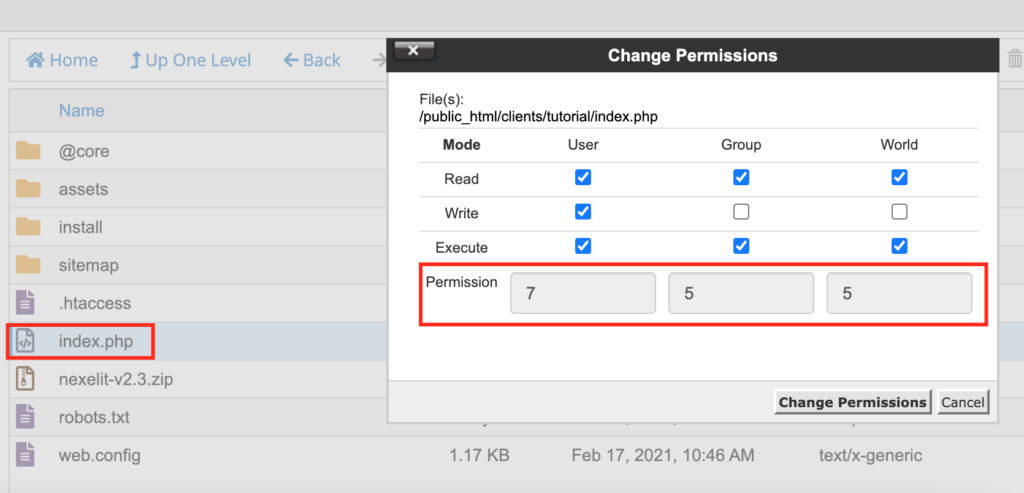 File permission 0755
If you are using Hostinger hosting, delete your root .htaccess file and create it again with the same content. Otherwise, the install page will not work properly.
- Go to
www.yoursite.comto launch the install wizard.
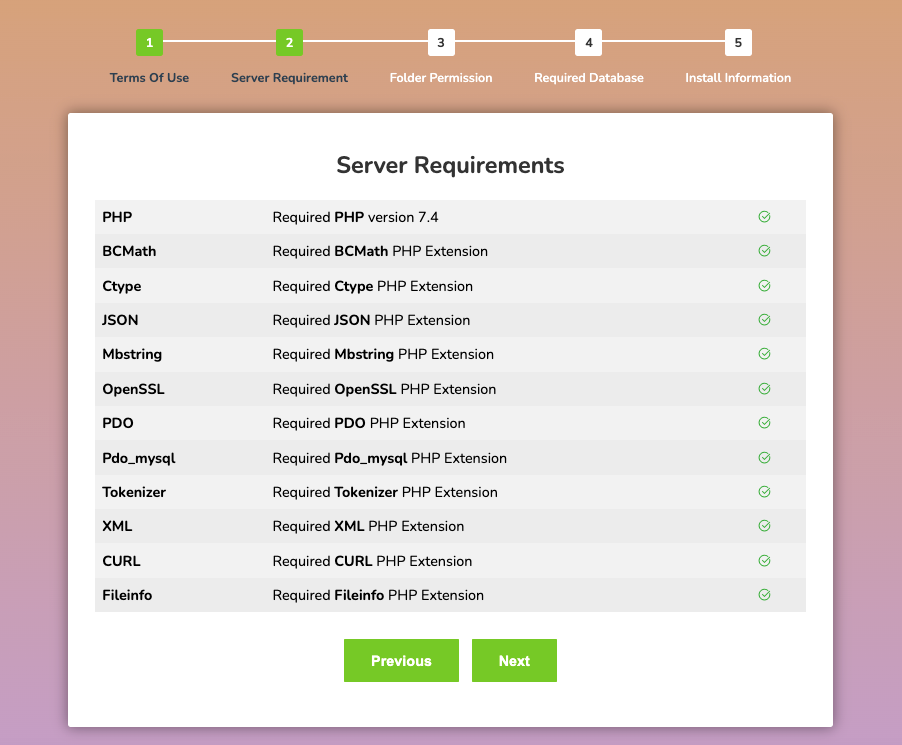 Install wizard
When you click "I Agree, Next Step", it will ask for your Envato username and purchase code.
- Envato username: your Envato user account username
- Purchase code: the license code provided when you purchased the item
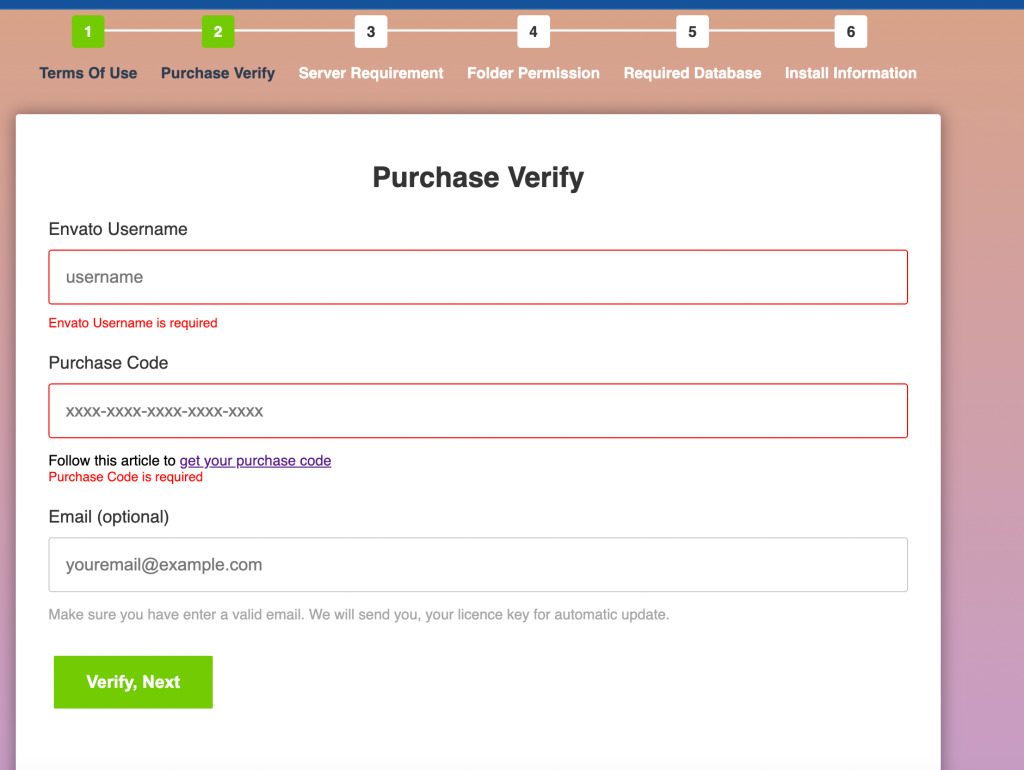 Enter purchase code
- Click "I Agree, Next Step". Make sure all icons are green. If you see red, install the required PHP extension or increase your PHP version.
PHP extension check
Click "Next".
 Folder permissions check
Ensure the following folders have 0755 permission. If you need help, contact support or your hosting provider. Click "Next".
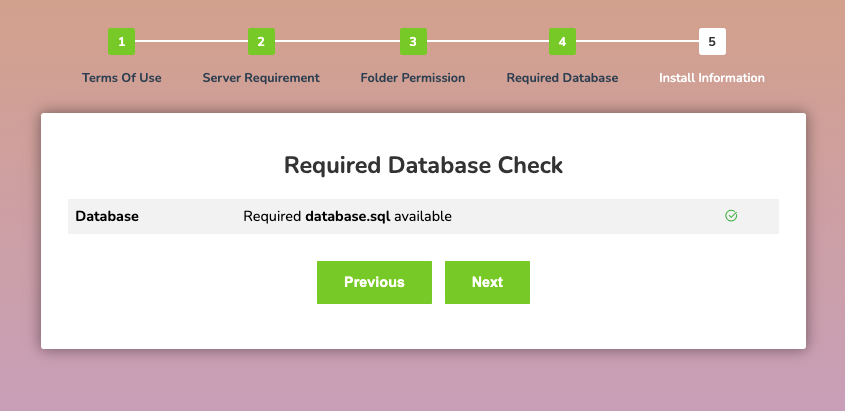 Database ready step
Enter your MySQL username as root and enter the root password. Otherwise, the system will not be able to create databases automatically for tenants.
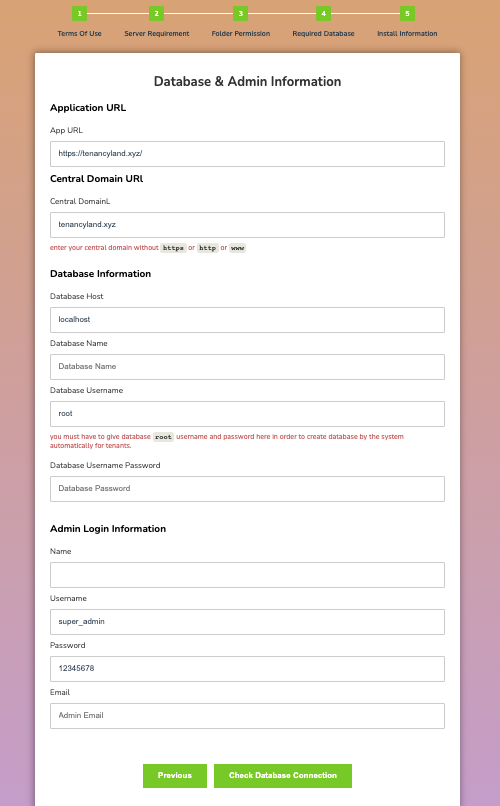 Database configuration
Fill in the database username, database name, and database password (created in steps 02–04). Once complete, click "Install Now".
Installation success
Set up a wildcard subdomain so the system can connect to subdomains automatically.
Follow this article to configure your wildcard subdomain: https://docs.xgenious.com/docs/nazmart-multi-tenancy-ecommerce-platform-saas/wildcard-subdomain-configuration/
Set up a cron job to ensure the subscription system works properly and checks tenant package expiration.
Follow this article to configure your cron job: https://docs.xgenious.com/docs/nazmart-multi-tenancy-ecommerce-platform-saas/cron-job/
If you see the success screen, your installation is complete. If you face any issues, contact support.