

Nazmart allows you to automate the database creation process for each newly registered store by integrating your cPanel API. This step-by-step guide will walk you through generating a cPanel API token and configuring it within the Nazmart admin panel.
Step 1: Create a cPanel API Token
-
Log in to your cPanel account.
-
In the top search bar, type
manage API. -
From the list, click on Manage API Tokens under the Tools section.
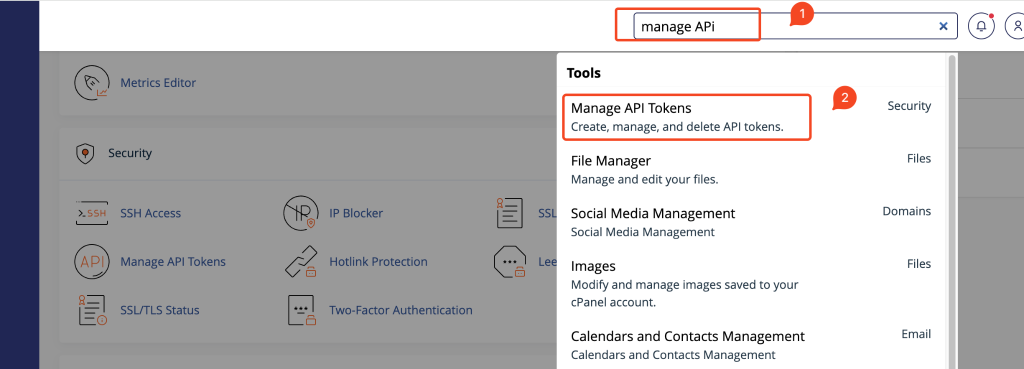 Screenshot
- On the API Tokens page, click the Create button.
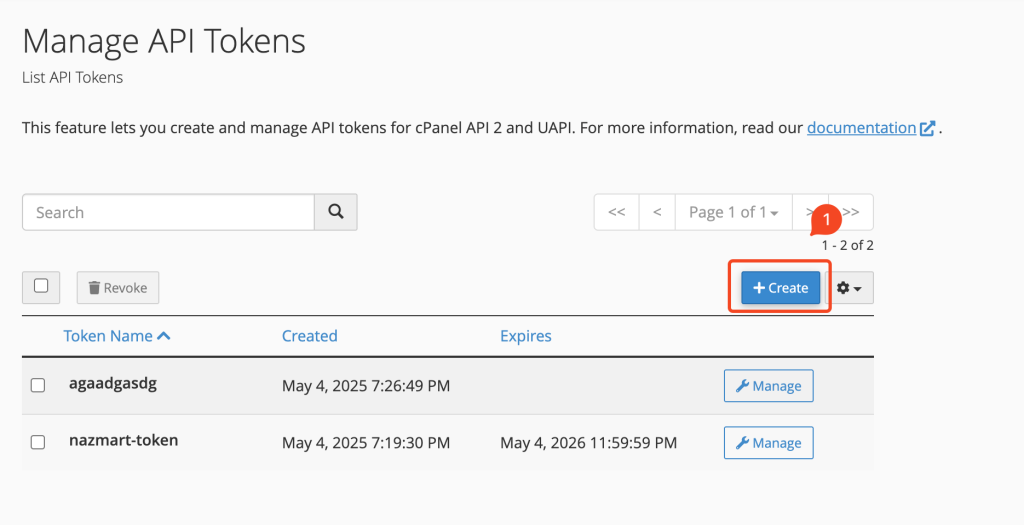 Screenshot
-
Enter a token name (e.g.,
nazmart-token) in the field labeled “API Token Name”. -
Choose whether the token will expire:
Select The API Token will not expire, or
-
Choose Specify an expiration date if needed.
-
Click Create to generate the token.
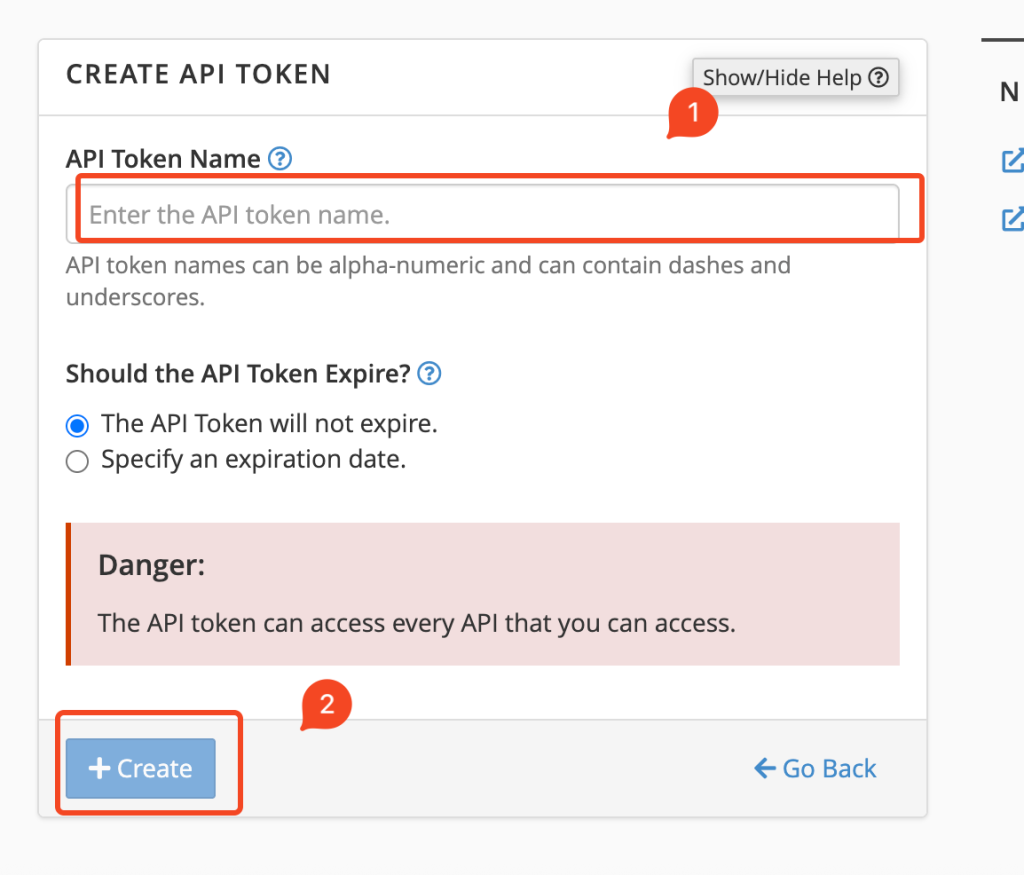 Screenshot
- Copy and securely store the generated token. You will not be able to view it again after this step.
Step 2: Configure cPanel API Token in Nazmart Admin Panel
-
Log in to your Nazmart Super Admin Panel.
-
Navigate to the Cpanel Automation section from the left sidebar.
-
Set the Enable or Disable option to YES.
-
Fill in the required fields:
Cpanel URL: For example, https://yourdomain.com:2083
-
Cpanel Username: Your cPanel account username
-
Cpanel Token: Paste the token generated in Step 1
-
Click Save Changes to apply the configuration.
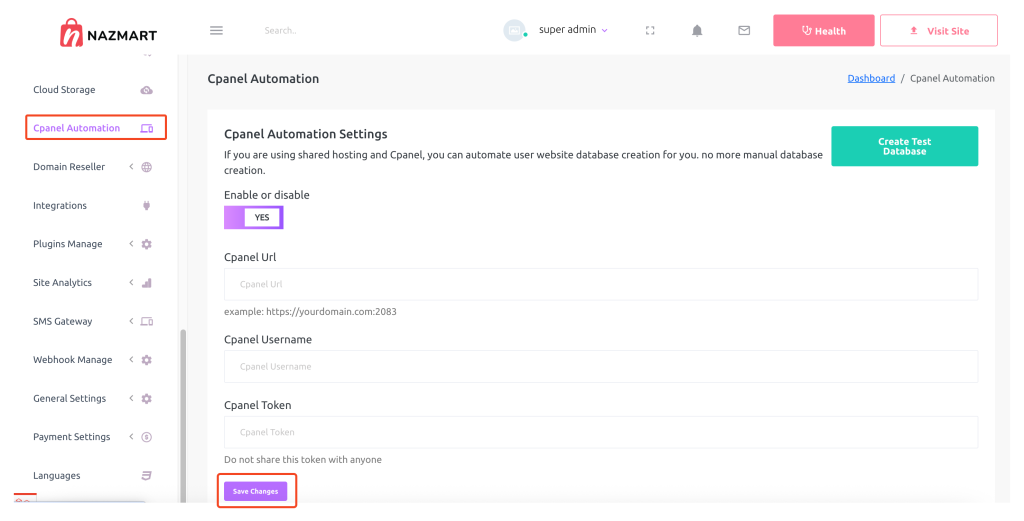 Screenshot
Step 3: Verify with Test Database Creation
After saving the settings:
-
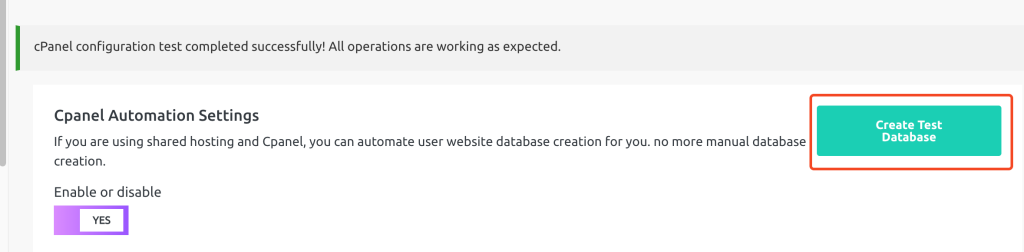
Click the Create Test Database button available in the Cpanel Automation section.
-
This will trigger a test request to cPanel to ensure that the integration is working correctly.
 Screenshot
Notes
-
Your hosting provider must support cPanel API functionality.
-
The token should have privileges to create databases and users.
-
Ensure the correct port (
2083) is used in the cPanel URL. -
Never share your token. Treat it as a secure credential.
With this configuration, Nazmart will handle database creation automatically for each new store without manual involvement.