

⚠️
To Run This Script You Must Need VPS, Need Mysql Root Access, For Create Database Automatically for Tenants, From version 1.0.6, it now support shared hosting installation as well, but in shared hosting you have to create database manually..
Step : 01
Download file from codecanyon and extract in your pc and you will get 03 folder. Listed below
-
Documentation
-
Installable File
-
Update
folder structure after download the file Now Open installable folder, you will get a zip file. you have to upload it to your server using ftp or file manager.
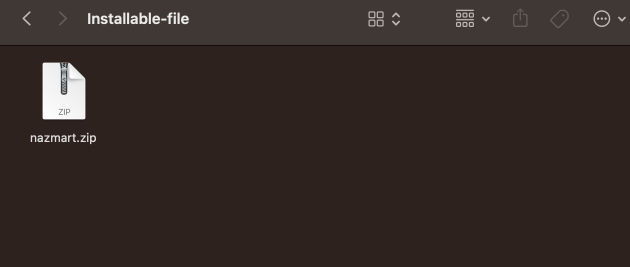 Screenshot
Step : 02
- Now login to you cpanel and go to > MySQL® Database Wizard
cpanel interface 02. create database
create a database, using mysql data wizard 03. Create Database Users, do not forget to keep you database user password, we will need this while we run installation wizard.
create database user, using mysql database wizard 04: Add user to the database. check all privileges and click make changes. then click “Next Step”
database create is done, keep database user, database name, database password in a note.
- Upload installable file to server
upload installable file upload to server 06. unzip the installable file to server
extract zip file in server 07. Check Permission of index.php file, make sure it's file permission to 0755
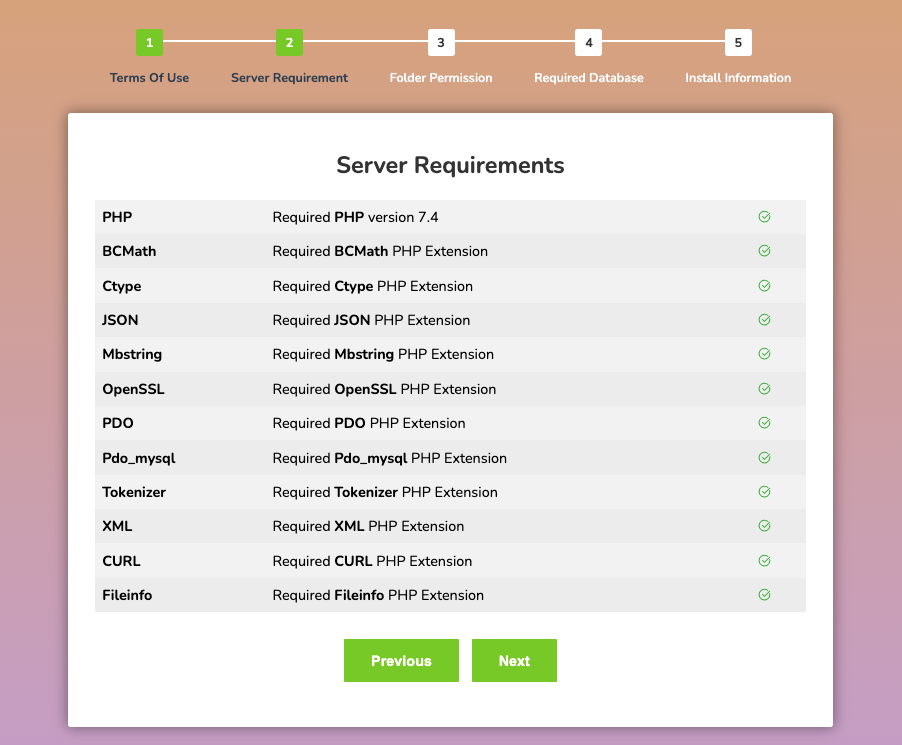
change permission. 08. Go To the link to install the script www.yoursite.com, you will see install wizard like below picture
 Screenshot
- now click on “i agree, next step” button
Screenshot
make sure you have all the icon green, if you see anything in red color, then you have to install that php extension or have to increase you php version. now click next
 Screenshot
make sure you have give folder permission to those folder 0755. if you are not familiar with permission you can contact our support or your hosting provider. now click next
 Screenshot
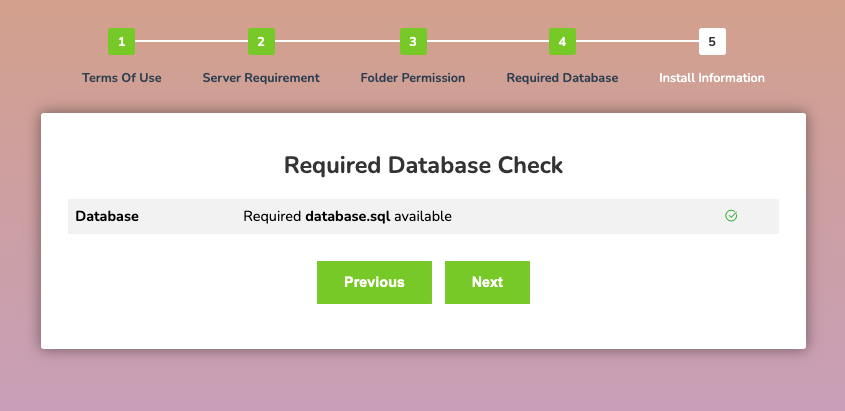
this step make sure you have database required for the installation, click next
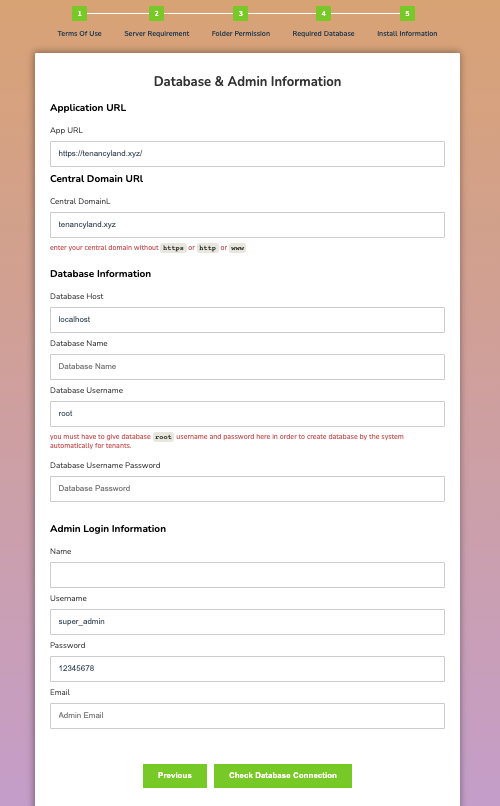
NT: Enter your Mysql user name as root and enter root password, otherwise the system will not able to create database automatically for tanants,
 Screenshot
fill all the field with database username, database name, database username password. which we have create in step 02,03,04,05. once all input data is complete click on install now button.
Screenshot
NT: Now you have to setup wildcard for subdomain. so that system can connect with subdomain automatically. here is few article that help you to setup wildcard subdomain
-
Setup Wildcard Subdomain in DirectAdmin
-
Setup Wildcard Subdomain in Cpanel
-
Setup Wildcard Subdomain in AaPanel
-
Setup Wildcard Subdomain in Plesk
-
Setup Wildcard Subdomain in WebControlPanel
-
Setup WildCard Subdomain in DigitalOcean
NT: You have to setup cron job to make sure subscription system work properly and check tenant package expiration properly
-
setup cron job for Cpanel based hosting
-
setup cron job for Direct admin
-
setup cron job for Plesk
-
setup cron job for DigitalOcean
if you see this screen, that mean your installation process is done. if you face any issue with installation please contact our support.