

Cloud Storage
Jump to: AWS S3 Bucket Configure · CloudFlare R2 Configure · How to install cloud storage plugin · Wasabi Cloud Configure
AWS S3 Bucket Configure
To use CloudFlare R2 Storage , register to Aws S3 and follow this documentation to get api details
Go to admin panel > CloudStorage, select AWS S3 as your default storage driver, and add your API key details here. After saving the api key, click on sync local file to cloud to sync your existing local file to Cloud Storage
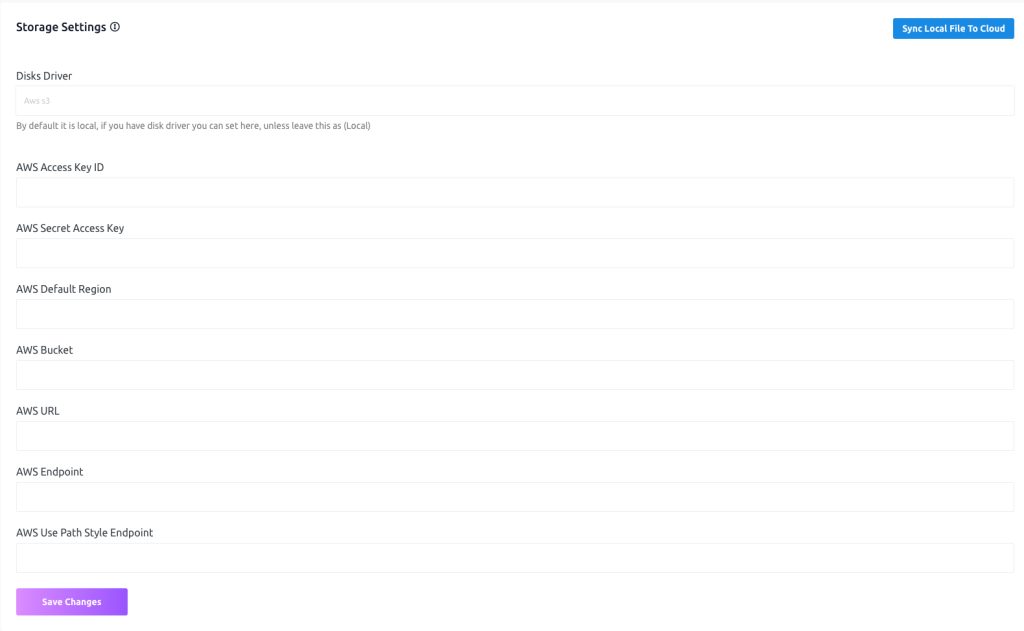 Screenshot
S3 configuration reference
Read details: https://laravel-news.com/using-aws-s3-for-laravel-storage
CloudFlare R2 Configure
To use CloudFlare R2 Storage , register to cloudflare and follow this documentation to get api details
Go to admin panel > CloudStorage select cloudflare as your default storage driver, add your api key details here, after save the api key, click on sync local file to cloud to sync your existing local file to Cloud Storage
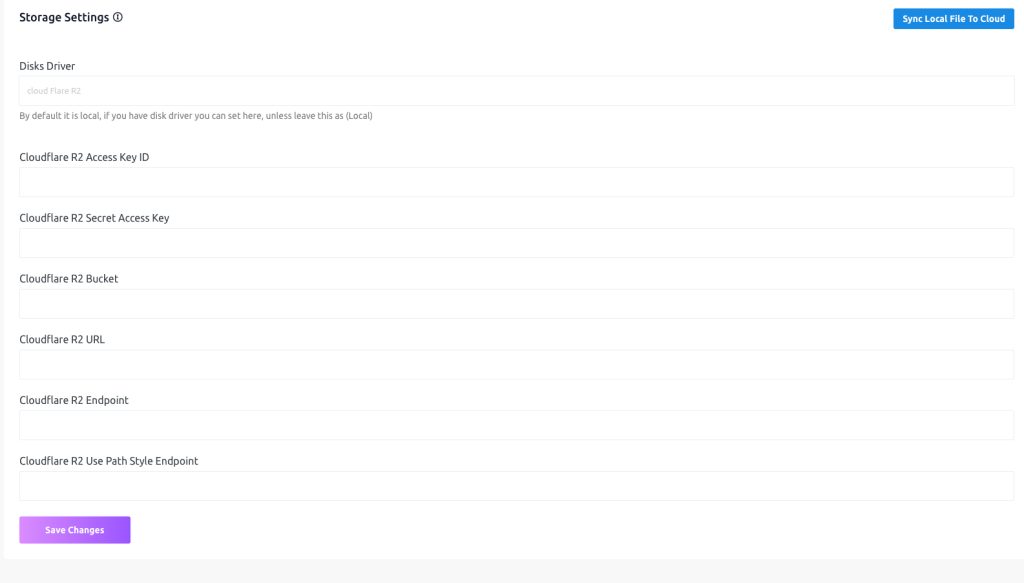 Screenshot
How to install cloud storage plugin
Admin can install and manage external plugins in Maltisaas. To use this feature go to “Plugin Manager > Add New Plugin”
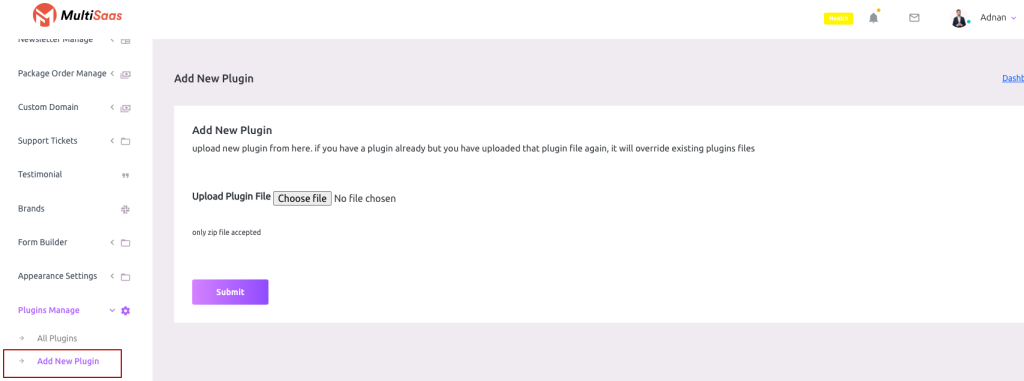 Screenshot
Click on the Choose File and select your plugin zip file then hit the submit button.Wait for some moments and the plugin will be installed in your script (If the plugin is valid)
Plugin List
To get the plugin list go to “Plugin Manager > All Plugins”
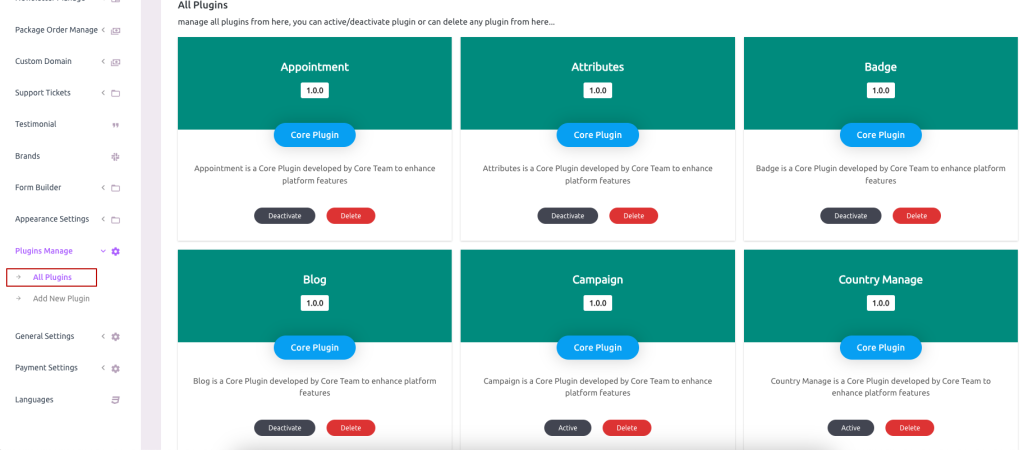 Screenshot
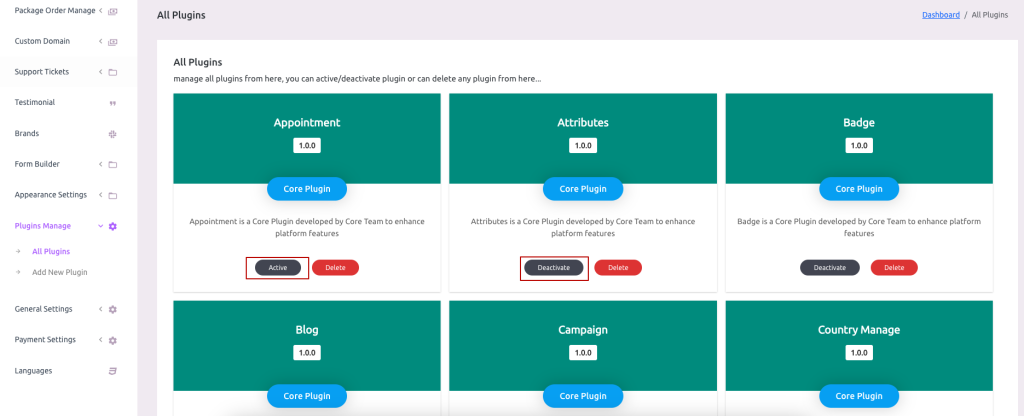
Plugin Active and Deactivate
 Screenshot
Admin can also delete any plugin from the site script (The plugin will be deleted permanently and will not be restorable until reinstalled again),
Wasabi Cloud Configure
To use CloudFlare R2 Storage , register to Wasabi and follow this documentation to get api details
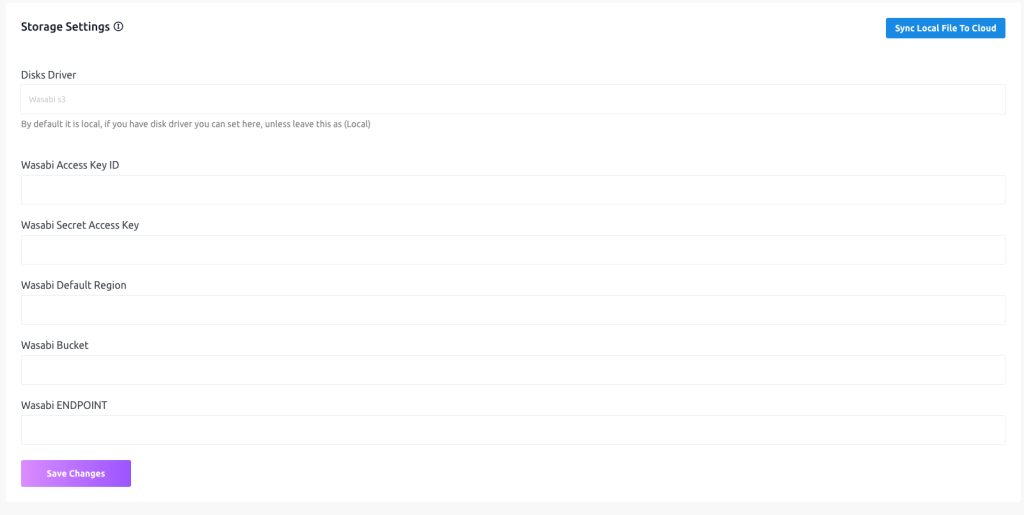
Go to admin panel > CloudStorage, select Wasabi as your default storage driver, and add your api key details here, After saving the api key, click on sync local file to cloud to sync your existing local file to Cloud Storage
 Screenshot