

Hotel Module
Jump to: How to install hotel plugin and theme · How to Create a Room Type · How to add a property · How to add a Room · How to set inventory · refund and cancellation · How to add or update a new theme
How to install hotel plugin and theme
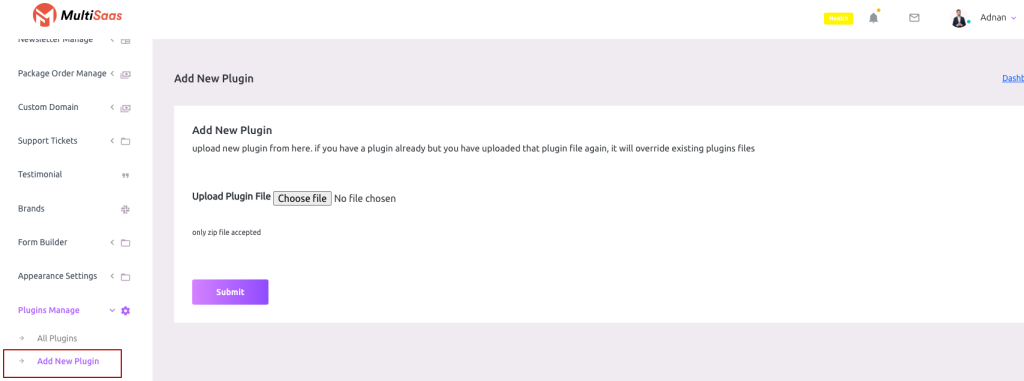
Admin can install and manage external plugins in Maltisaas. To use this feature go to “Plugin Manager > Add New Plugin”
 Screenshot
Click on the Choose File and select your plugin zip file then hit the submit button.Wait for some moments and the plugin will be installed in your script (If the plugin is valid)
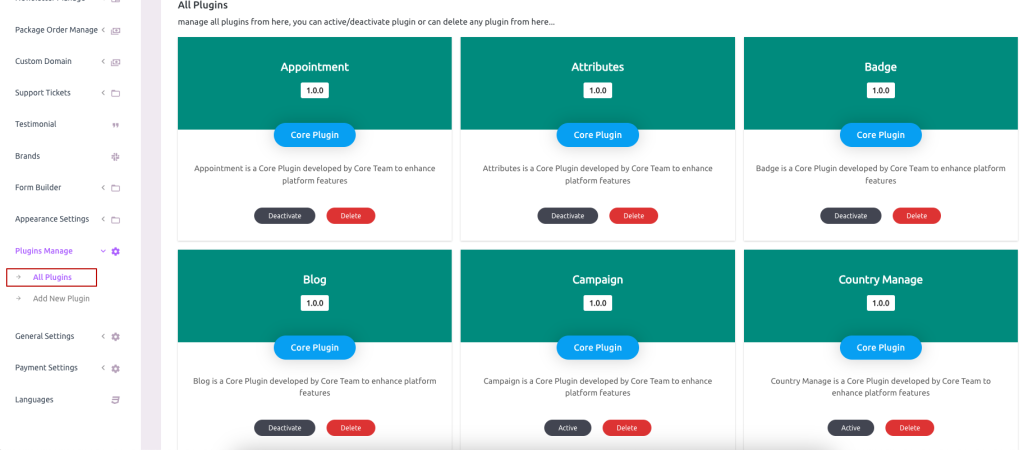
Plugin List
To get the plugin list go to “Plugin Manager > All Plugins”
 Screenshot
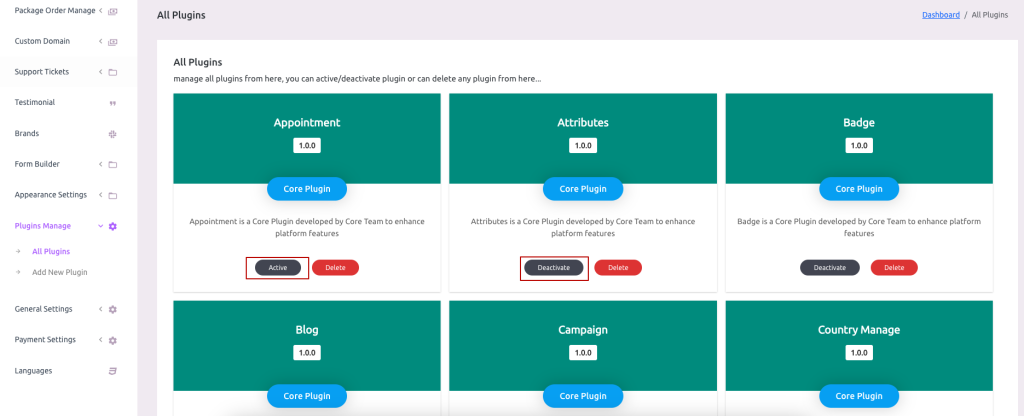
Plugin Active and Deactivate
 Screenshot
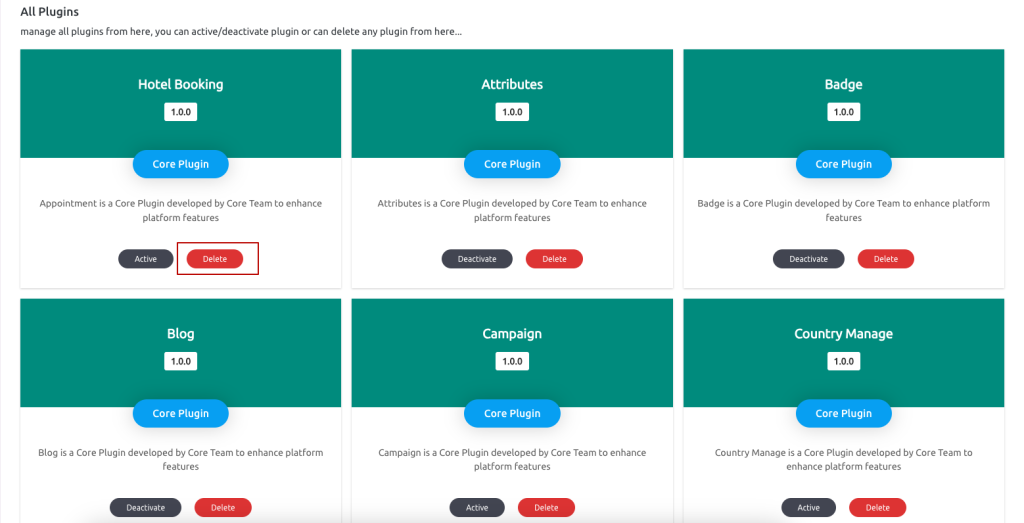
Admin can also delete any plugin from the site script (The plugin will be deleted permanently and will not be restorable until reinstalled again),
 Screenshot
Theme Active
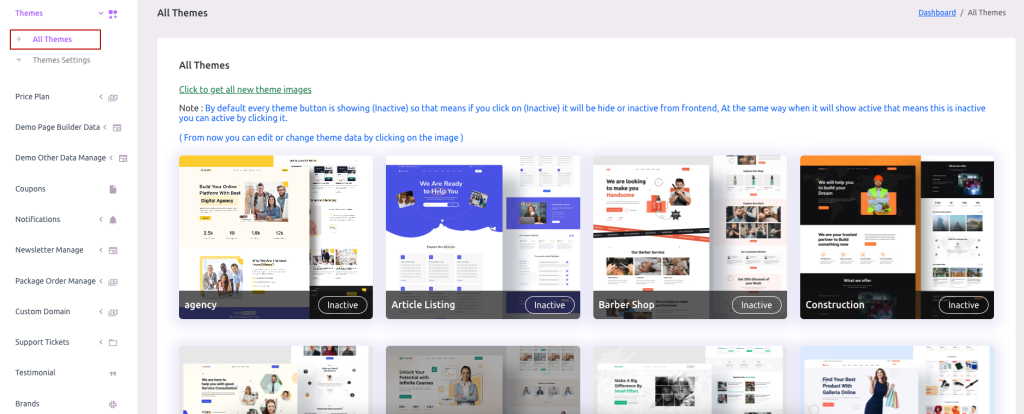
After successfully installing the hotel booking plugin and activating Admin has to set the hotel booking theme available.
To get the All Themes list go to “Themes > All Themes”
 Screenshot
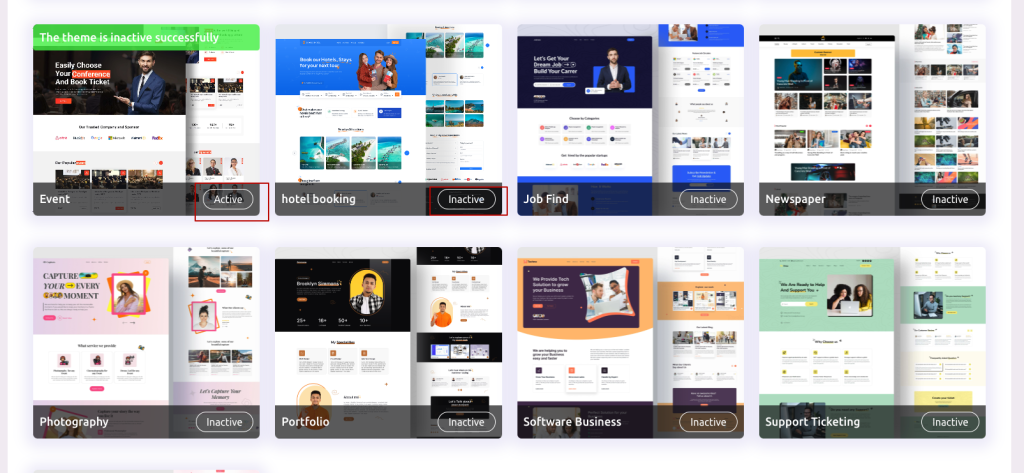
Theme active or inactive
 Screenshot
Note: If Admin inactive theme, Theme will not be visible on the main home page.
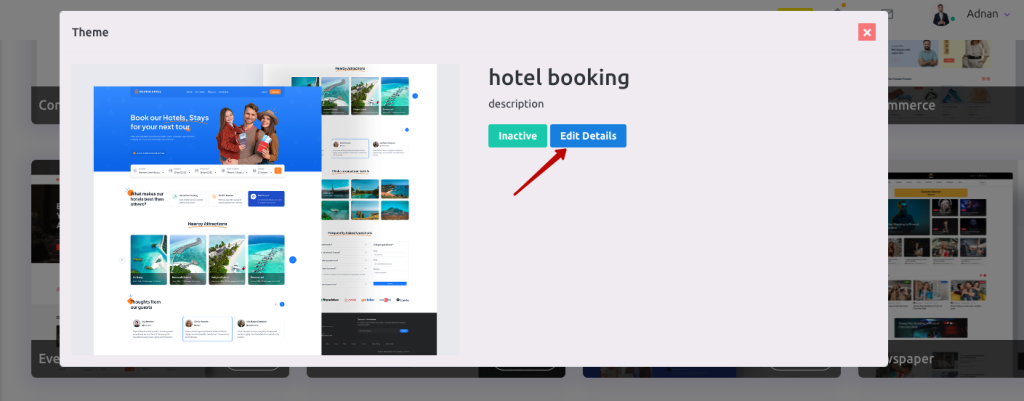
Theme demo data
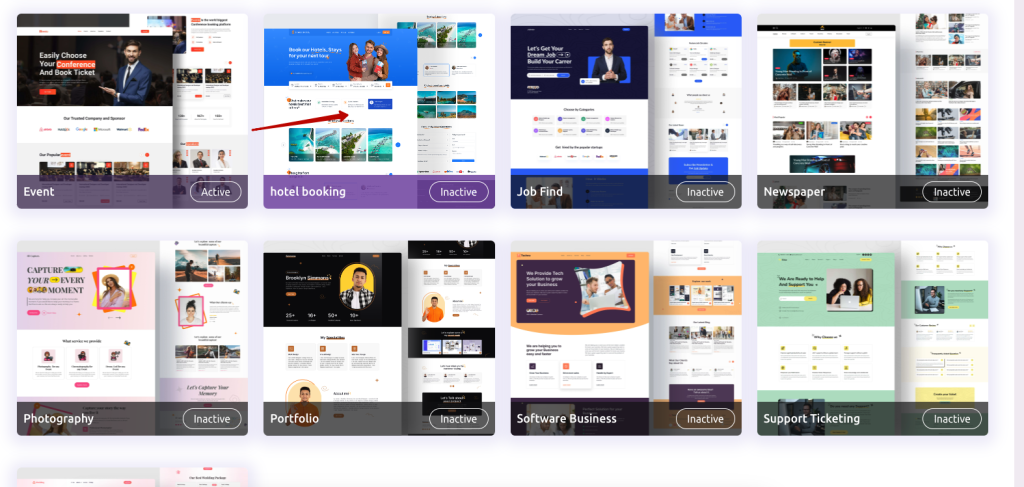
First, need to Click on any of the themes for set demo data.
 Screenshot
 Screenshot
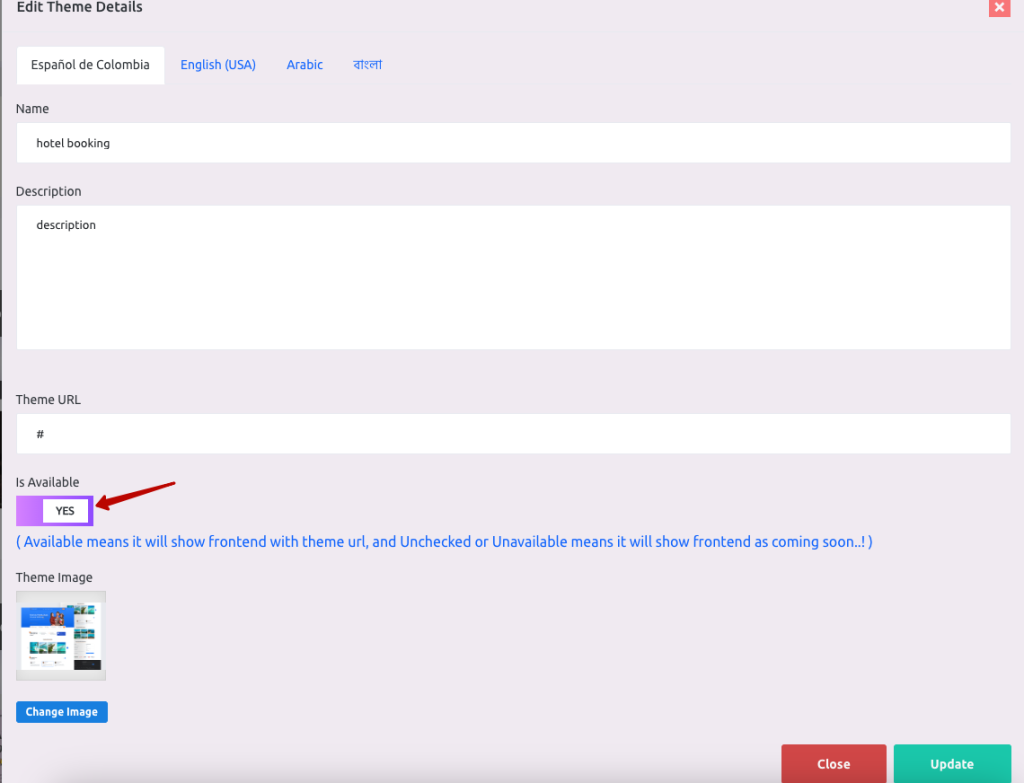
is Available
 Screenshot
Note: If in theme details admin not set is Available yes Those themes will not be displayed on Price plan theme list dropdown and tenant create theme list dropdown
How to Create a Room Type
Before creating a Room Type you have to create Amenity and Hotel.
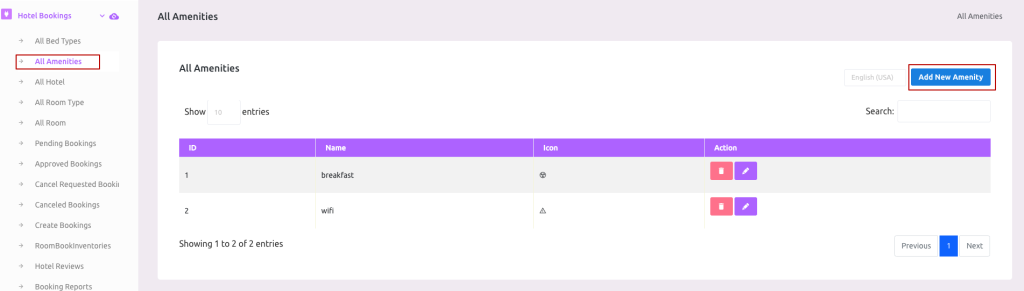
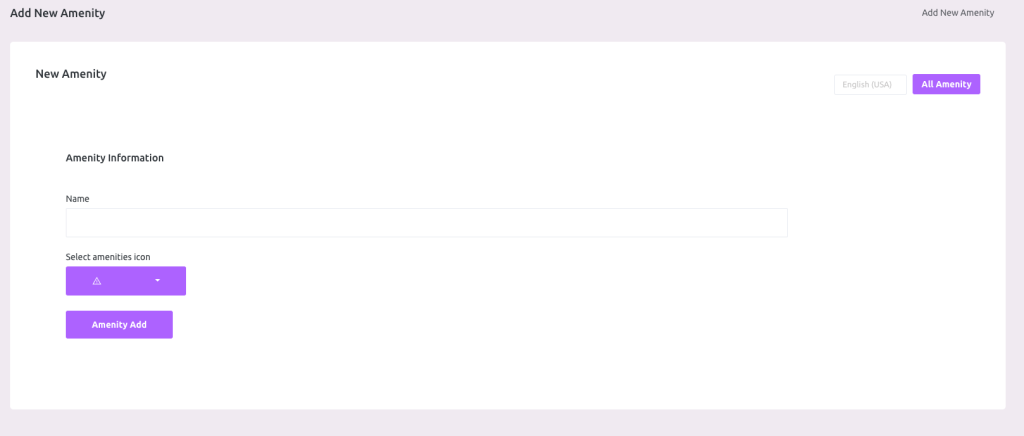
Create Amenity
To get the Amenity list go to “Hotel Bookings > All Amenities”
 Screenshot
 Screenshot
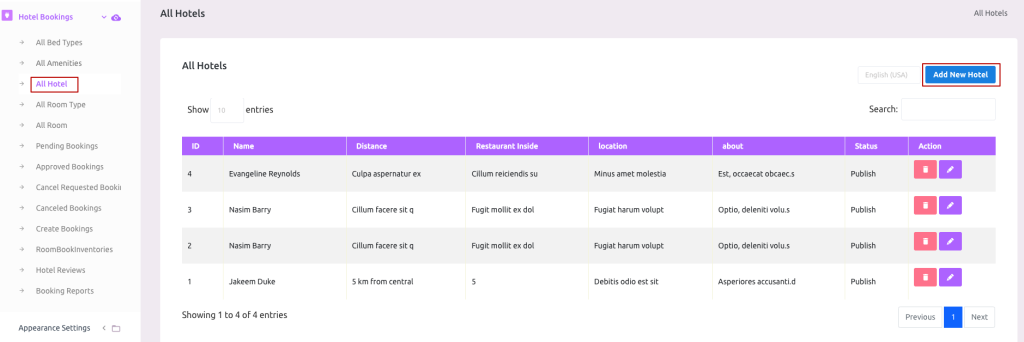
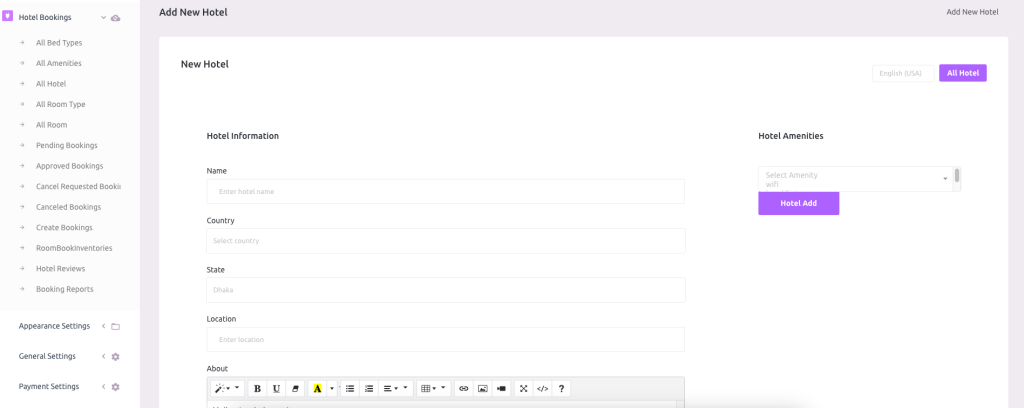
Create Hotel
To get the All Hotel list go to “Hotel Bookings > All Hotels”
 Screenshot
 Screenshot
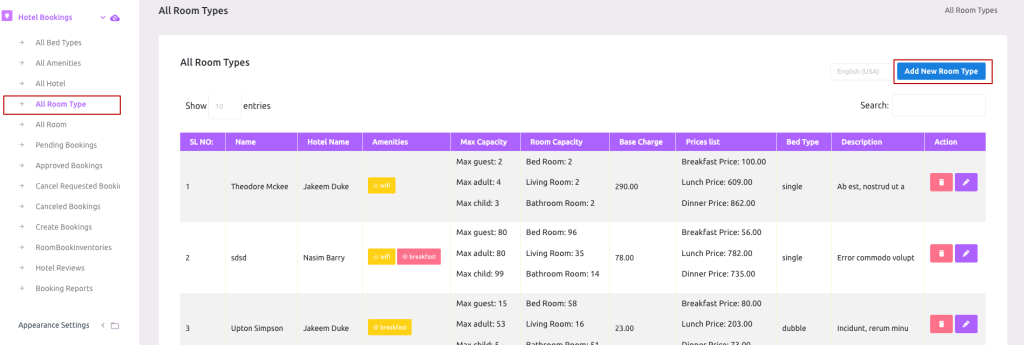
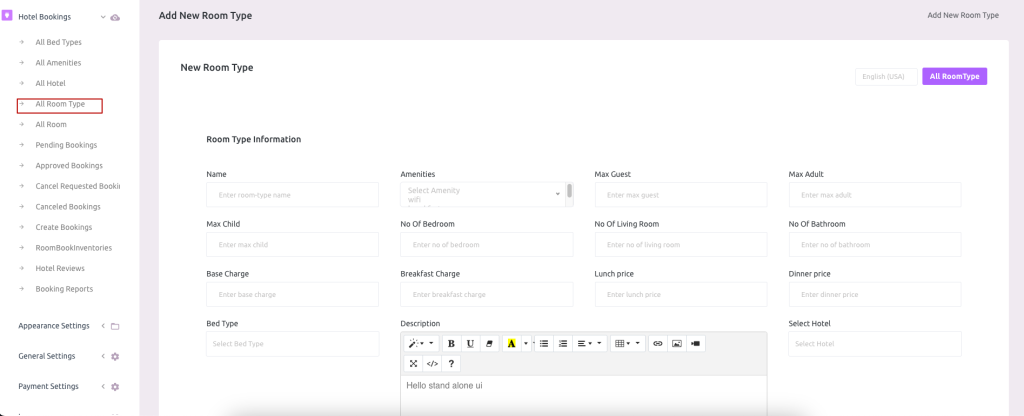
Now create Room Type
To get the All Room Type list go to “Hotel Bookings > All Room Type”
 Screenshot
 Screenshot
How to add a property
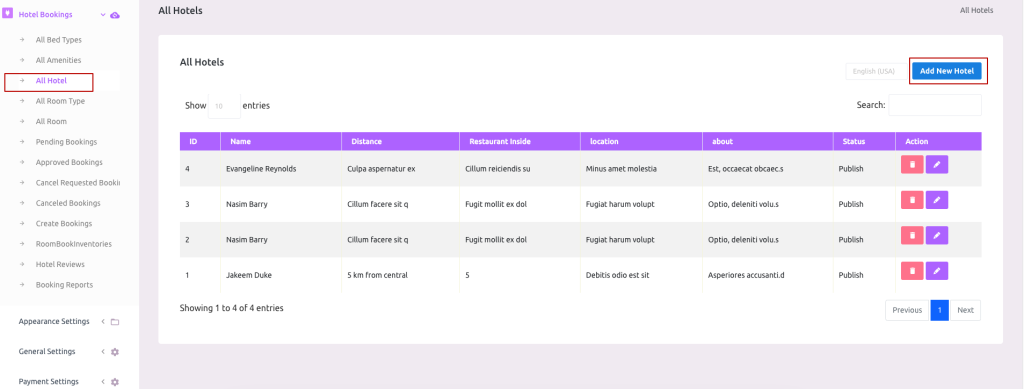
To get the All Room list go to “Hotel Bookings > All Hotel”
 Screenshot
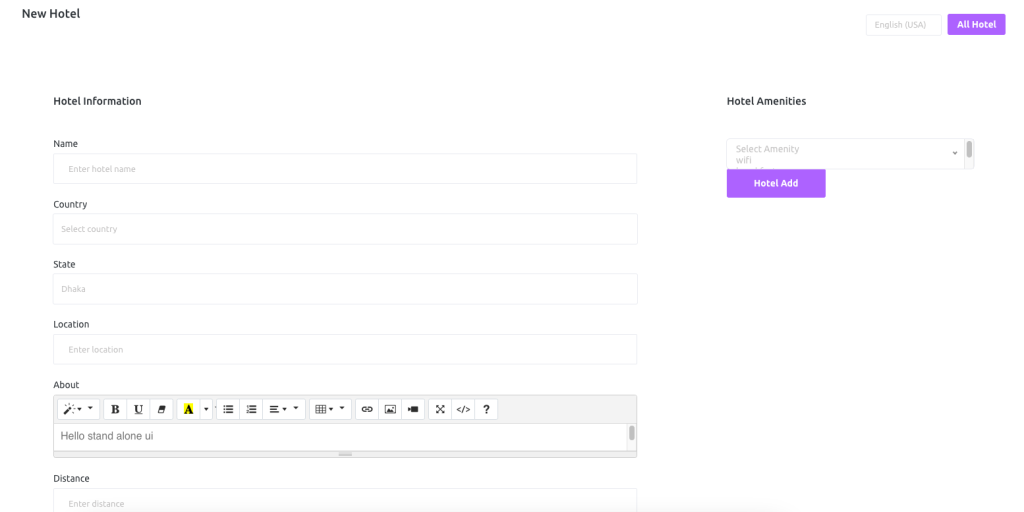
Click Add New Hotel to get the hotel create page.
Add Hotel
 Screenshot
How to add a Room
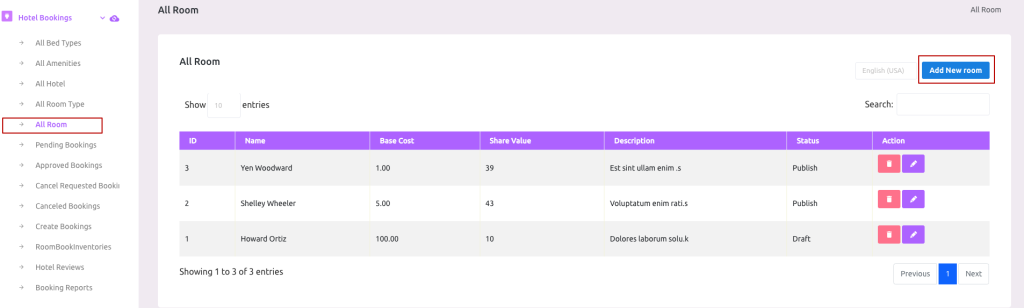
To get the All Room list go to “Hotel Bookings > All Rooms”
 Screenshot
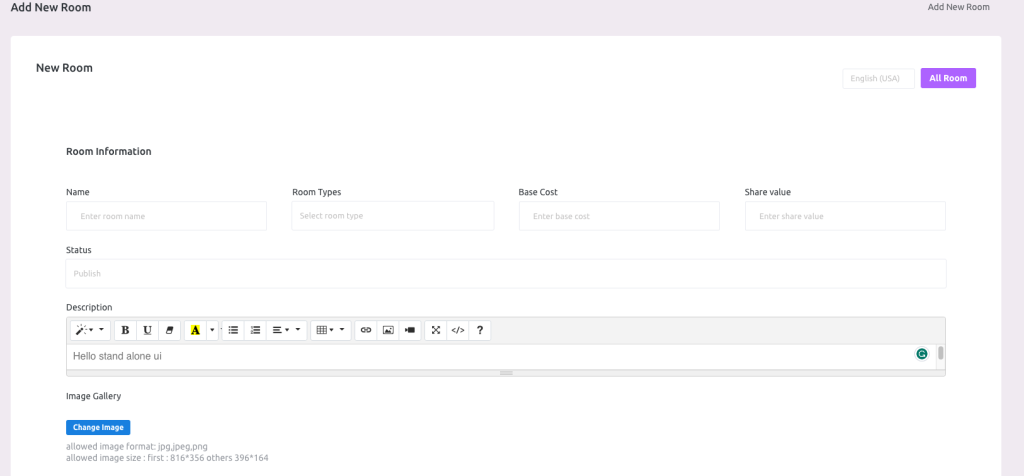
Add Room
 Screenshot
How to set inventory
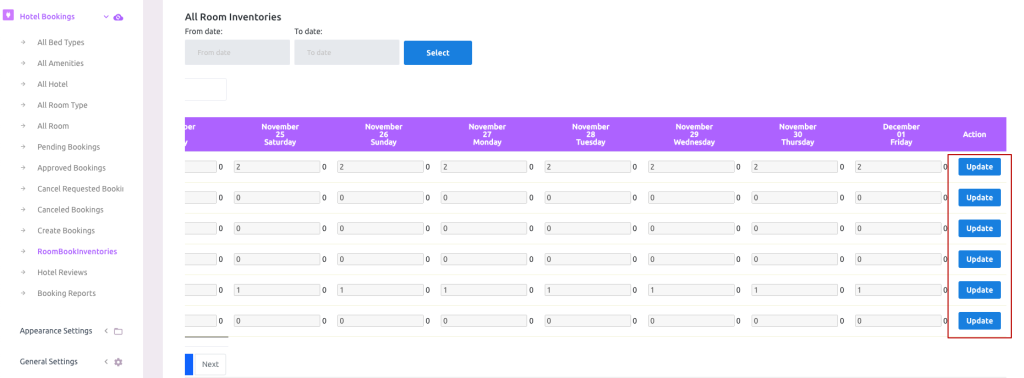
Here in RoomBookingInventory list are room types. Now you have to update all inventory, follow bellow image image
Update Inventory
 Screenshot
Note: -> If you do not update any room types inventory, those rooms will not displayed in the client area.-> All room inventory will be available for the next 15 days from the current date.-> You have to update inventory after every 15 days again.
refund and cancellation
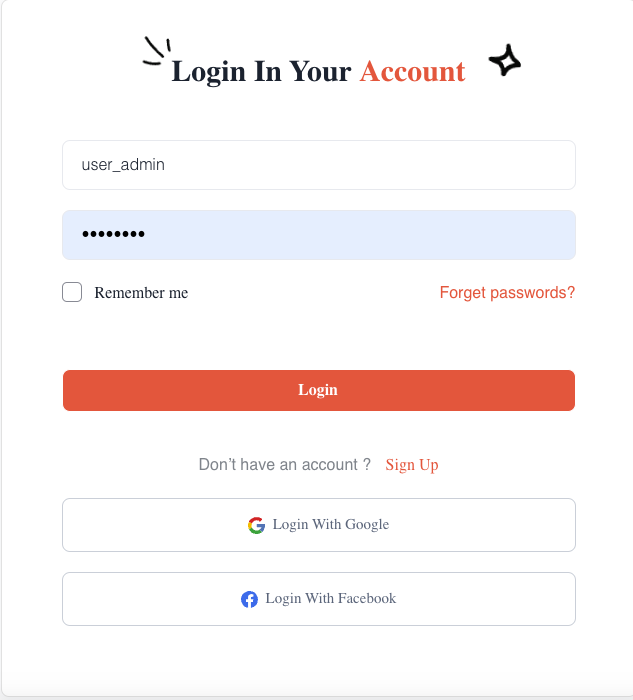
You have to log in or register to access your user dashboard
Log in or Register
 Screenshot
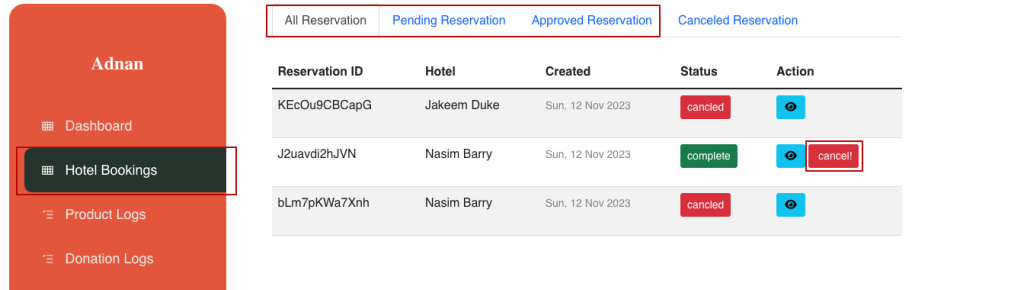
Cancel Reservation
 Screenshot
You can cancel your reservation by clicking cancel!
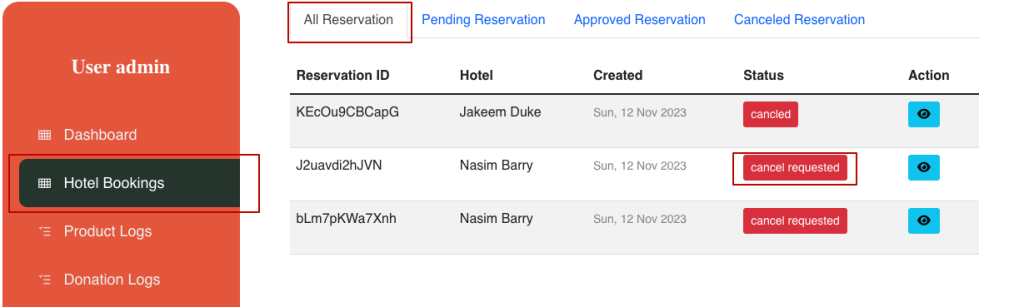 Screenshot
Here you can see after the cancel request status is changed.
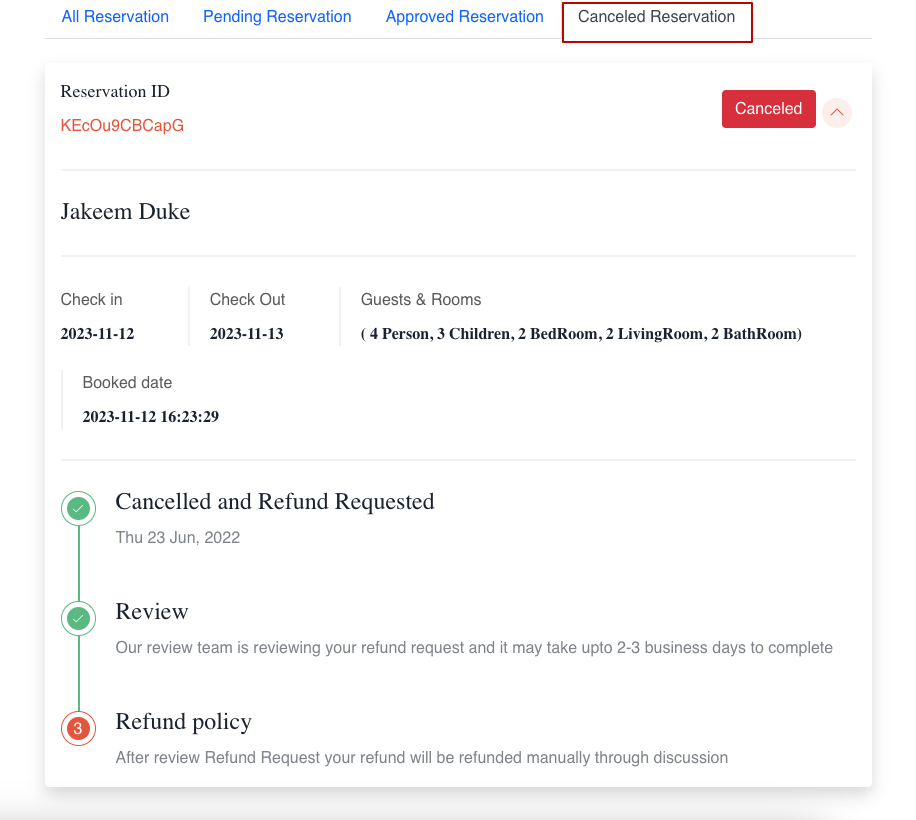
Canceled Reservation List
 Screenshot
Note: If you cancel any reservation admin will review your cancelation if the cancellation is approved you can see your canceled reservations list.
How to add or update a new theme
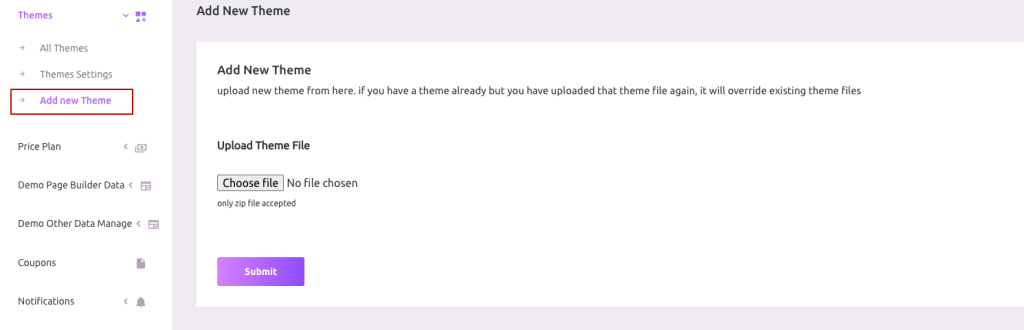
Admin can add and manage external themes in Maltisaas. To use this feature go to “Themes > Add New Theme”
 Screenshot
Click on the Choose File and select your theme zip file then hit the submit button.Wait for some moments and the theme will be installed in your script (If the theme is valid)
All Themes
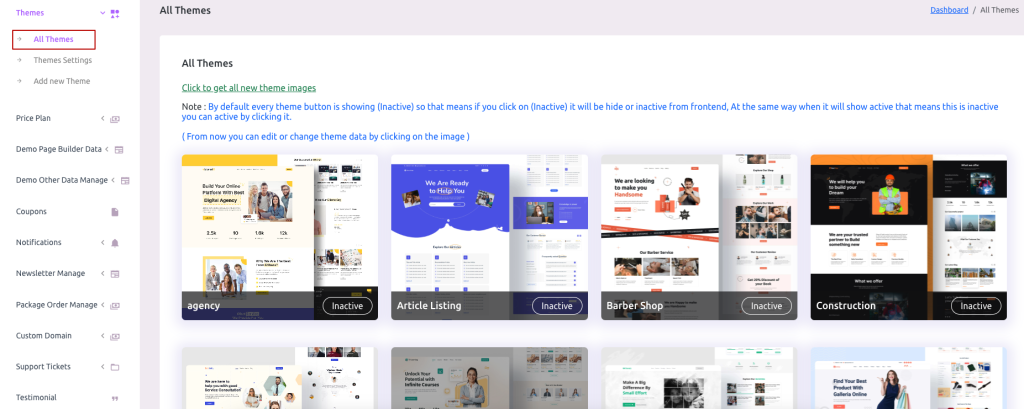
To get the All Themes list go to “Themes > All Themes”
 Screenshot
Here new theme will be visible in all theme lists. Now admin can active/inactive and manage theme demo data from here.