

Restaurant
Jump to: How to Install Restaurant plugin and theme · How to Create Menu Category · How to Create Menu Sub-Category · How to Create Menu Attributes · How to Create Tax · How to Create Food Menu · How to Create Pickup Address · How to Manage Menu Orders · How to Export Menu Reports
How to Install Restaurant plugin and theme
Admin can install and manage external plugins in Maltisaas. To use this feature go to “Plugin Manager > Add New Plugin”
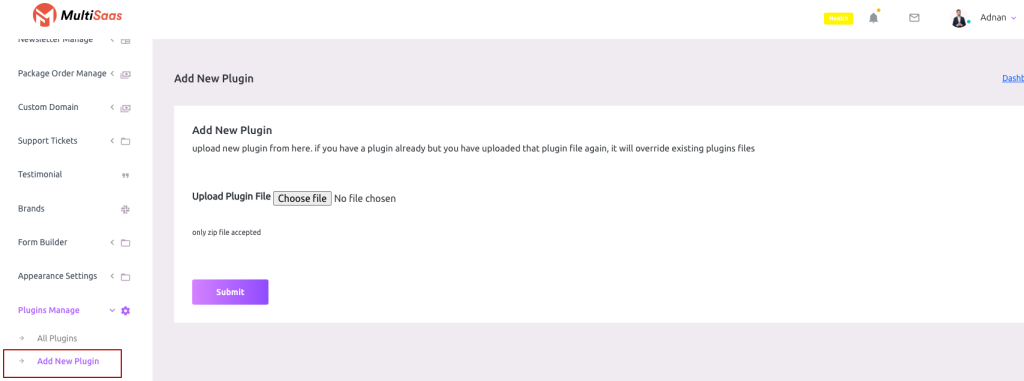 Screenshot
Click on the Choose File and select your plugin zip file then hit the submit button.Wait for some moments and the plugin will be installed in your script (If the plugin is valid)
Plugin List
To get the plugin list go to “Plugin Manager > All Plugins”
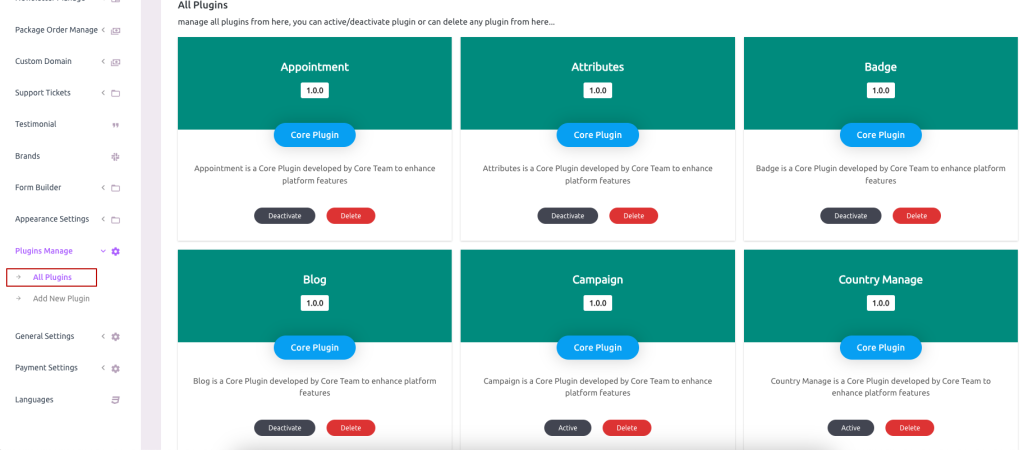 Screenshot
Plugin Active and Deactivate
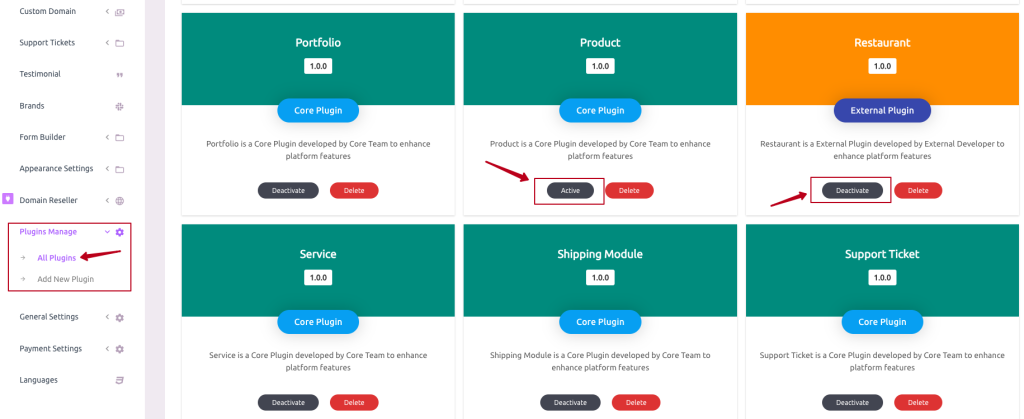 Screenshot
Admin can also delete any plugin from the site script (The plugin will be deleted permanently and will not be restorable until reinstalled again),
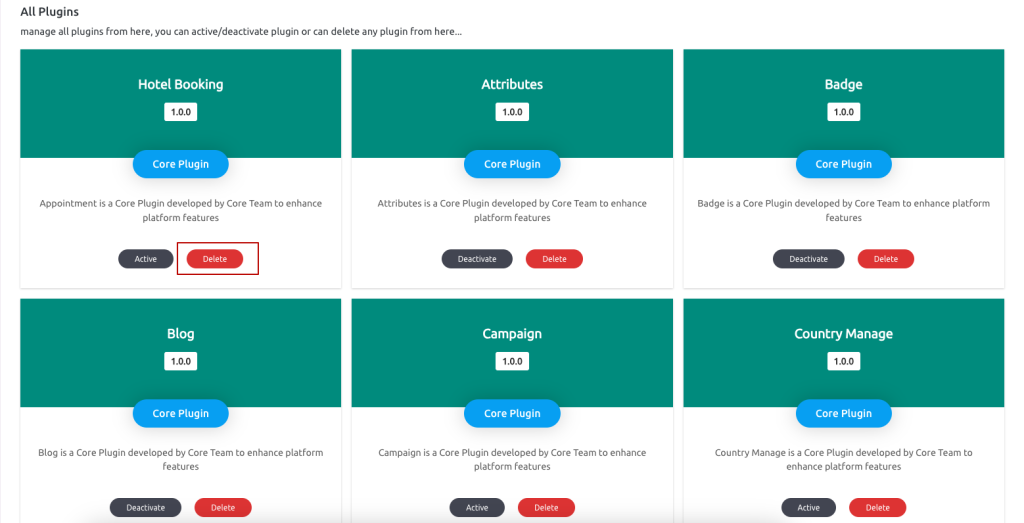 Screenshot
Theme Active
After successfully installing the Restaurant plugin and activating Admin has to set the Restaurant theme available.
To get the All Themes list go to “Themes > All Themes”
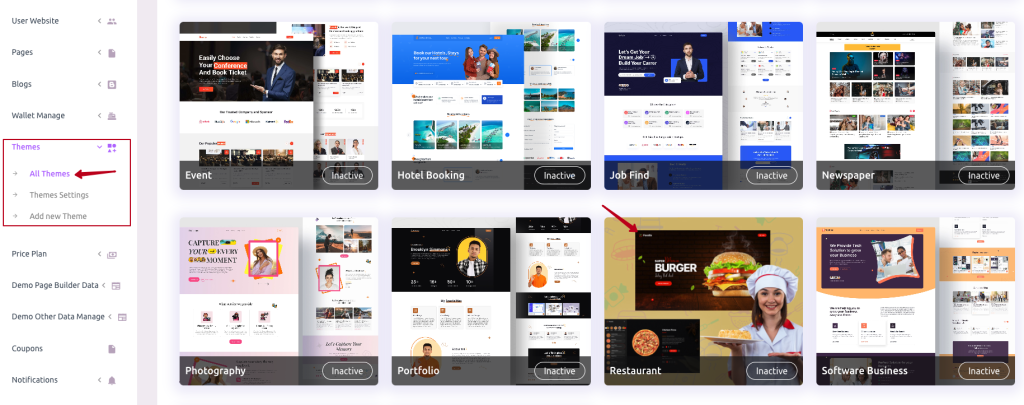 Screenshot
Theme active or inactive
Note: If Admin inactive theme, Theme will not be visible on the main home page.
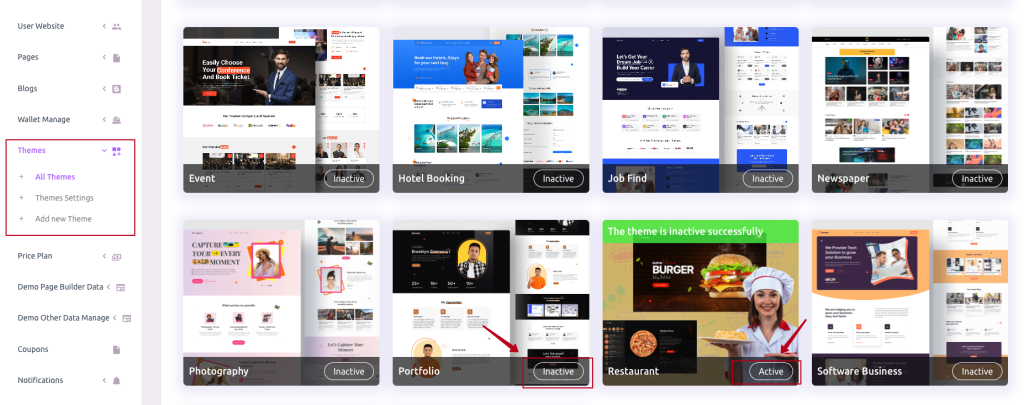 Screenshot
Theme demo data
First, need to Click on any of the themes for set demo data.
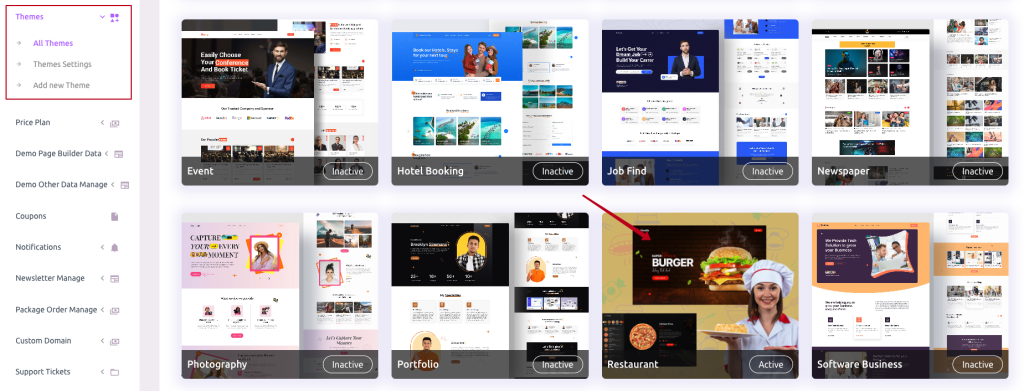 Screenshot
is Available
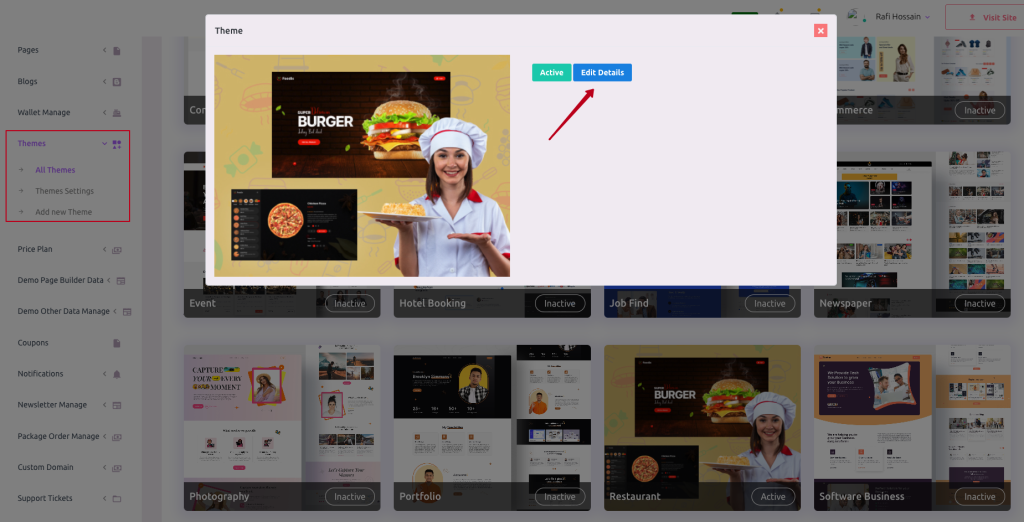 Screenshot
Note: If in theme details admin not set is Available
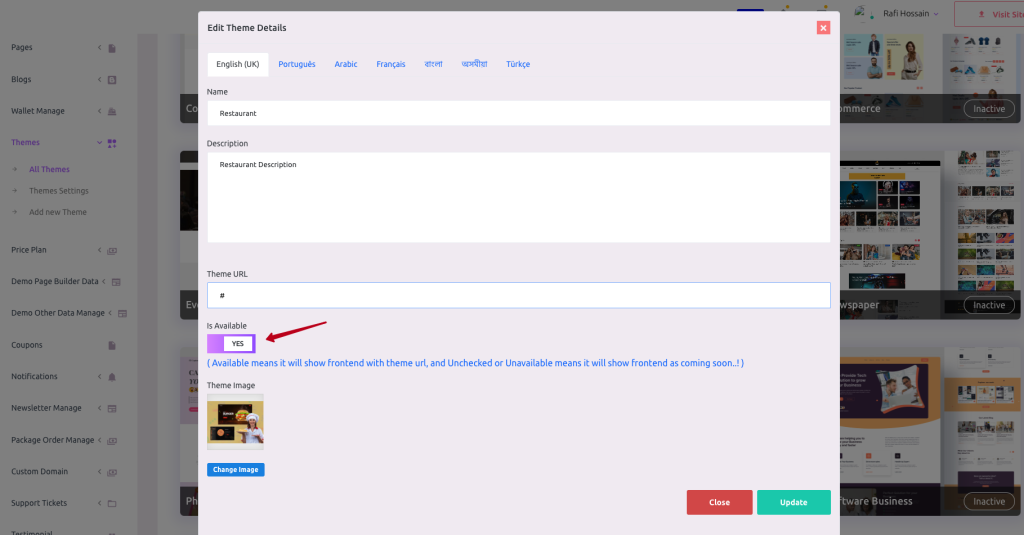 Screenshot
How to Create Menu Category
To get the Menu Category list go to “Restaurant > Restaurant Category”
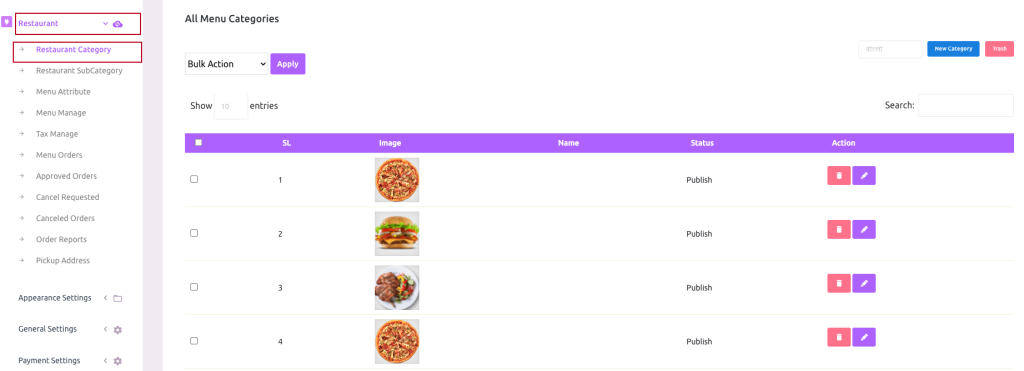 Screenshot
CreateMenu Category
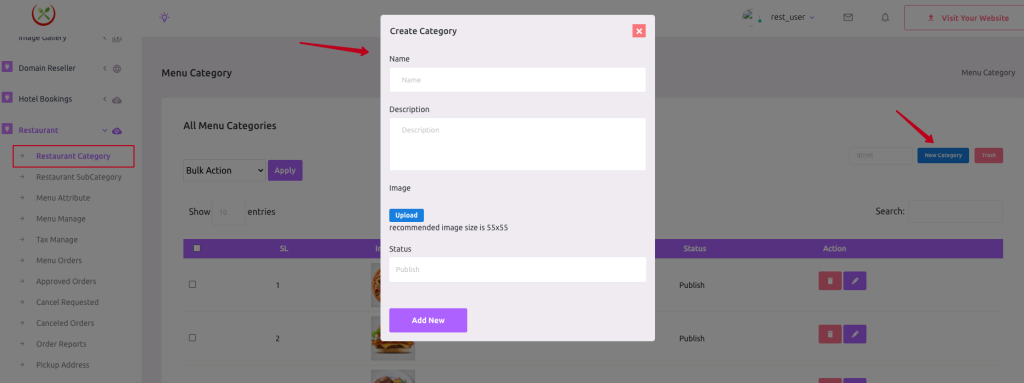 Screenshot
Update Menu Category
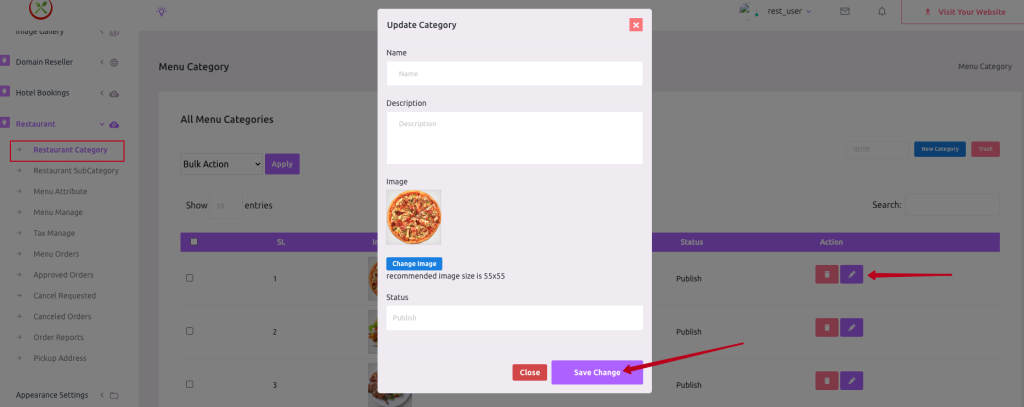 Screenshot
Soft Delete Menu Category #
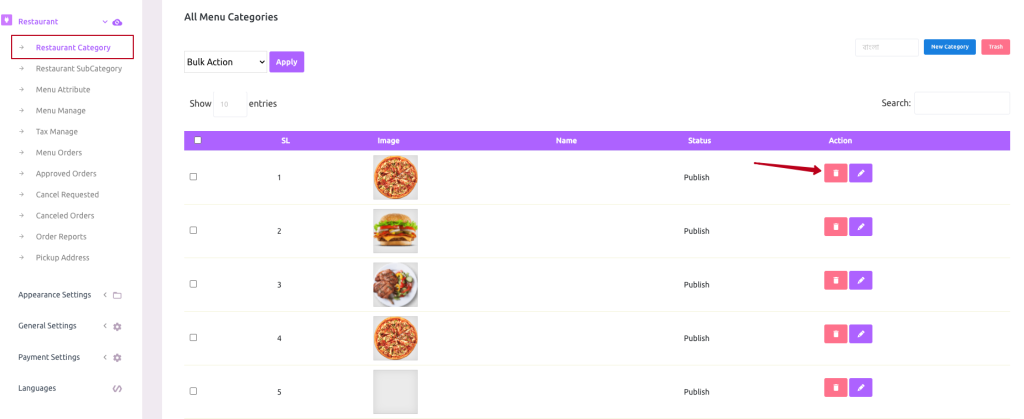 Screenshot
Trashed Menu Category List #
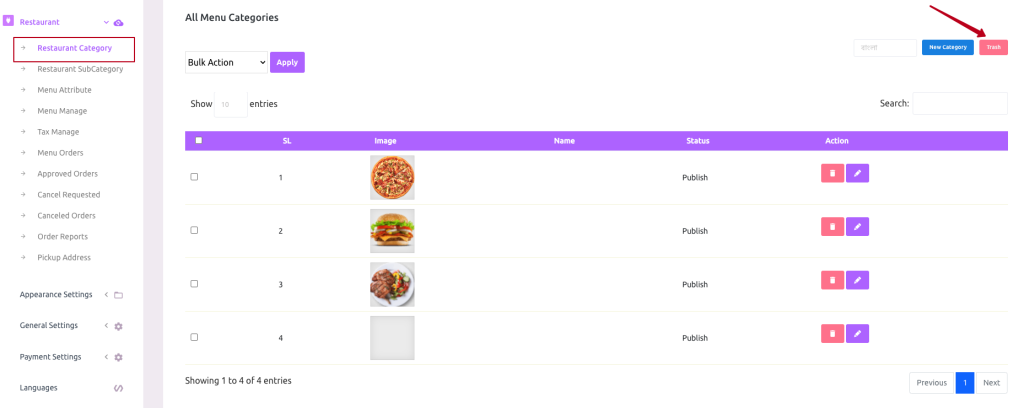 Screenshot
Restore or permanently delete Menu Category #
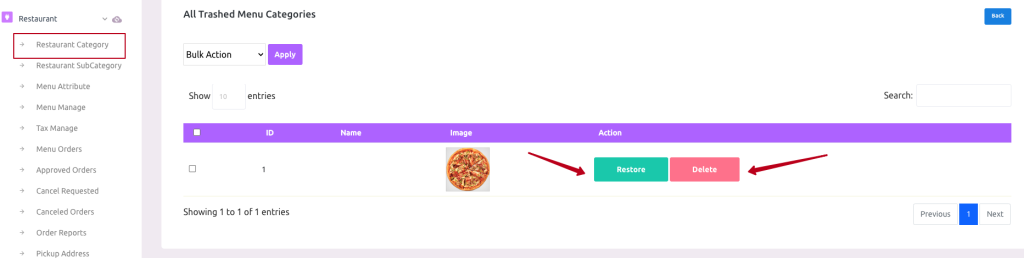 Screenshot
How to Create Menu Sub-Category
To get the Menu Category list go to “Restaurant > Restaurant SubCategory”
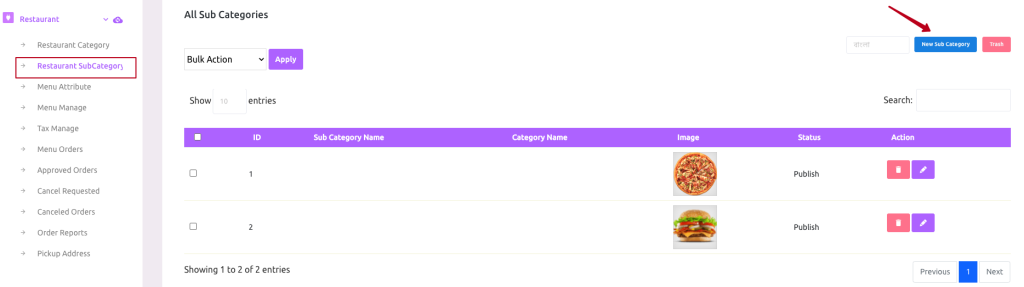 Screenshot
Create Menu SubCategory
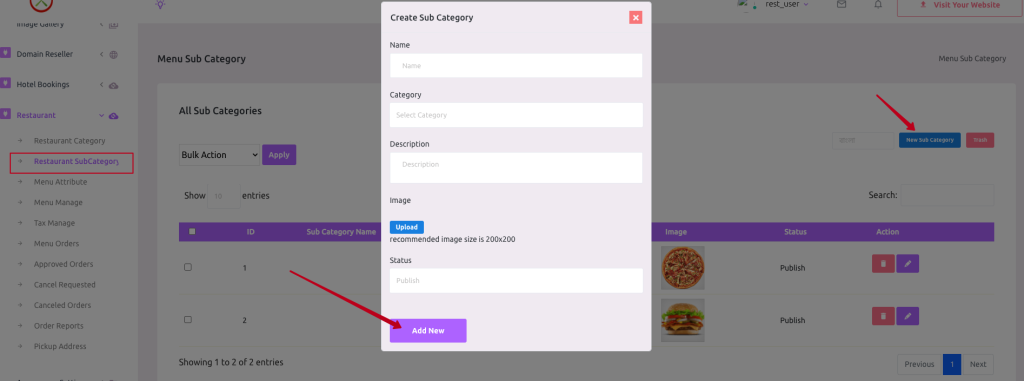 Screenshot
Update Menu SubCategory
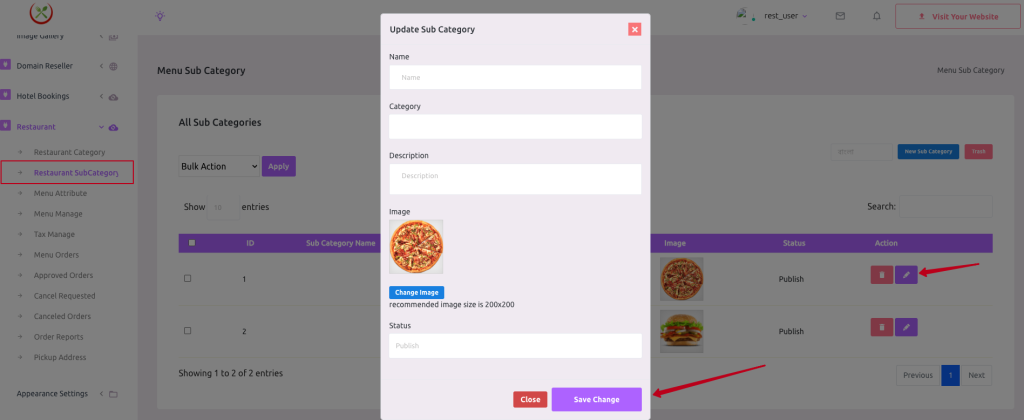 Screenshot
Soft Delete Menu SubCategory #
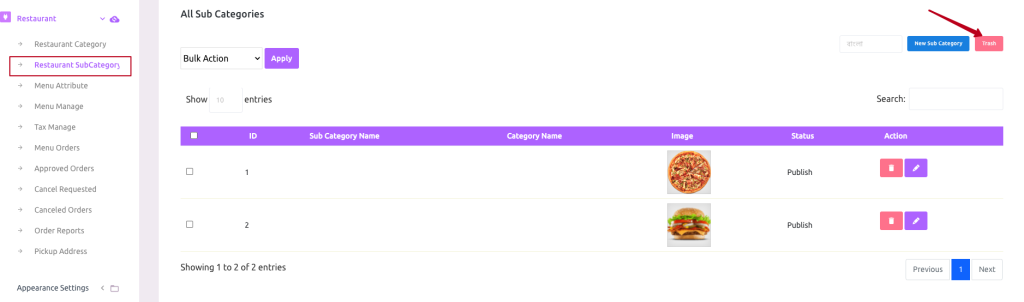 Screenshot
Restore or permanently delete Menu Category #
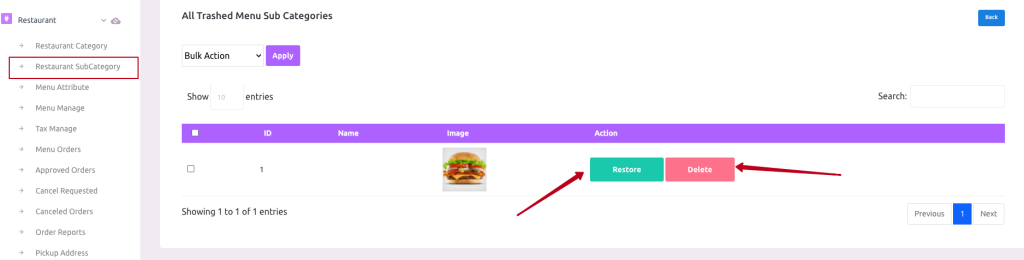 Screenshot
How to Create Menu Attributes
To get the Menu Attribute list go to “Restaurant > Menu Attribute”
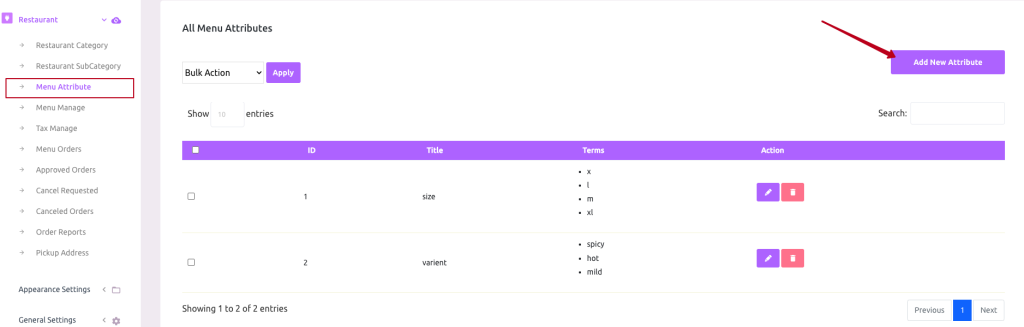 Screenshot
Create Menu Attribute
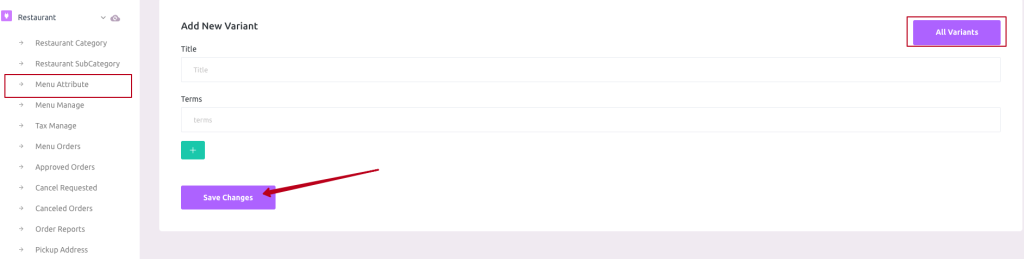 Screenshot
Update Menu Attribute
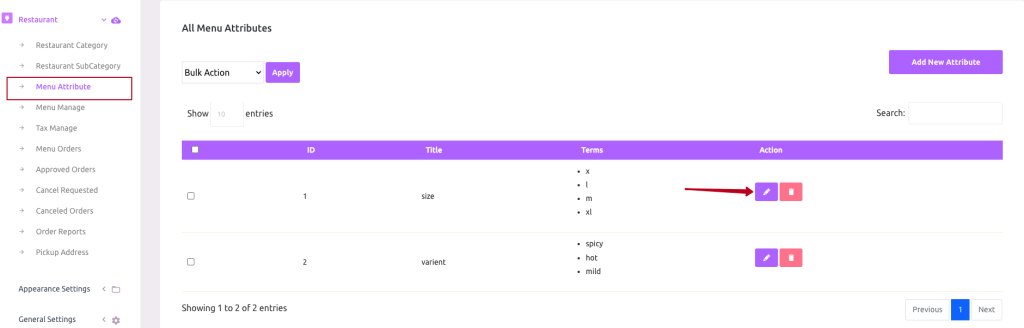 Screenshot
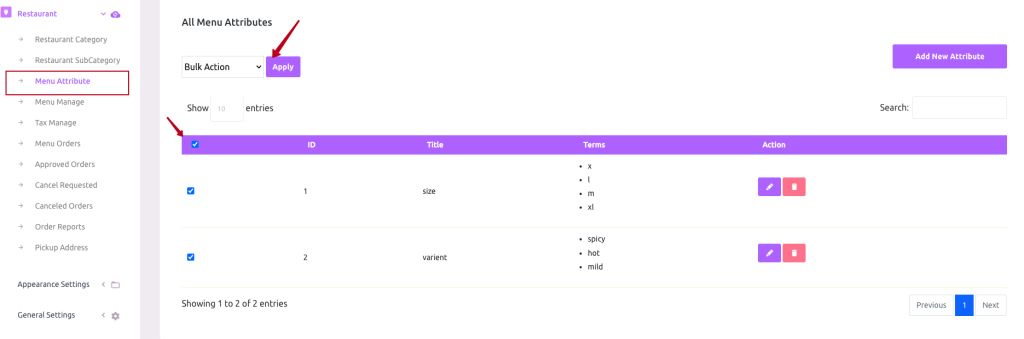
Single and Multiple Delete Menu Attribute #
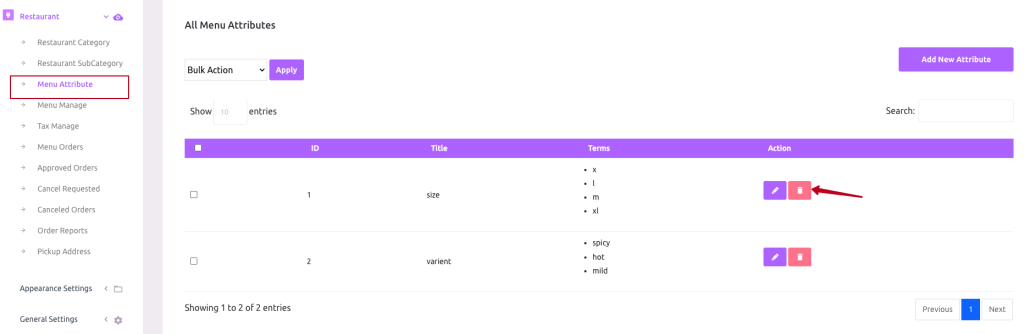 Screenshot
 Screenshot
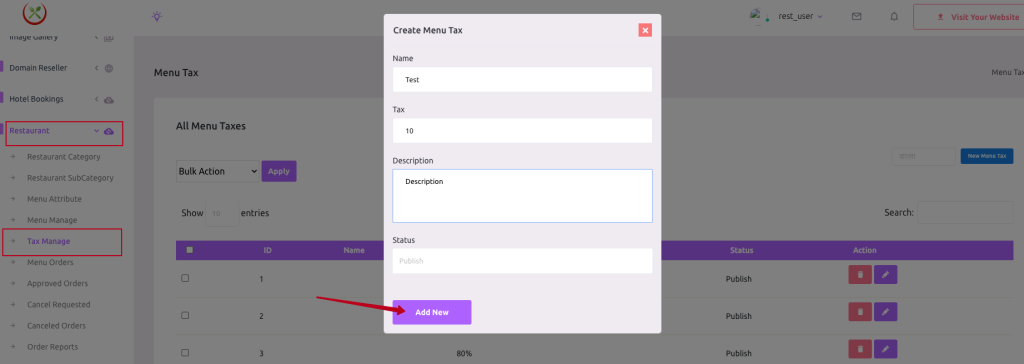
How to Create Tax
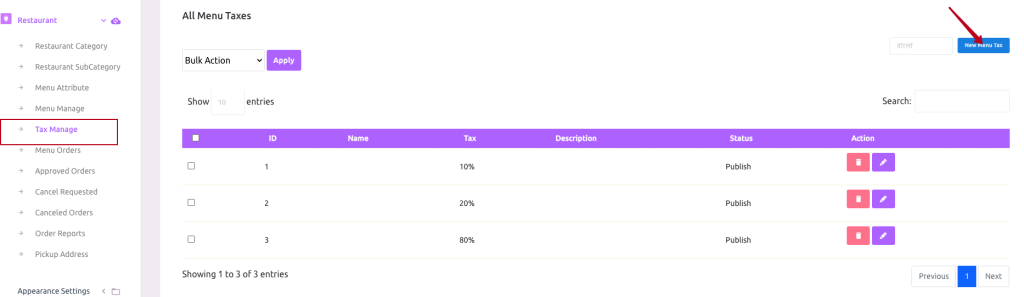
To get the Menu Tax list go to “Restaurant > Tax Manage”
 Screenshot
 Screenshot
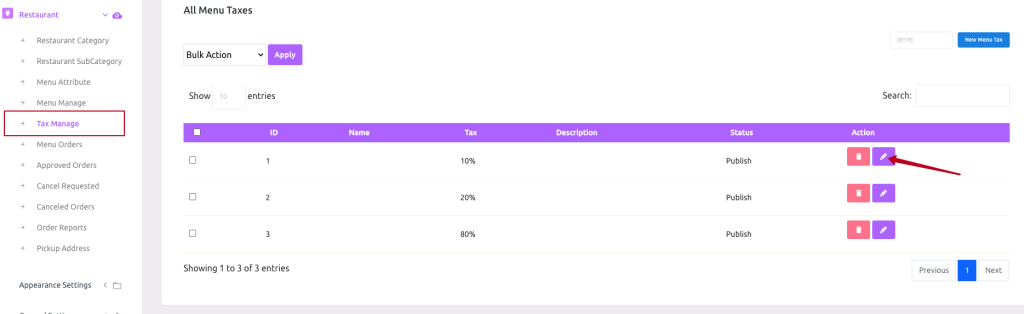
Update Menu Tax
 Screenshot
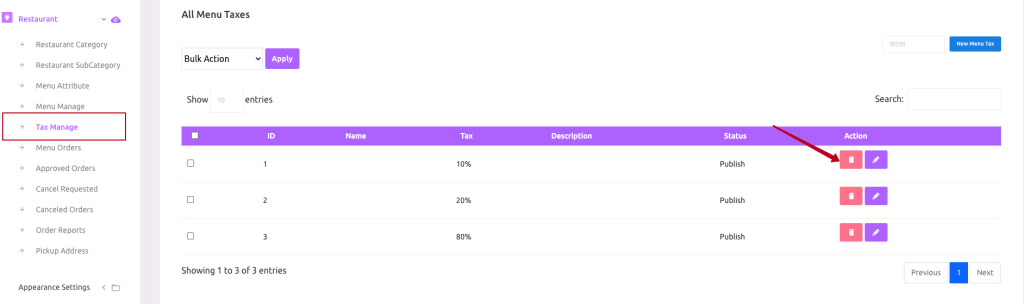
Delete Menu Tax #
 Screenshot
How to Create Food Menu
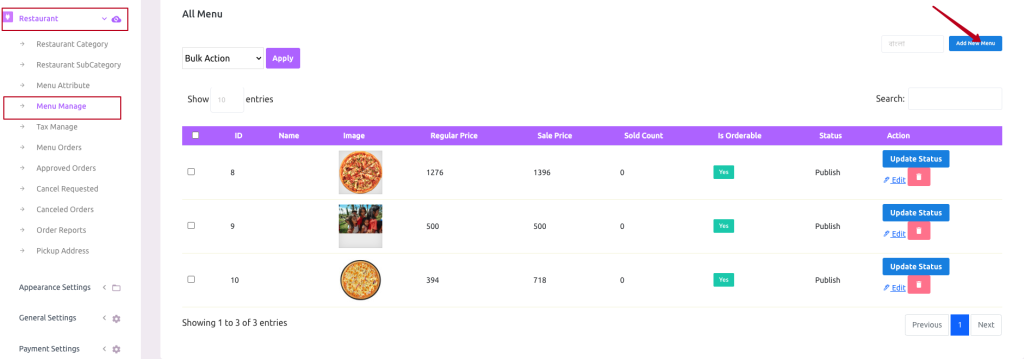
To get the Menu Manage list go to “Restaurant > Menu Manage”
 Screenshot
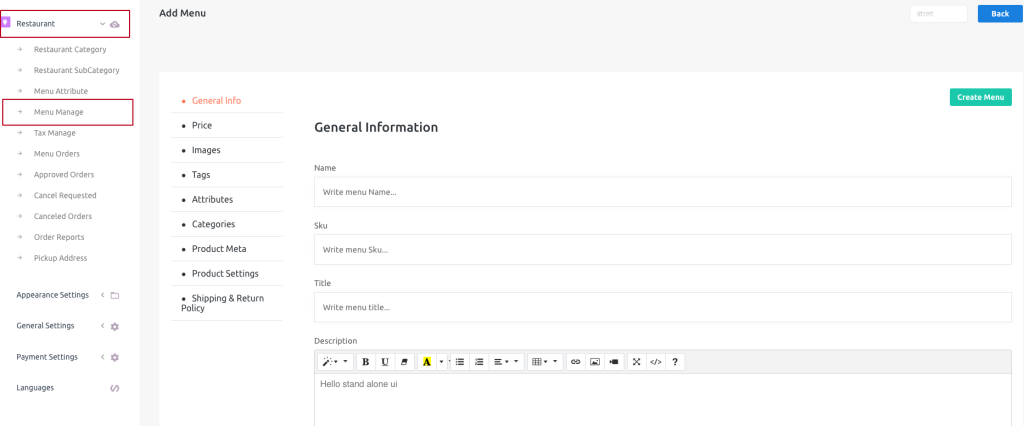
Create Food Menu
 Screenshot
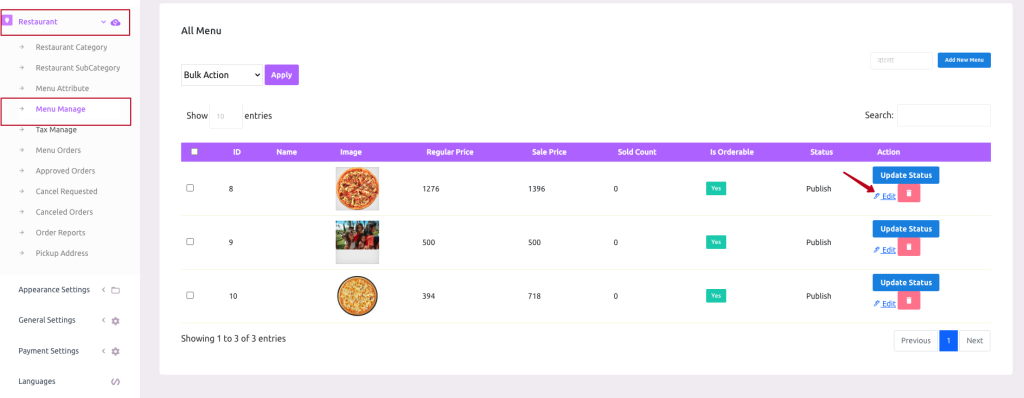
Update Food Menu
 Screenshot
Menu Order Status Update #
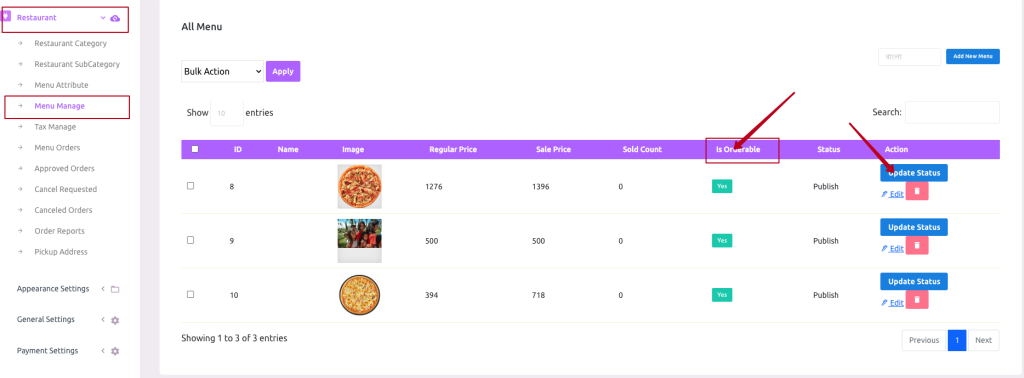 Screenshot
Delete Menu #
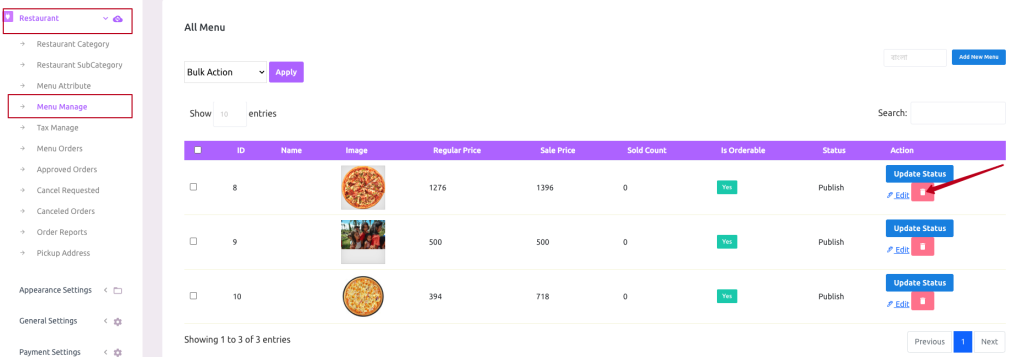 Screenshot
How to Create Pickup Address
To get the Menu Manage list go to “Restaurant > Pickup Address”
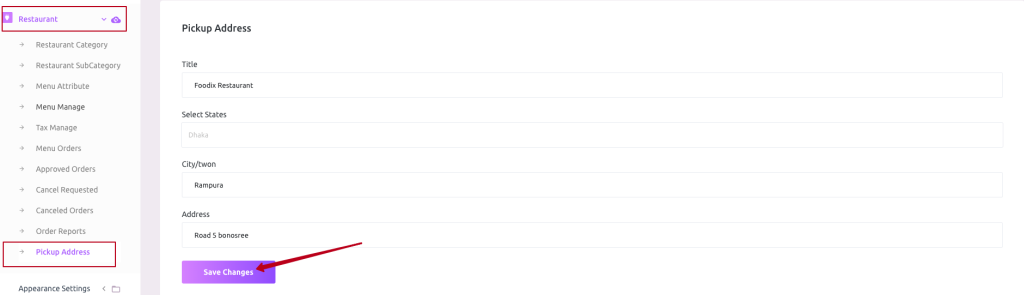 Screenshot
Note: This Pickup Address will be displayed to Front-End on Order Checkout page follow below image.
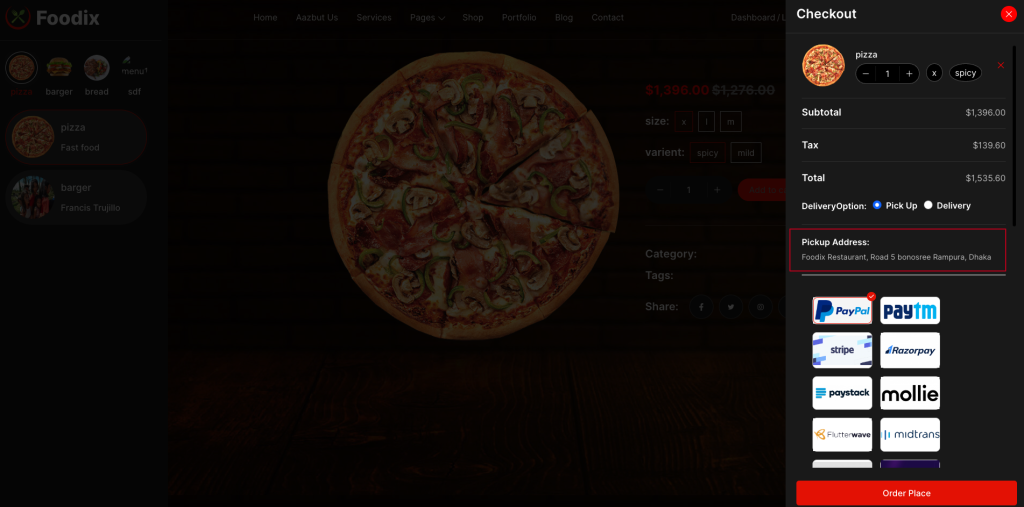 Screenshot
How to Manage Menu Orders
To get the Menu Order list go to “Restaurant > Menu Order”
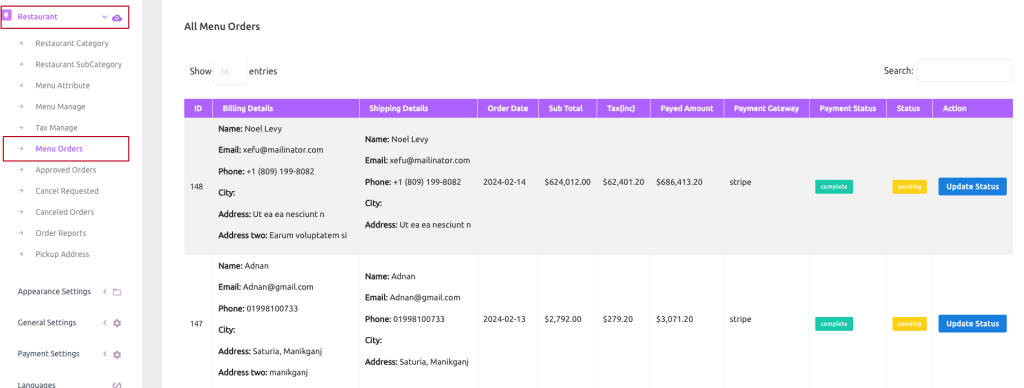 Screenshot
Update Menu Order Status
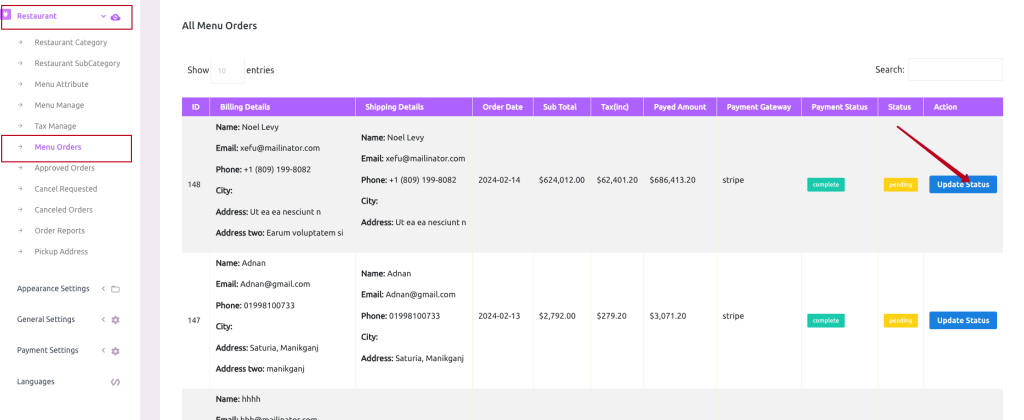 Screenshot
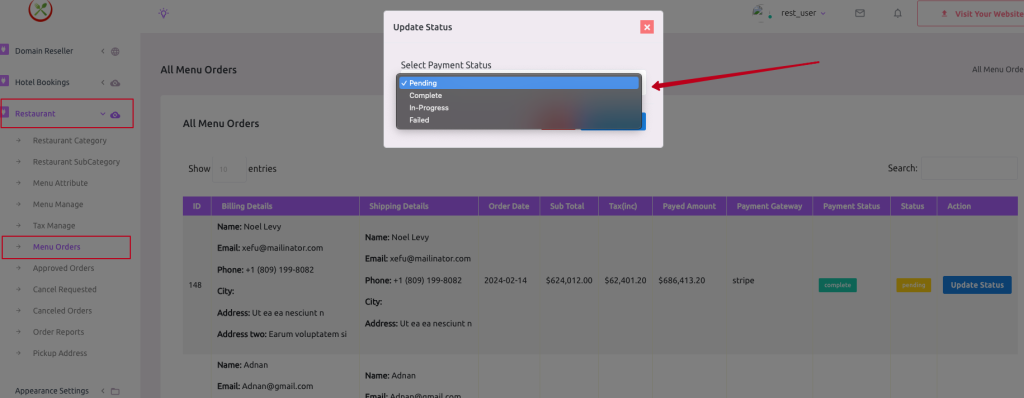 Screenshot
Approved Menu Orders #
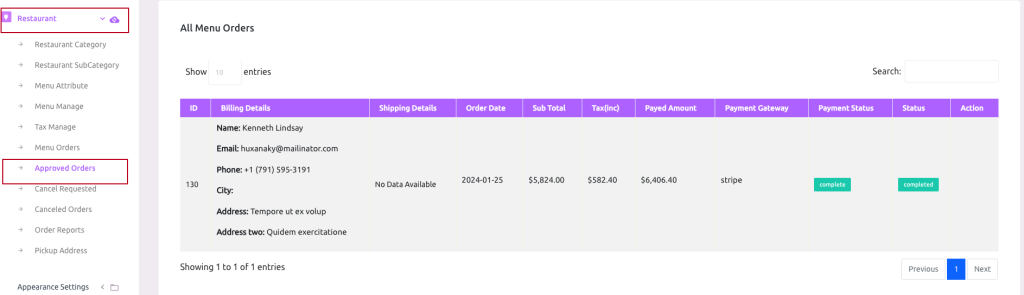 Screenshot
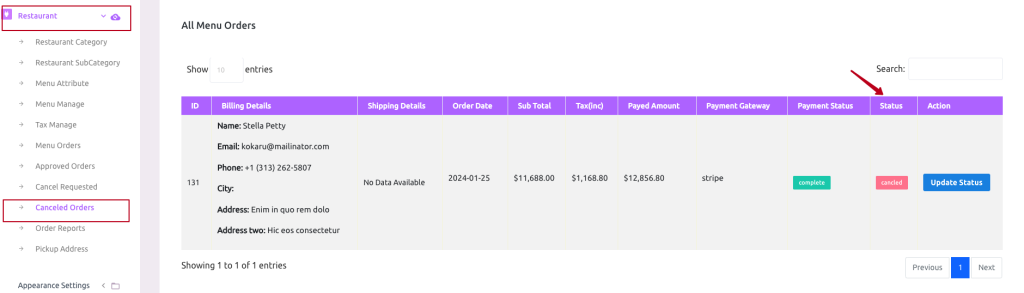
Canceled Menu Orders #
 Screenshot
How to Export Menu Reports
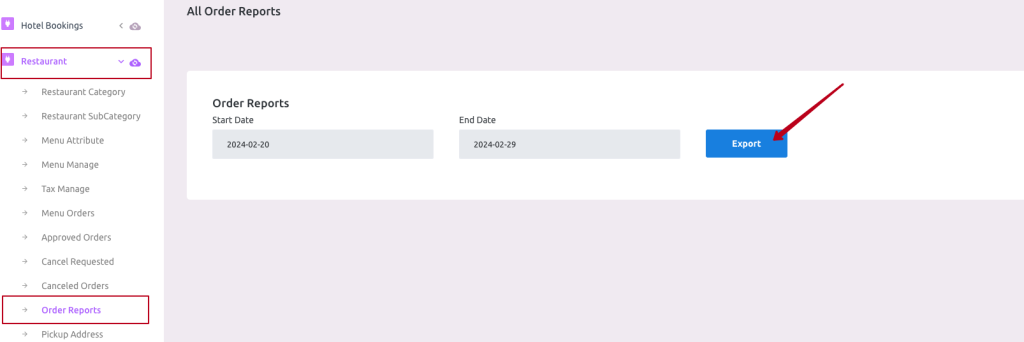
To get the Order Reports go to “Restaurant > Order Reports”
 Screenshot
Note: All Ordered list will Export base on Start Date and End Date.After select date click Export button to Export orders info.