

Products Module
Jump to: Attributes · Inventory · Create product
Attributes
you can add attributes wise price for products, for that you have to add attributes first from “product module > attributes”, the process is you will add list of attribute in here then able to set price for that attribute from product create / edit .
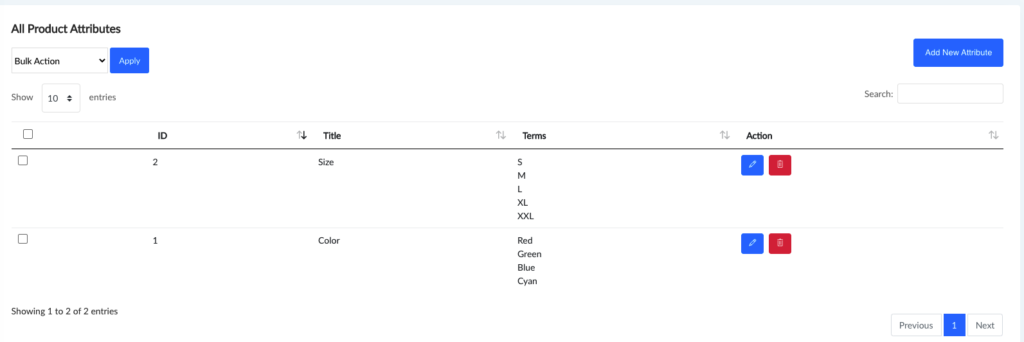 Screenshot
How to add new Attribute set
click on new attribute button, you will see below options
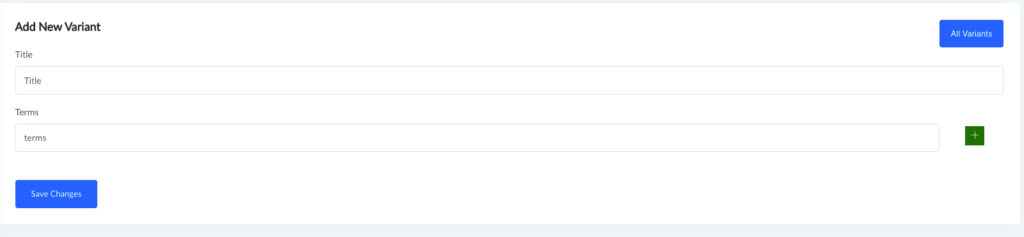 Screenshot
How to add Price With Product Variants
you will see an option to add attributes to products when ever you go to add new product or edit a product, it will be look like below, you have to select an attribute then it terms will be shown in a select option, you have to double click on any on those which one you want to add with this product
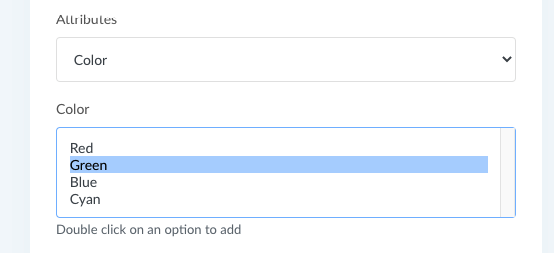 Screenshot
now you will see option to set price for this variant as like below
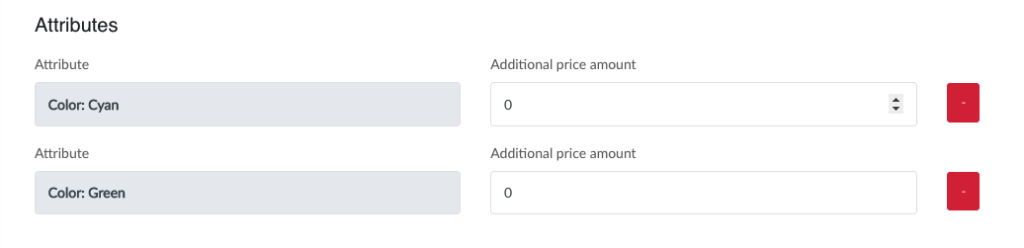 Screenshot
add attribute to products
Inventory
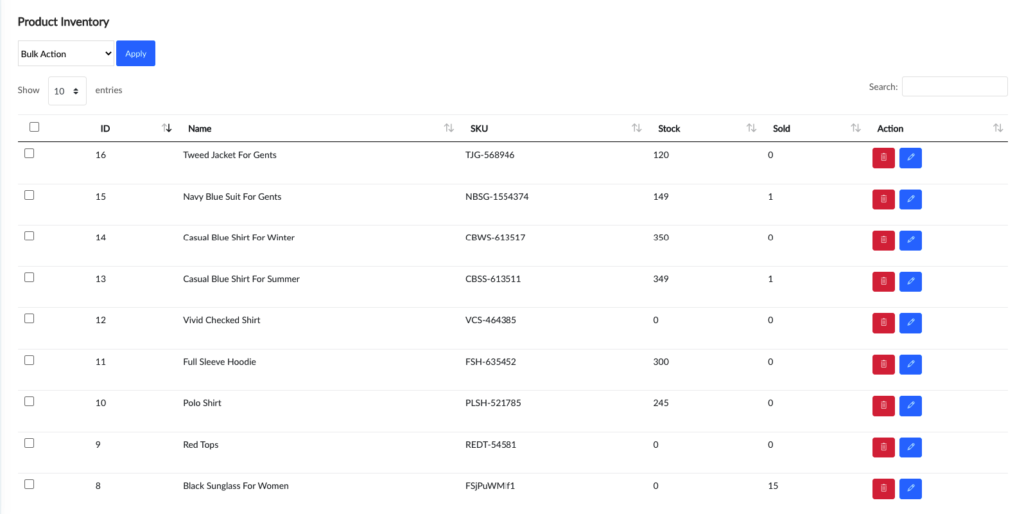
Safecart – Commerce platform comes with awesome inventory management system. To manage your product inventory go to admin panel “Products Module > Inventory”.
 Screenshot
product inventory management
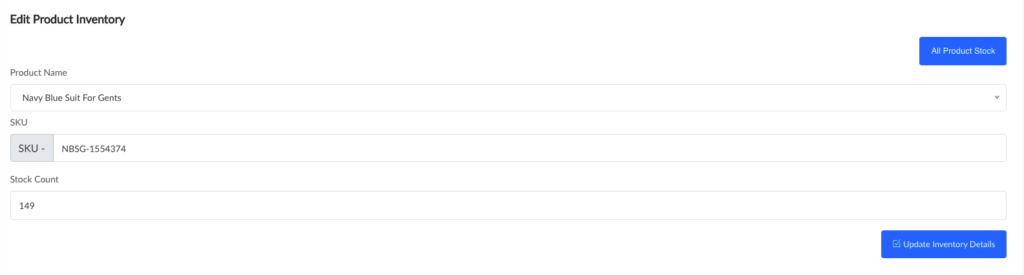
how to edit product inventory
click pencil icon from inventory list page, it will open a page as like below, edit info according to your need
 Screenshot
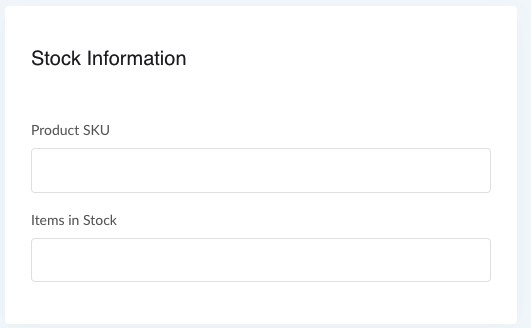
how to Add New product inventory
you can add product inventory when you have adding a new product. as like below screenshot,
 Screenshot
Create product
Requirement of creating product
if you want to create a product then you need create some entities for creating product1. category2. units3. sub category (optional), child category (optional)
tags, delivery options, brand, badge, color, size, custom attribute -> Those are optional
color size, custom attribute -> If you want to create product variant then those will be needed as per your requirement if you can't find those then search inside leftside bar saerch box
You will find those page from left sidebar in admin panel
You can create the product only if you fill the requirements fully
lets go for creating product
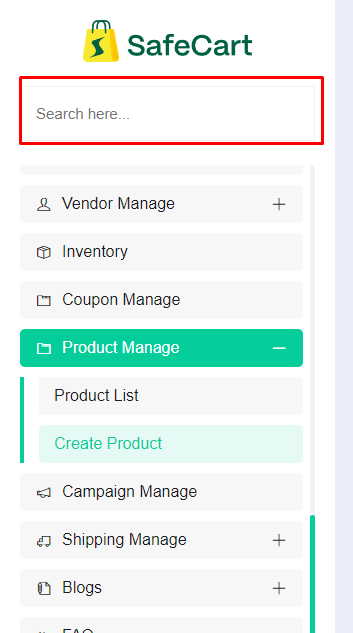
First sing in as an admin and then goto product create page for that you can search it here and click on product create button
 Screenshot
This is the page
/admin-home/product/create
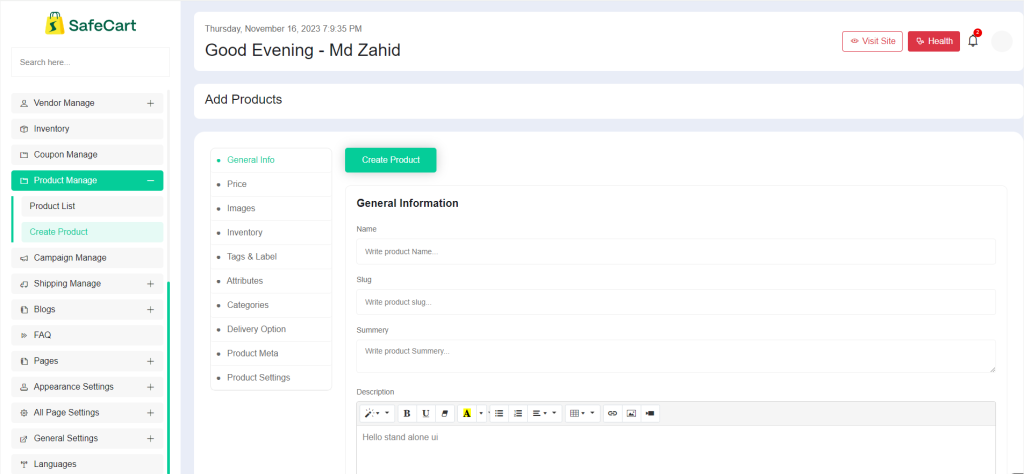 Screenshot
Write your product name here your product name will converted automatically as slug but if you want to update slug you can do it
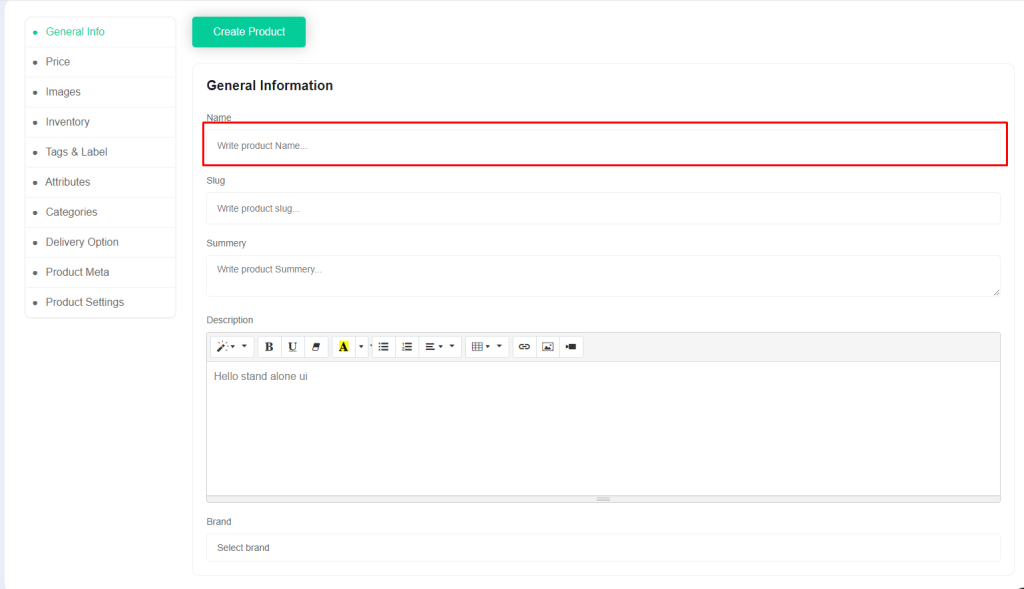 Screenshot
Note
Slug field is unique you need to make sure your slug is unique
Provide some information about your product in summery field
in description field you can provide full description about your product
Brend field is optional if your product have brand you can select brand from here
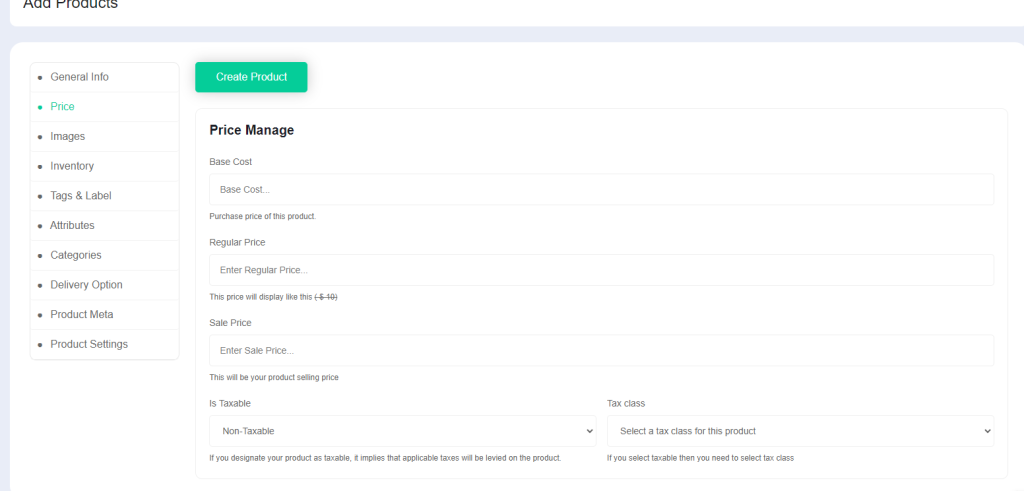 Screenshot
For set your product price click on price tab
Here you can provide price, regular price and sale price here if you want to also you can select is this product is taxable or not if ths product is taxable then you can select a tax class
Note
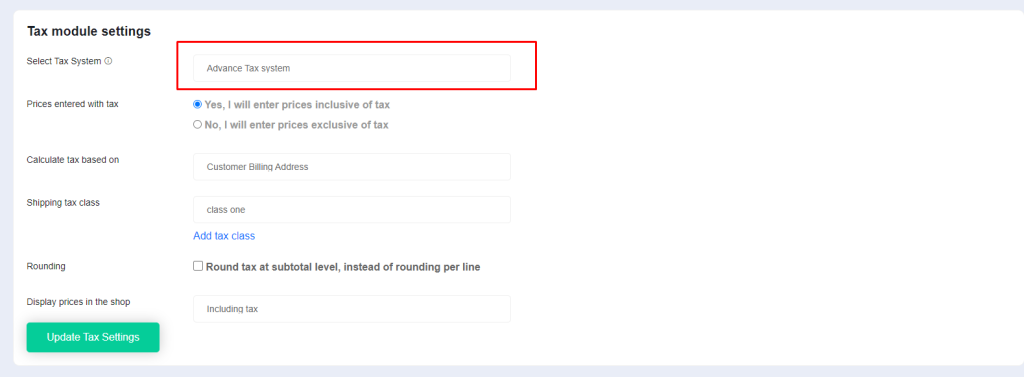
is taxable and tax class field will enable only if you select advance tax system you will find this inside admin panel left sidebar
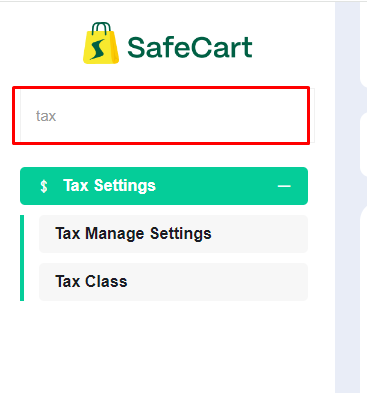 Screenshot
If you select this one for your tax system then you will find those field in product create page
 Screenshot
Back to product creation
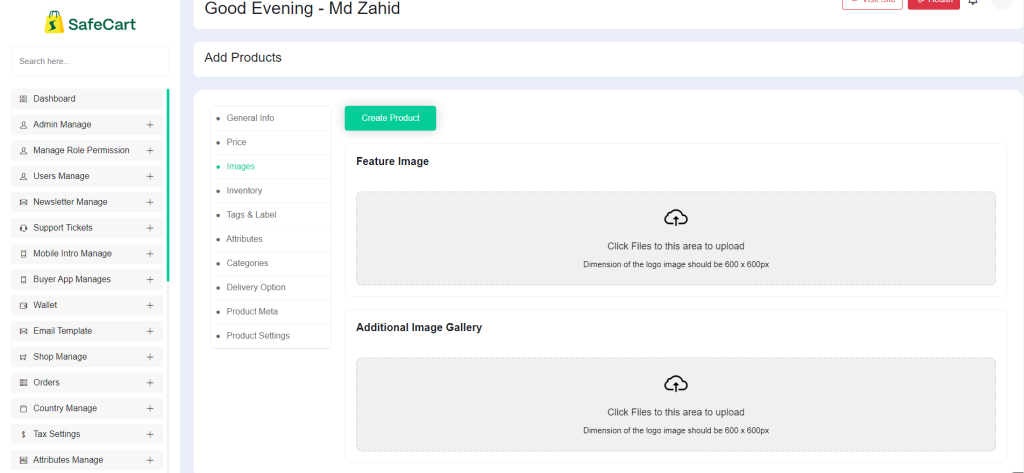
For uploading image click on images tab
Upload you product image and product (gallery image -> optional) here
 Screenshot
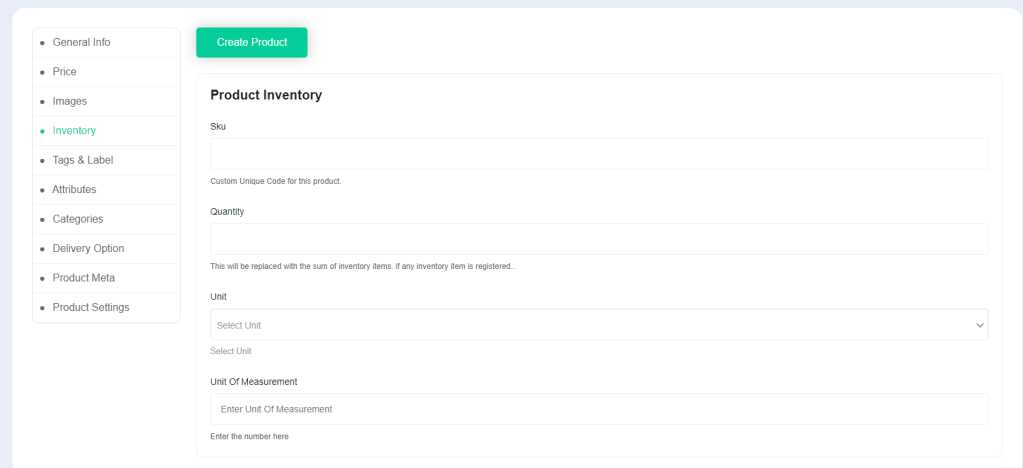
This are the most important section for your product for managin inventory
 Screenshot
Note
Those fields are required for creating product
SKU -> means stock keep unit this will help you to use pos management system also.
if you use our pos plugin then you can easily search your product by using pos manage plugin
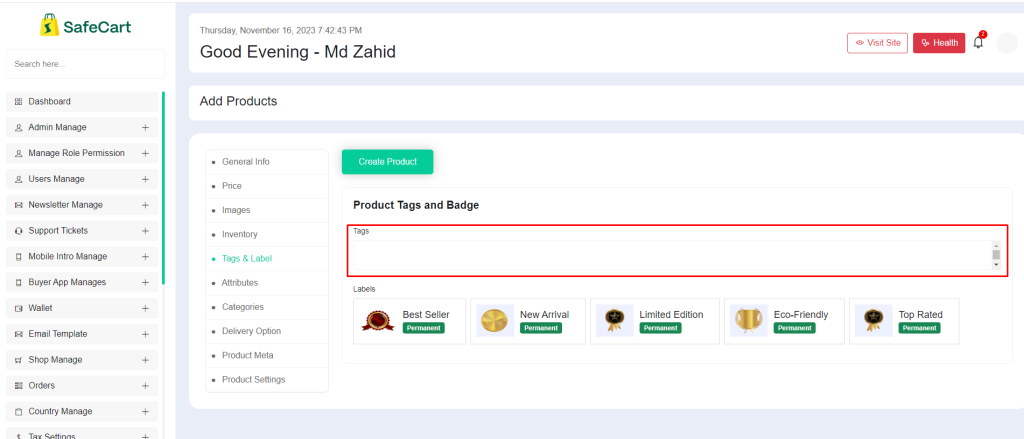
This tags field will search product for google search engine
 Screenshot
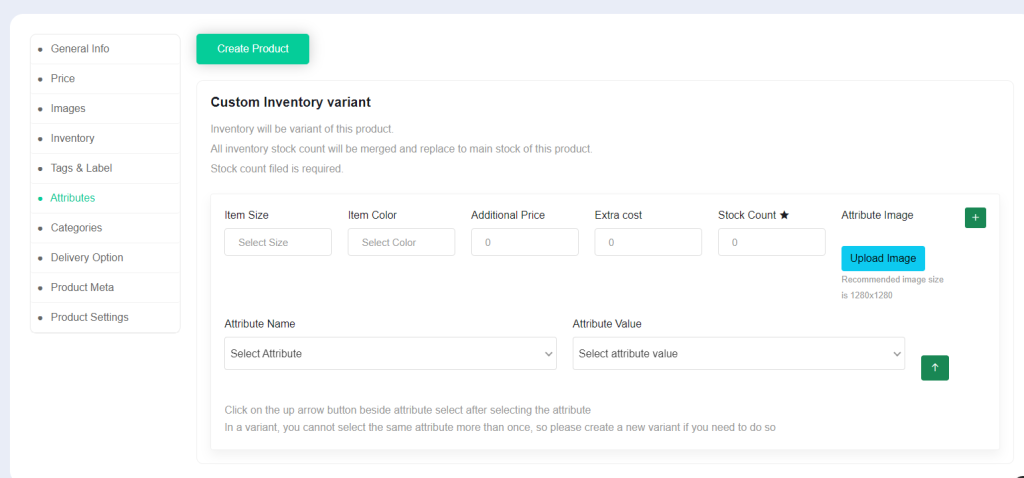
if you want to create product variant then click on attribute tab
 Screenshot
Here you can select product size, product color
Additional Price -> this amount will be added to your product price
Extra cost -> This amount will help you to calculate your earning in future
Those field are required minimum amount will be zero for creating variant
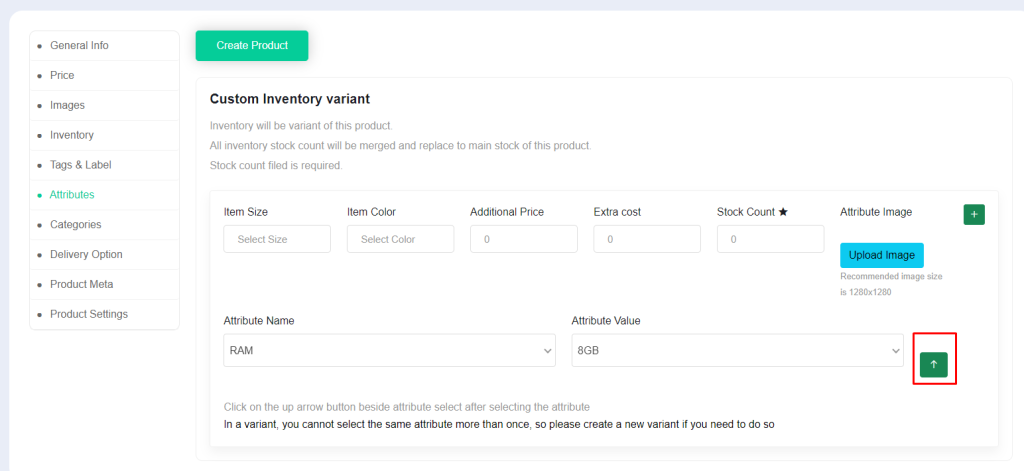
When you select attribute then make sure you have clicked on this button
 Screenshot
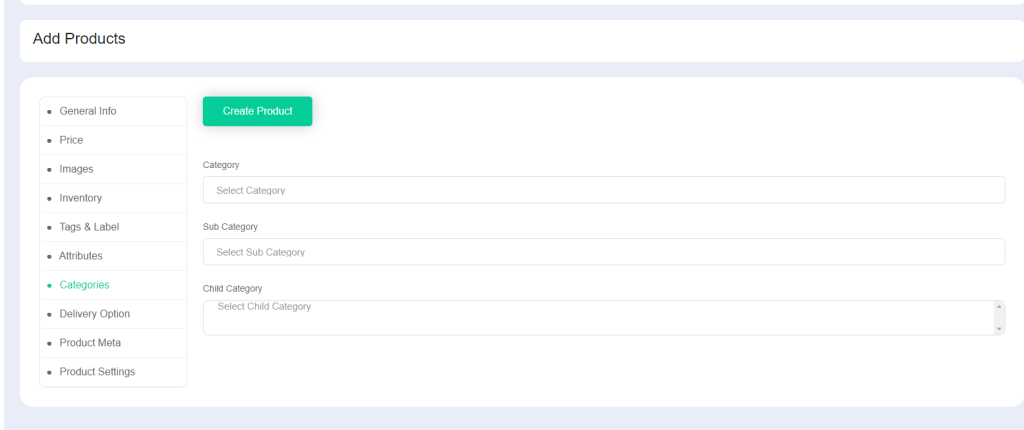
In category section you can select categories
The category field are required for creating product
sub category and child category field are optional
 Screenshot
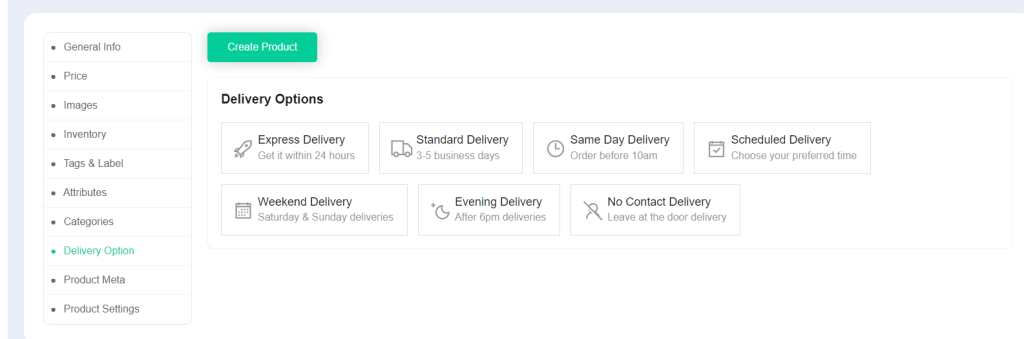
You can select if you want to show delivery option
 Screenshot
Provide your your meta data for search engine but those are optional
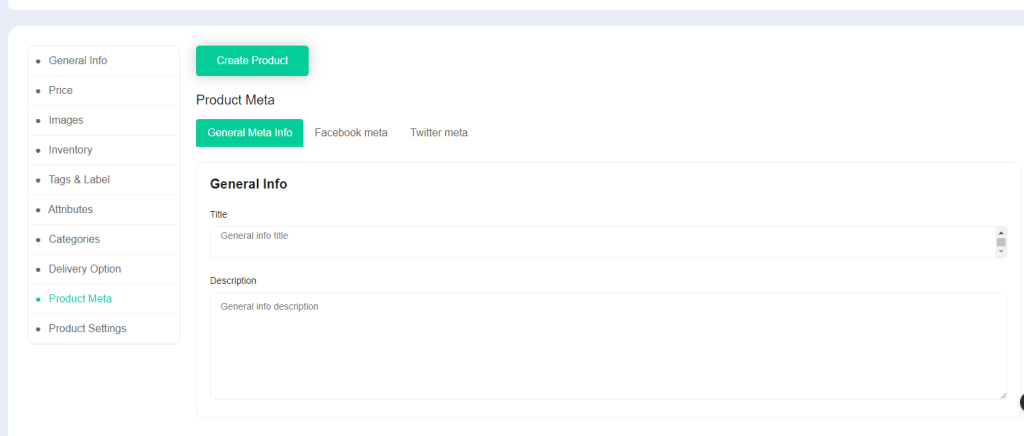 Screenshot
From product settings section you can set some condition like you can set minimum purchase quantity
You can select maximum purchase quantity
If you want to get notified from system you can select inventory warning
You can select is this product are eligible for refund or not
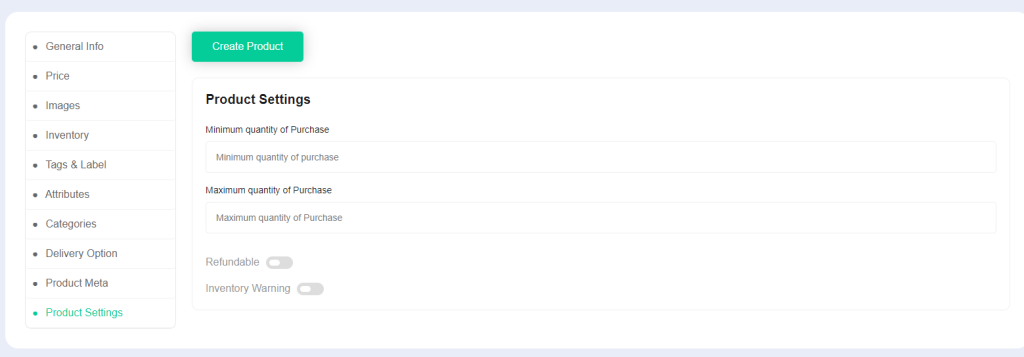 Screenshot
Note
For getting refund functionality you need to purchase our refund plugin