

This documentation includes a step-by-step instruction for installing and managing the WhatsApp Booking System Plugin in the admin panel.
Add New Plugin
To install a new plugin:
- In the admin panel sidebar,navigate to “Plugin Manage“->Add New Plugin.
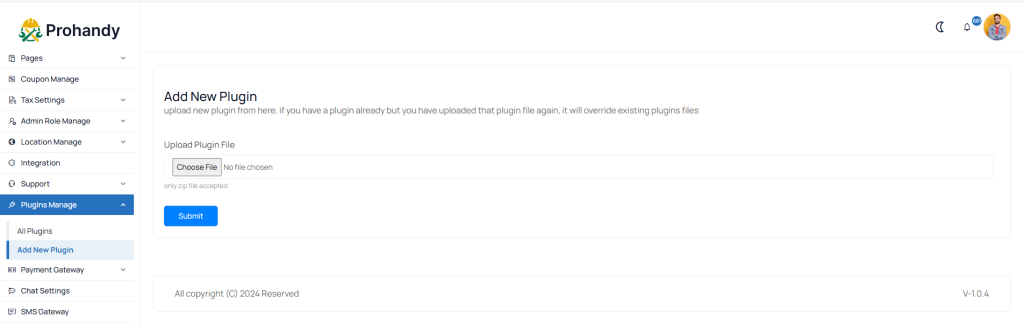 Screenshot
- Upload the plugin .zip file using the provided file input field.
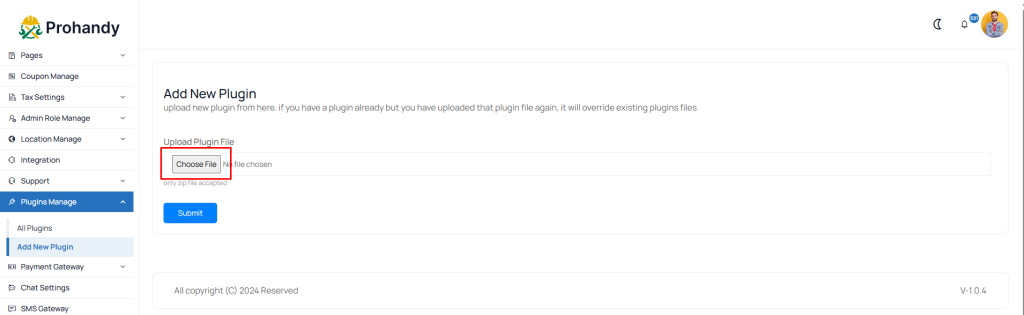 Screenshot
- On successful upload, the new added plugin will appear in the All Plugin section and you will see a new sidebar menu.
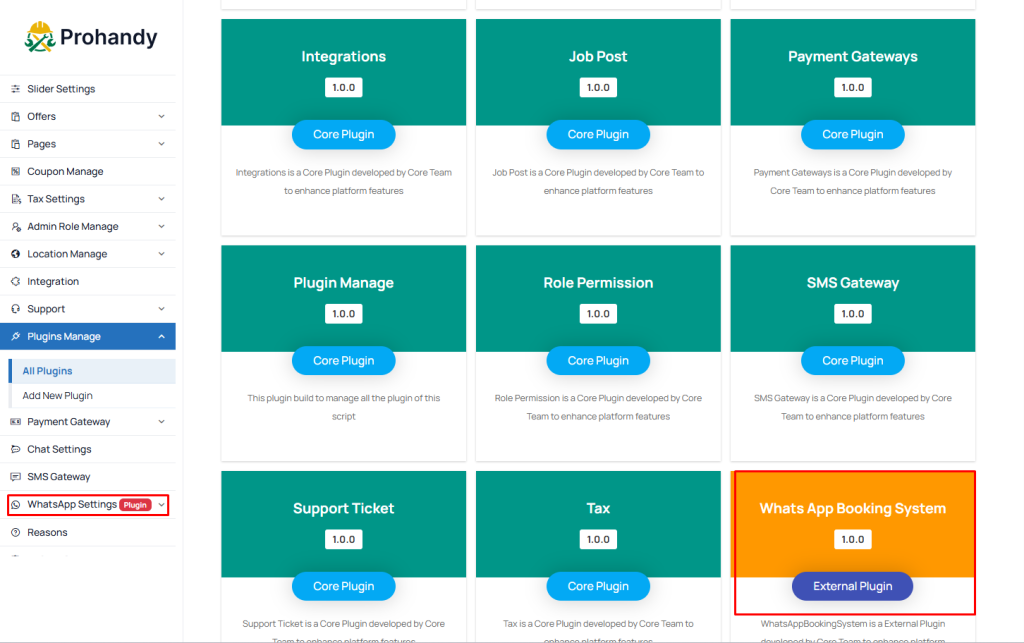 Screenshot
Database Upgrade
Once the plugin is activated:
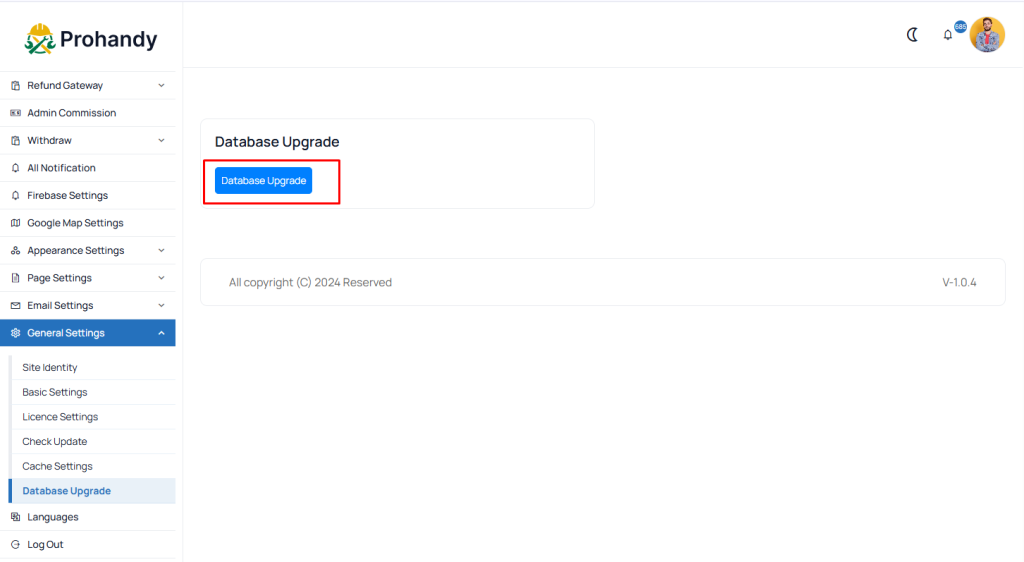
01. Go to the Admin Panel->General Settings->Database Upgrade.
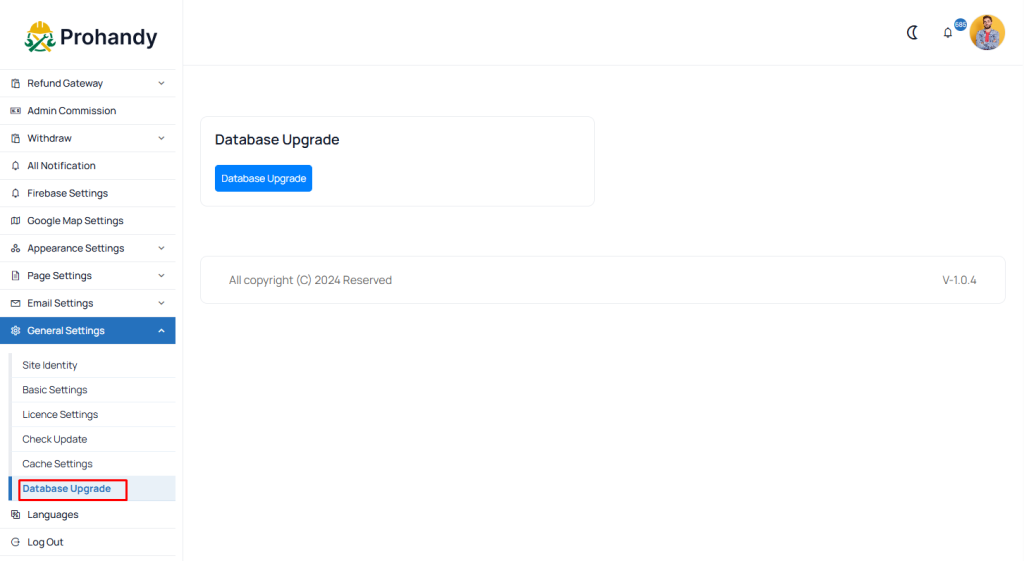 Screenshot
- Click the “Database upgrade” button to execute the plugin's database migration.
 Screenshot
Plugin Management
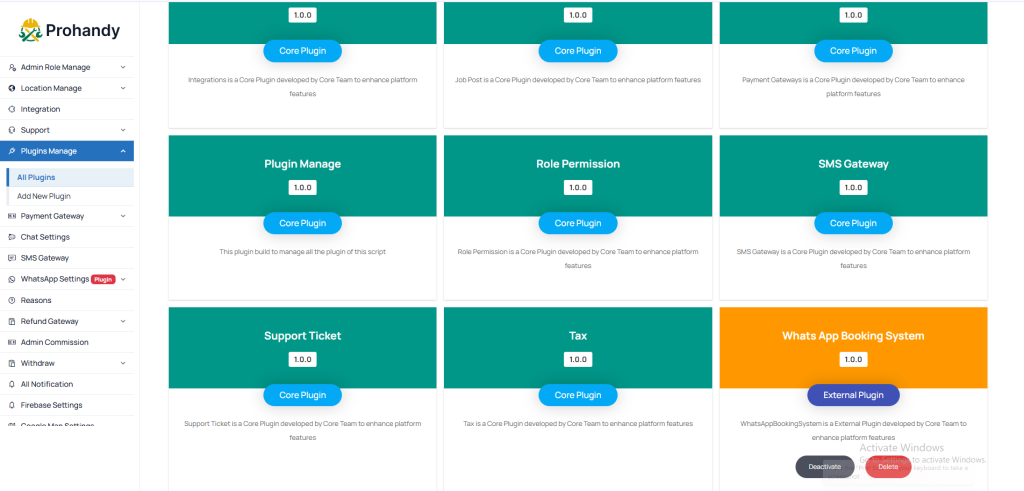
In the Plugin Management section, you can manage your installed plugin. Here, you can activate this plugin to enable its features, deactivate it to temporarily disable its functionality, or delete it entirely from the system if it's no longer needed.
 Screenshot
Still stuck?
Our support team is ready to help you get set up.