

All Knowledge Base
The All Knowledge Base page displays a list of all your knowledge base entries. At the top-left of the list, you will find the Bulk Actions menu, allowing you to manage multiple entries at once.From the top-right, you can use the Add Knowledge button to create a new entry, along with search and filter options to quickly locate specific items.
The Knowledge Base is used to train AI model. The chatbot will generate responses based on the information you provide in your trained Knowledge Base.
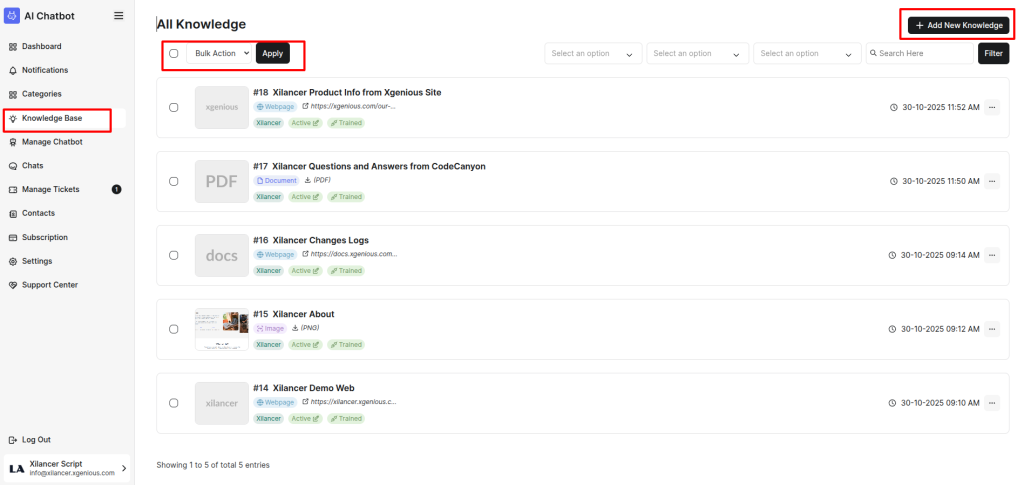 Screenshot
All Knowledge Base List Page
Add New Knowledge
The Add New Knowledge modal allows you to create and upload new knowledge entries that will be used to train your AI model. This form provides several configurable fields to ensure that each knowledge item is properly categorized and processed.
Key Sections in the Modal
-
TitleEnter a clear and descriptive title for the knowledge entry. This helps define the topic and improves organization.
-
CategorySelect the appropriate category from the dropdown to group your knowledge items effectively.
-
Knowledge TypeChoose the type of knowledge you want to add:
Document – Upload files such as PDF, DOCX, or text documents.
-
Image – Upload image files (e.g., PNG, JPG) for OCR and AI training.
-
Webpage – Provide a website URL for the system to fetch and extract information.
-
Upload SectionBased on the selected type, you can upload a file (Document/Image) with a maximum file size of 15 MB.
-
Website URL (for Webpage Type)If you choose Webpage, you can enter the website URL.Note: Some websites may not be readable if they block web crawlers.
-
Sync Now (Optional)Enabling Sync Now triggers immediate knowledge synchronization. If unchecked, the item will be synced automatically later.
-
Submit ButtonOnce all fields are filled, click Submit to save and process the new knowledge.
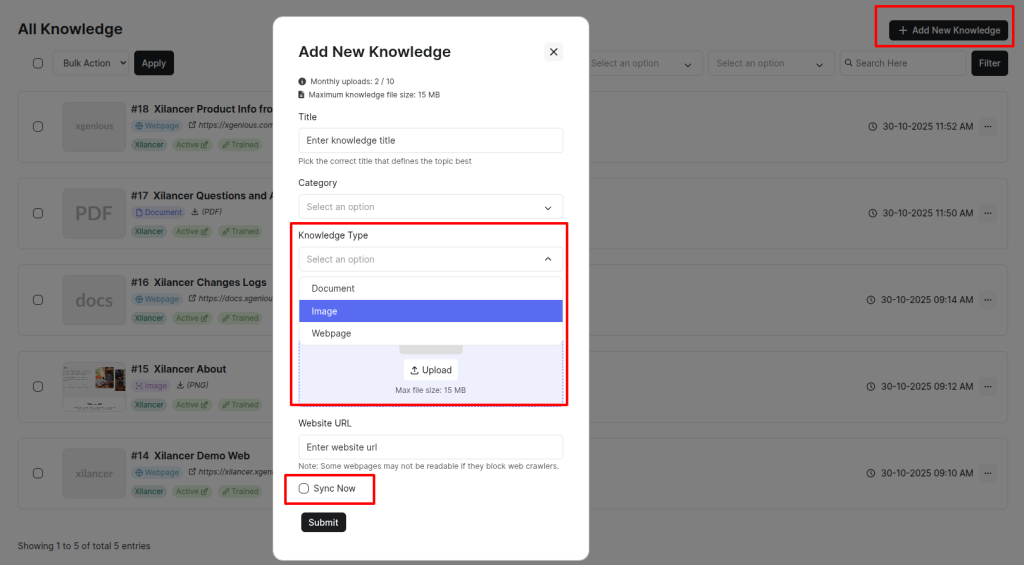 Screenshot
Add New Knowledge Modal