

Go to google clould console, if you do not have an account, create one. then create a project.
Step 01: Click on the Create Project button
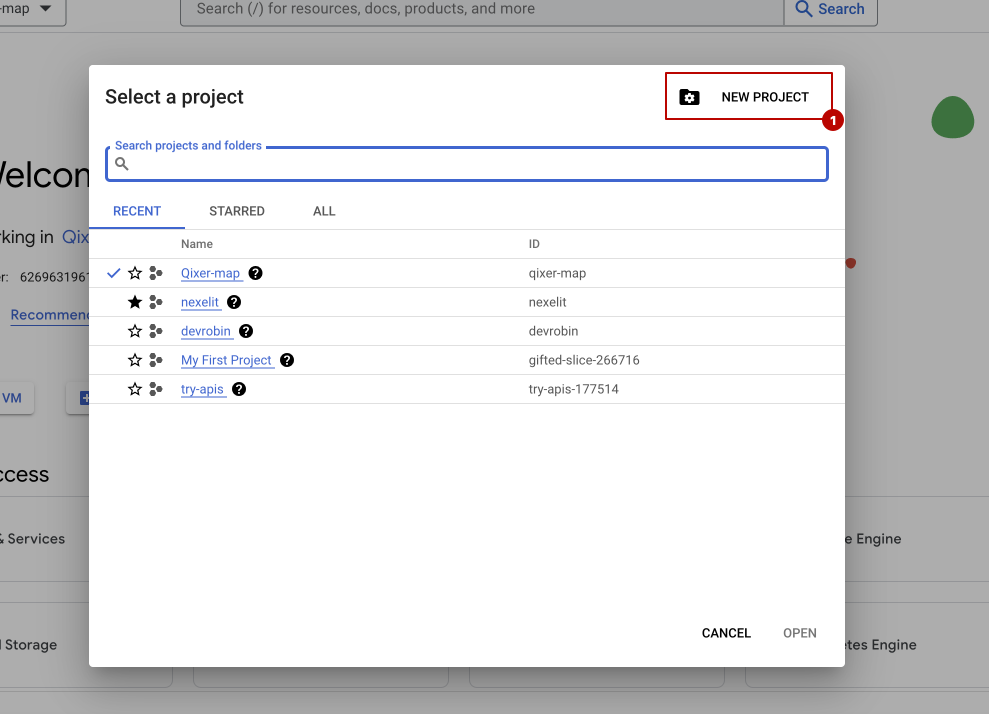 Screenshot
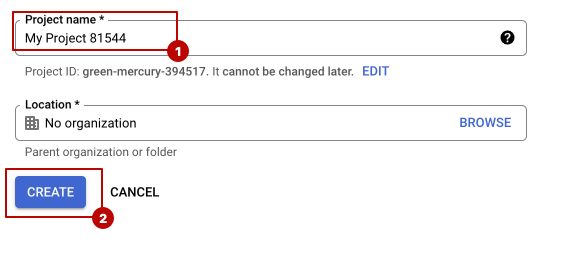
Step 02: give project a name, then click on Create.
 Screenshot
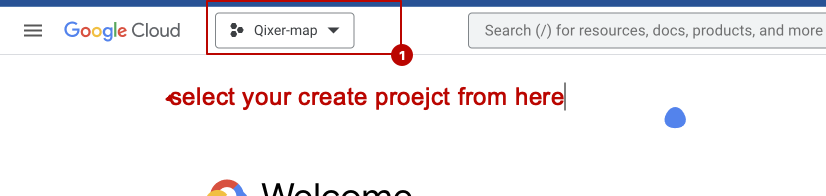
Step 03: Select your project from here which you have just created
 Screenshot
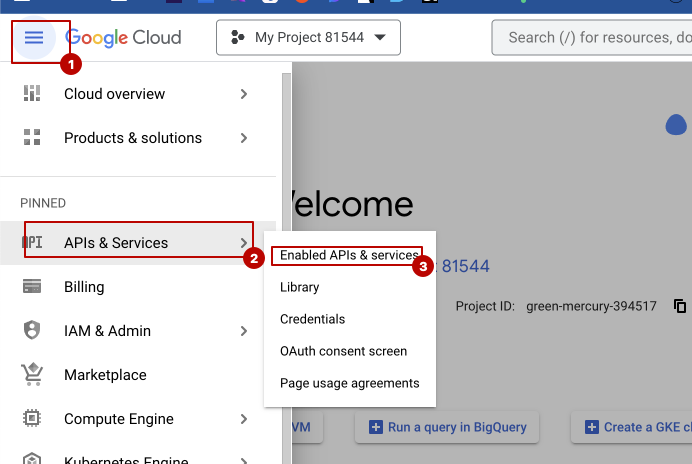
Step 04: go to Api & Services > Enable Api & Services
 Screenshot
Step 05: Click on enable apis and services
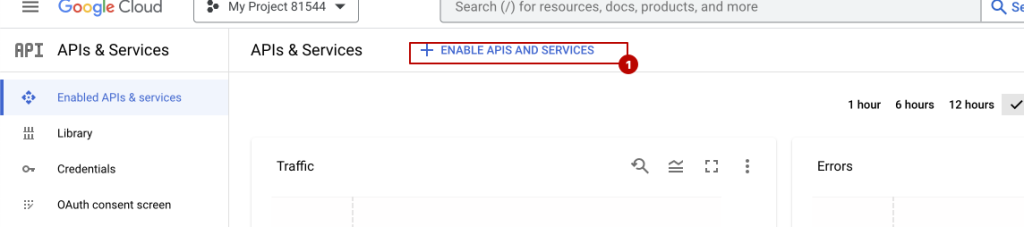 Screenshot
Step 06: Click on map javascript api
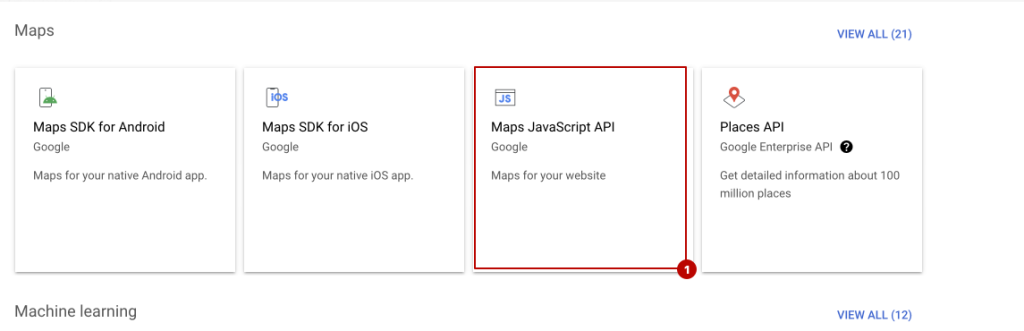 Screenshot
Step 07: click on enable button.
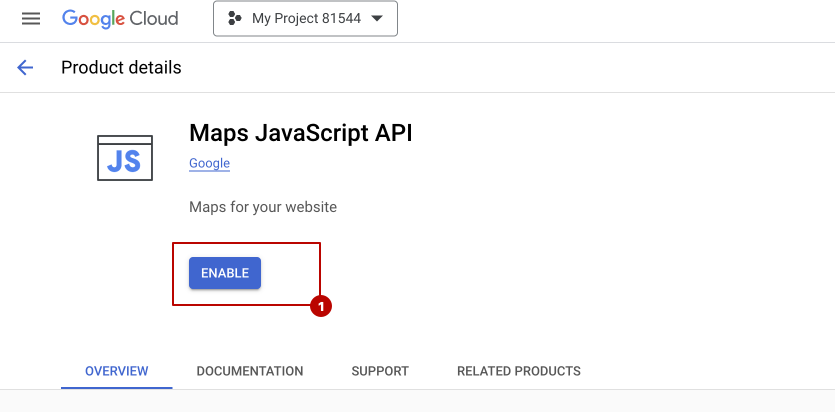 Screenshot
Step 08: go back and now click on Places api and enable it
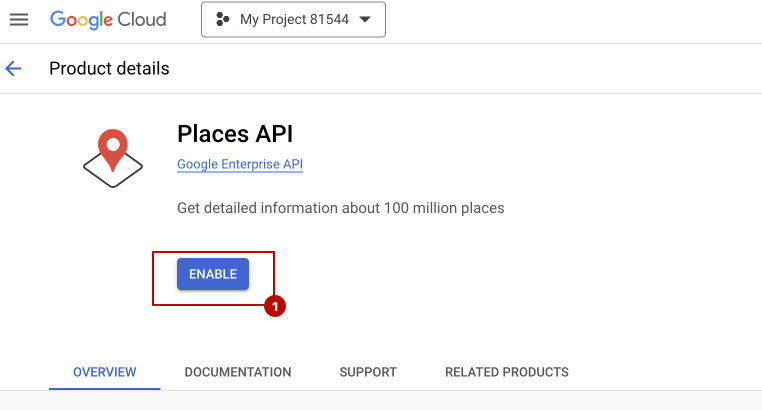 Screenshot
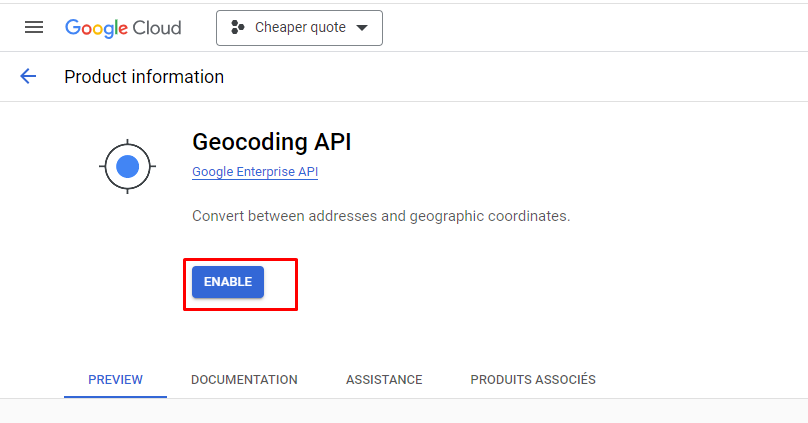
Step 09: Go Back and now click on Geocoding API and enable it.
 Screenshot
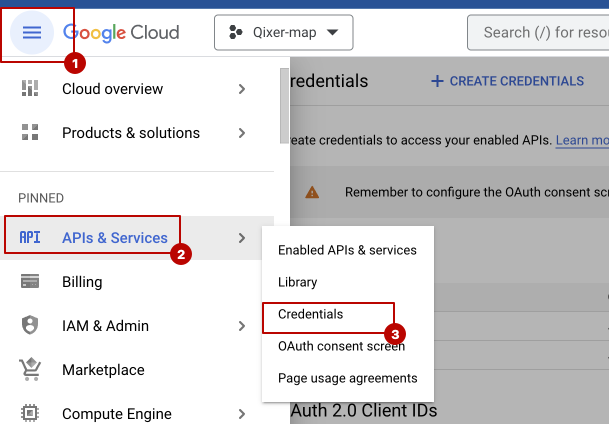
Step 10: now go to APIs & Services > Credentials
 Screenshot
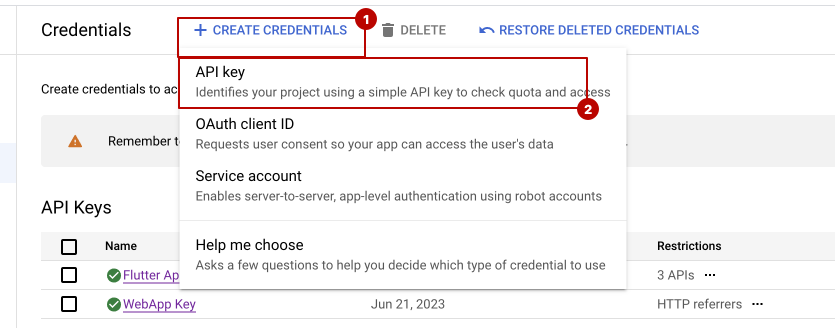
Step 11: Click on create Credentials.
 Screenshot
Step 12: Now click on Create API Key.
 Screenshot
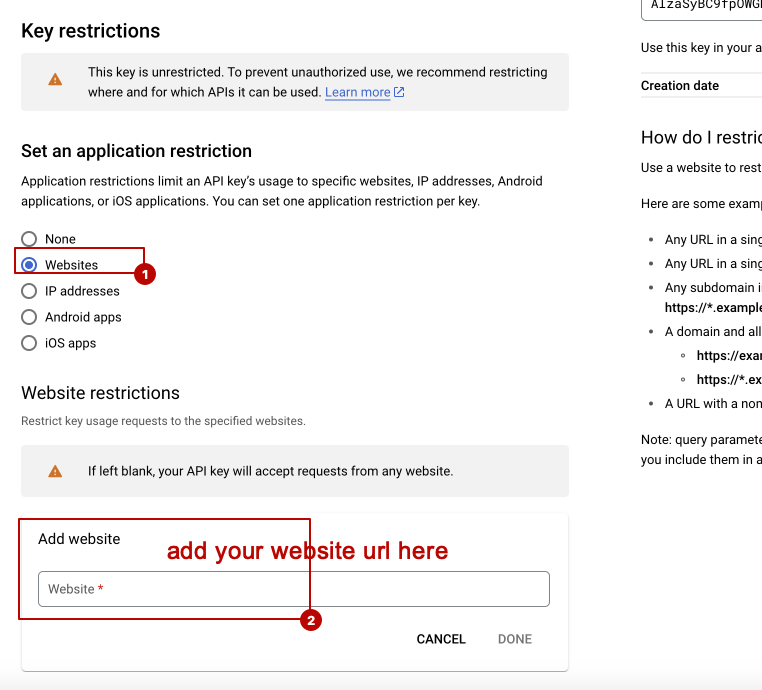
Now save it, and make sure you have added the below url to your Add Website List. Do not forget to replace yourdomaim.com with your own website URL.
https://yourdomain.com
https://yourdomain.com/*
https://yourdomain.com/service-list
https://yourdomain.com/service-list/
https://yourdomain.com/service-list/book-now/*

that is all for configure google map api key