

How to Install Plugin
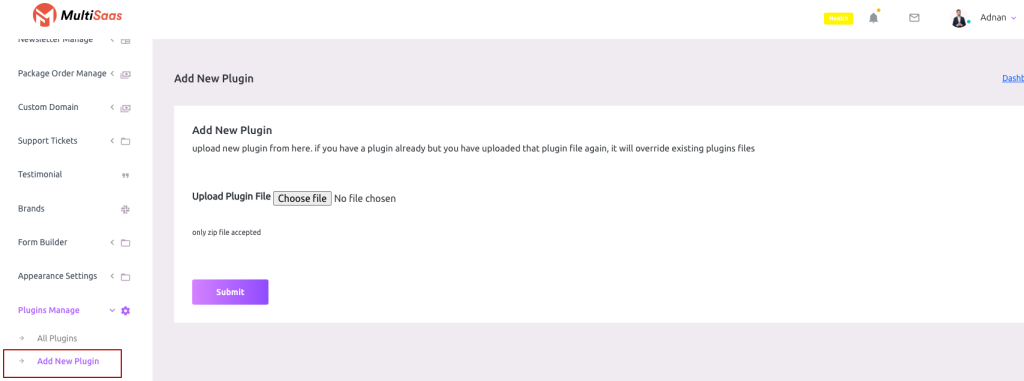
Admin can install and manage external plugins in Maltisaas. To use this feature go to “Plugin Manager > Add New Plugin”
 Screenshot
Click on the Choose File and select your plugin zip file then hit the submit button.Wait for some moments and the plugin will be installed in your script (If the plugin is valid)
Plugin List
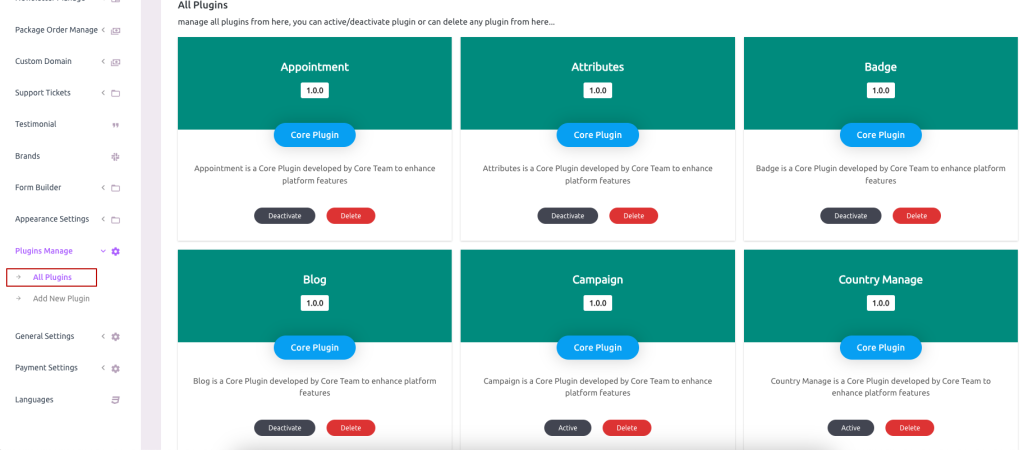
To get the plugin list go to “Plugin Manager > All Plugins”
 Screenshot
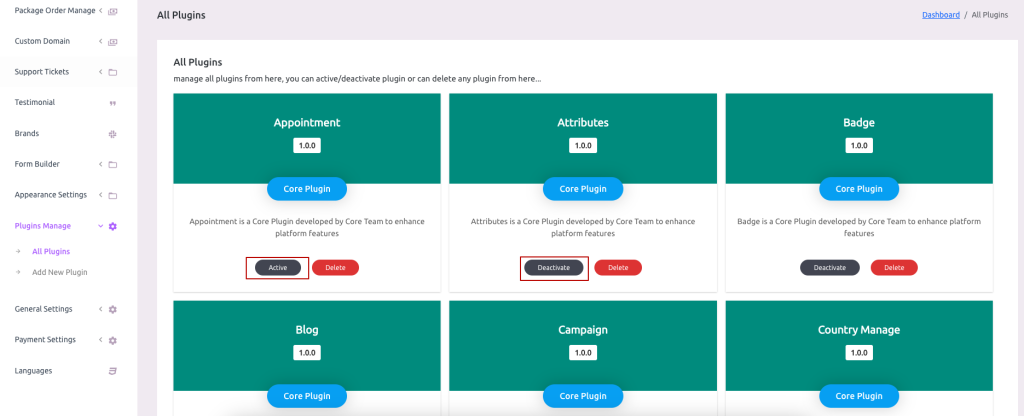
Plugin Active and Deactivate
 Screenshot
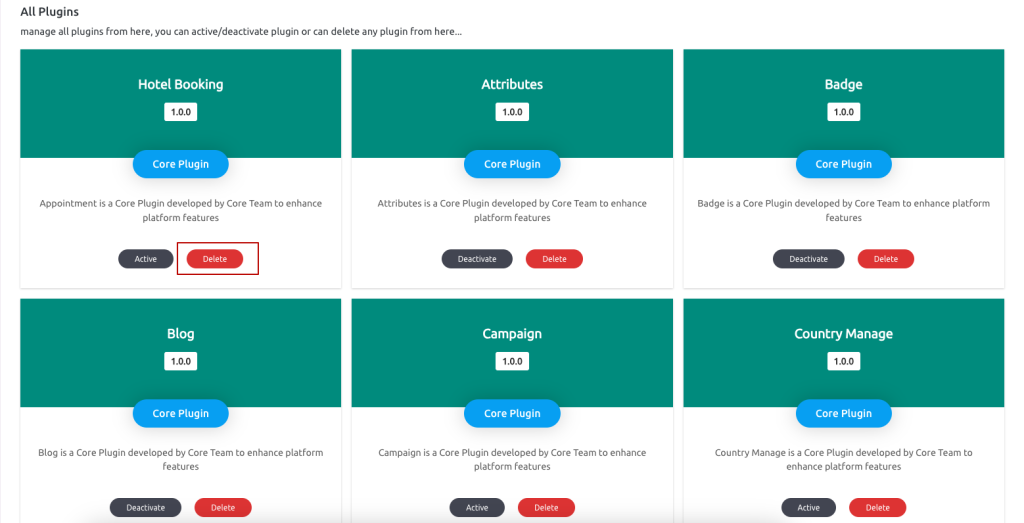
Admin can also delete any plugin from the site script (The plugin will be deleted permanently and will not be restorable until reinstalled again),
 Screenshot
Theme Active
After successfully installing the hotel booking plugin and activating Admin has to set the hotel booking theme available.
To get the All Themes list go to “Themes > All Themes”
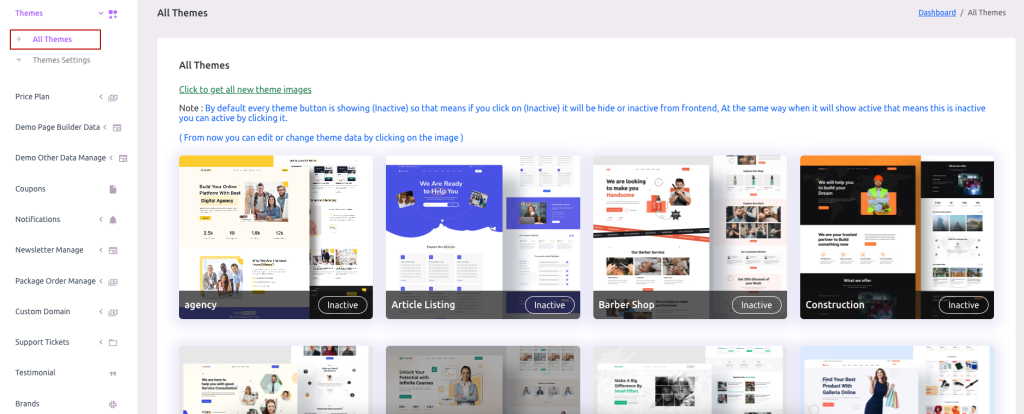 Screenshot
Theme active or inactive
 Screenshot
Note: If Admin inactive theme, Theme will not be visible on the main home page.
Theme demo data
First, need to Click on any of the themes for set demo data.
 Screenshot
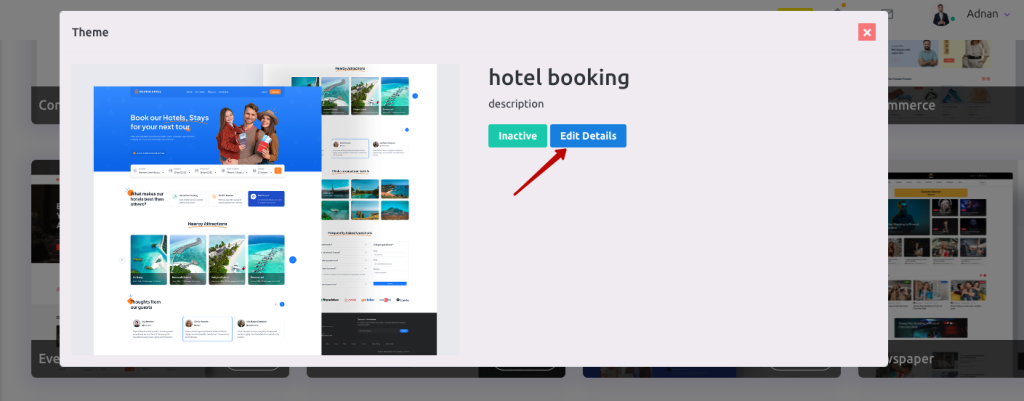 Screenshot
is Available
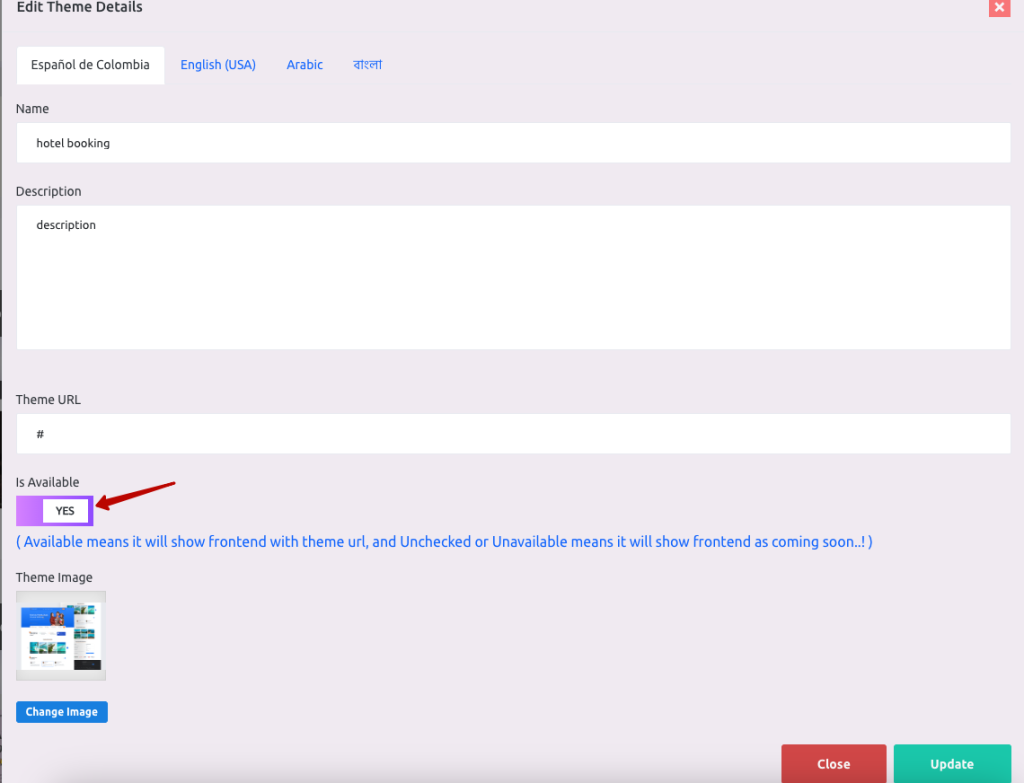 Screenshot
Note: If in theme details admin not set is Available yes Those themes will not be displayed on Price plan theme list dropdown and tenant create theme list dropdown