

You can change your website logo You have to go to “General settings > site identity”.
Website logo change
-
Site Logo: Upload your own logo for the website
-
White Site Logo: Upload your own white logo for the website
-
Favicon: Upload your website favicon
-
Breadcrumb Image: Upload your website breadcrumb area
Site Title Settings
You can change your website logo You have to go to “General settings > Basic identity”.
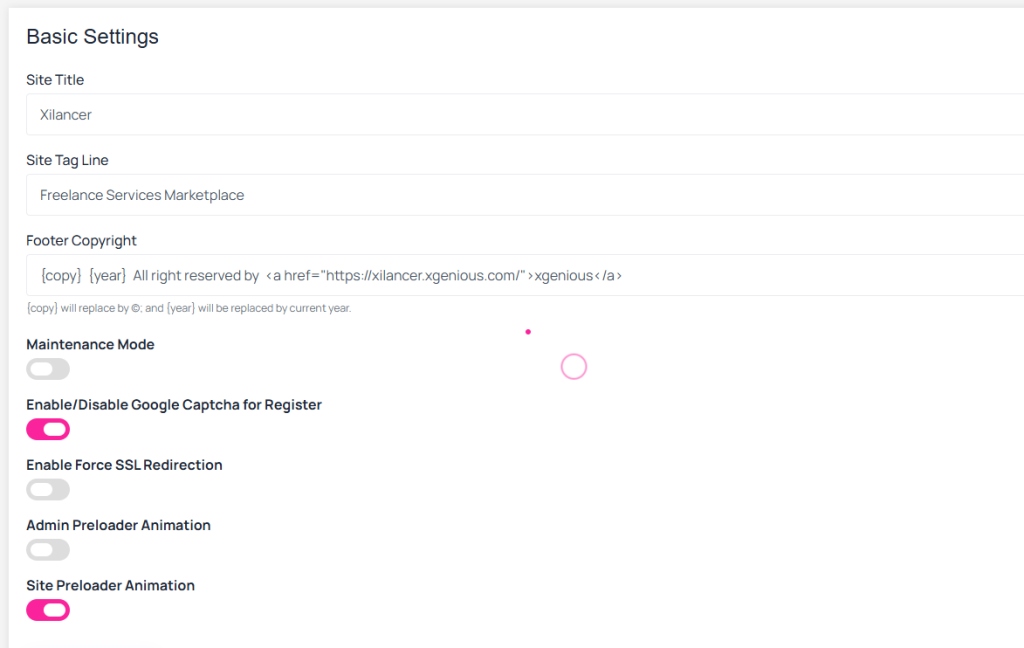 Screenshot
-
Site Title: enter your website title, it very important for your website seo
-
Site Tag Line: enter your tag line
-
Footer Copyright: footer copyright text, Will replace by © and will be replaced by current year.
-
Dark Mode For Admin Dashboard: your can enable/disable admin panel dark mode
-
Language Select Show/Hide: you can show/hide language dropdown form your website
-
Enable/Disable Payment Gateway: you can enable/disable website payment gateways
-
Disable User Email Verify: you can enable/disable user email verification.
-
Site Main Color Settings: you can change website main color
-
Site Base Color Two Settings: you can change website base color two
-
Site Secondary color: you can change website secondary color