

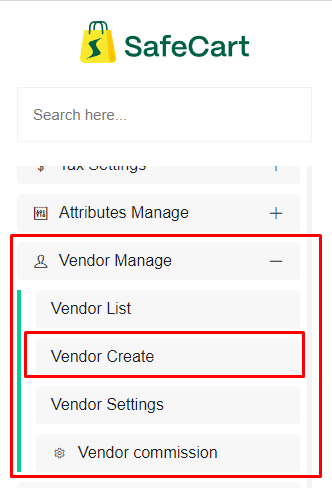
For creating vendor login into admin panel then go to vendor create page from the left sidebar inside vendor manage section
 Screenshot
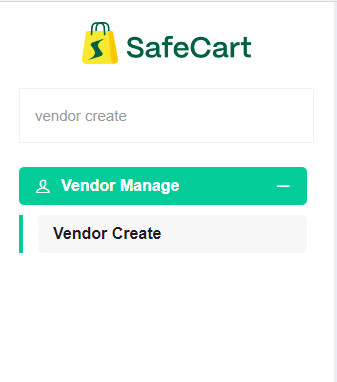
or you can search it here
 Screenshot
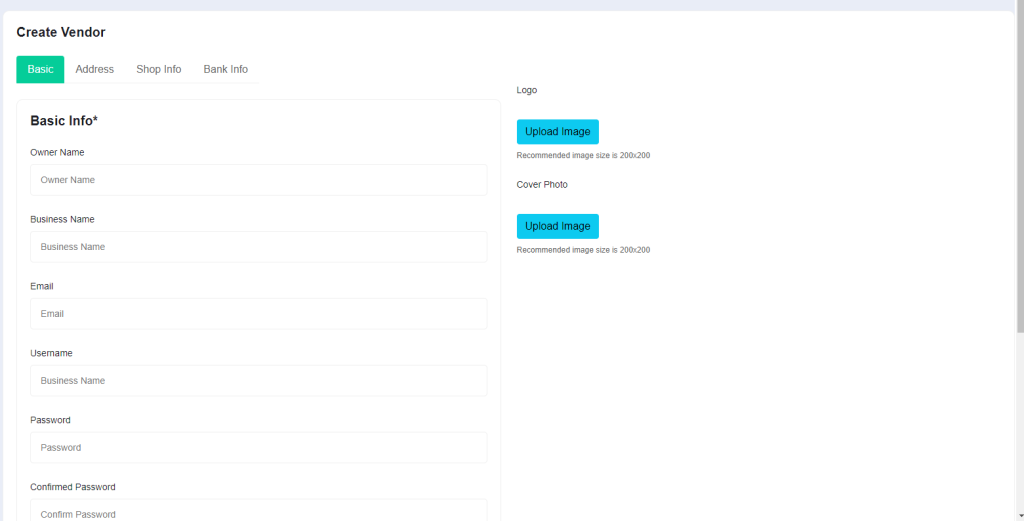
This is the page for creating vendor from admin panel
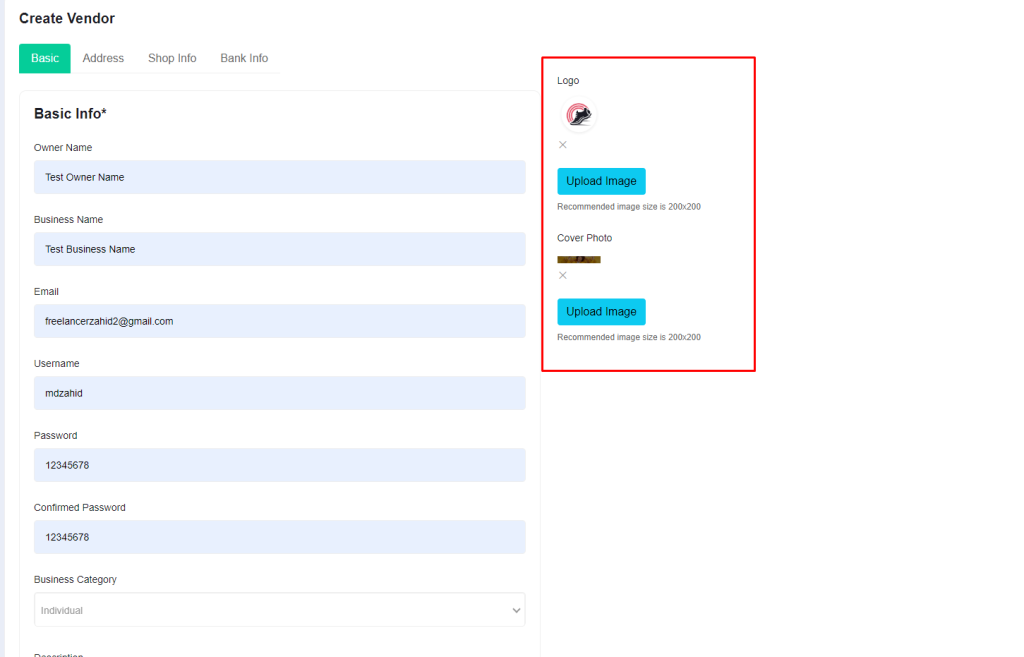
Here you can see four tab and one will selected by default basic
basic and address tab are required for creating vendor
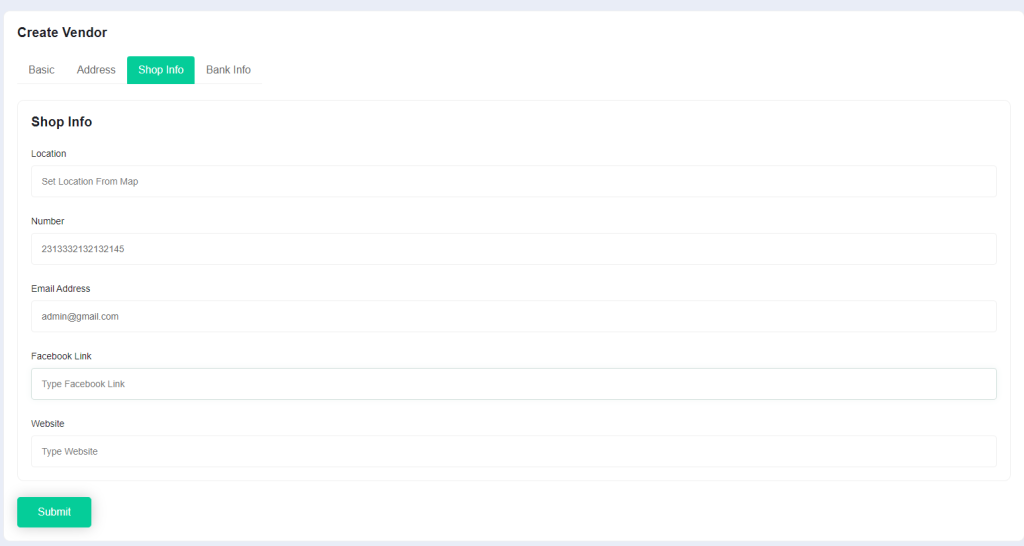
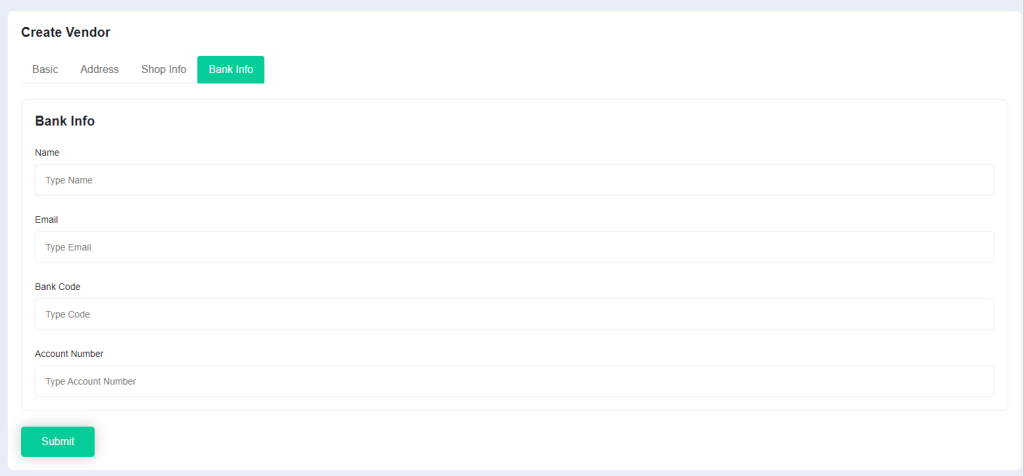
for shop info and bank info those are optional but you can provide those information
 Screenshot
if you want to switch tab just click on you wantted tab then you will see the changes
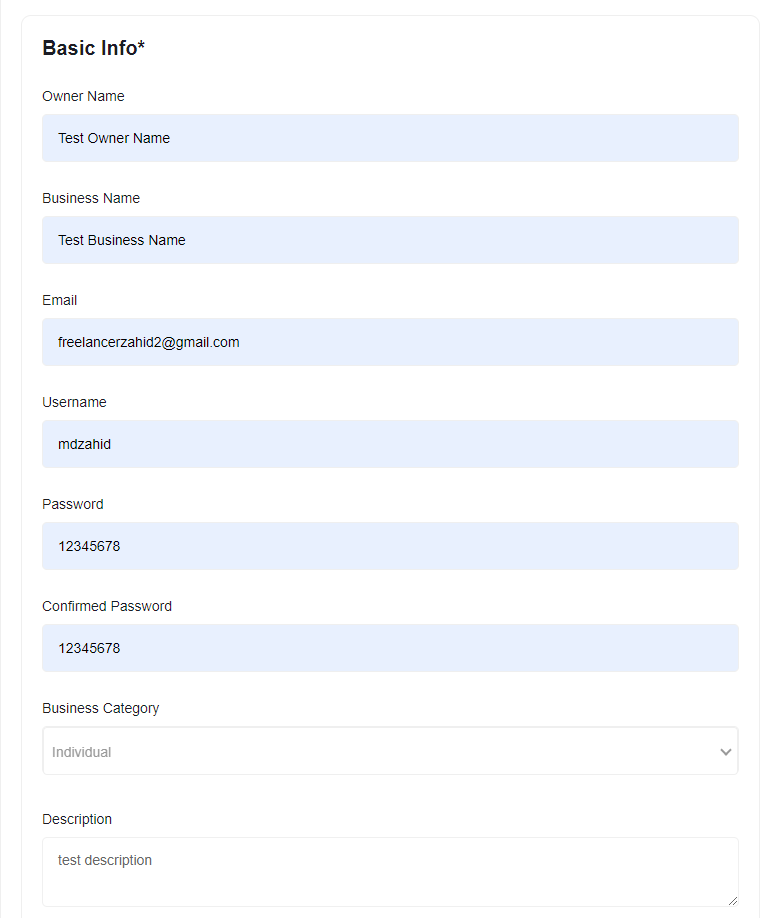
Fill those information first
 Screenshot
For select logo you can click on logo button
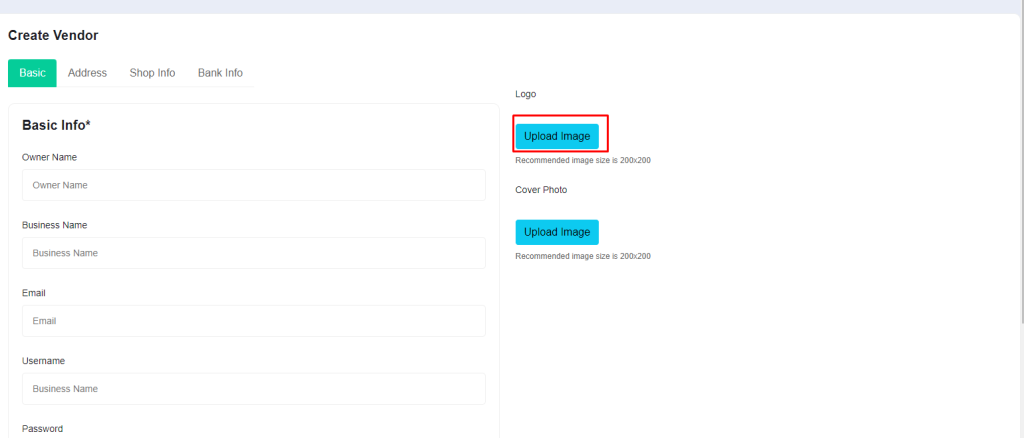 Screenshot
Then click on cover photo
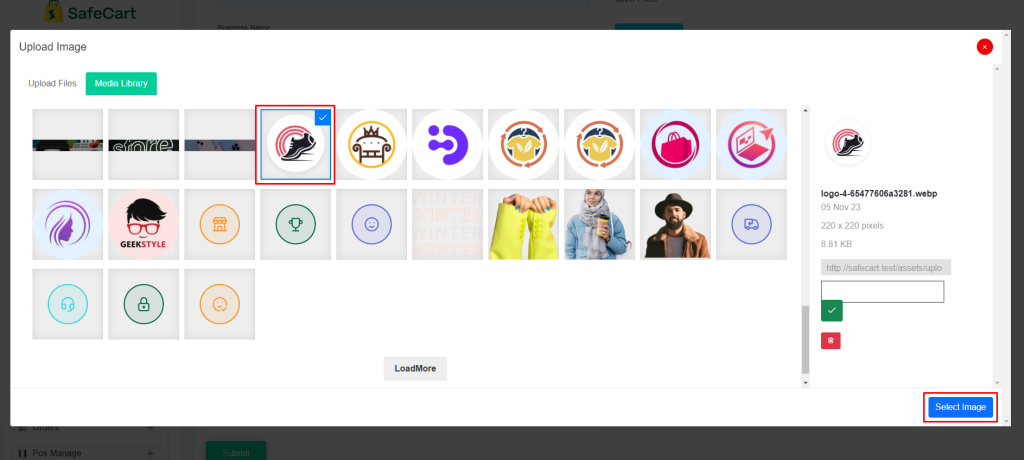 Screenshot
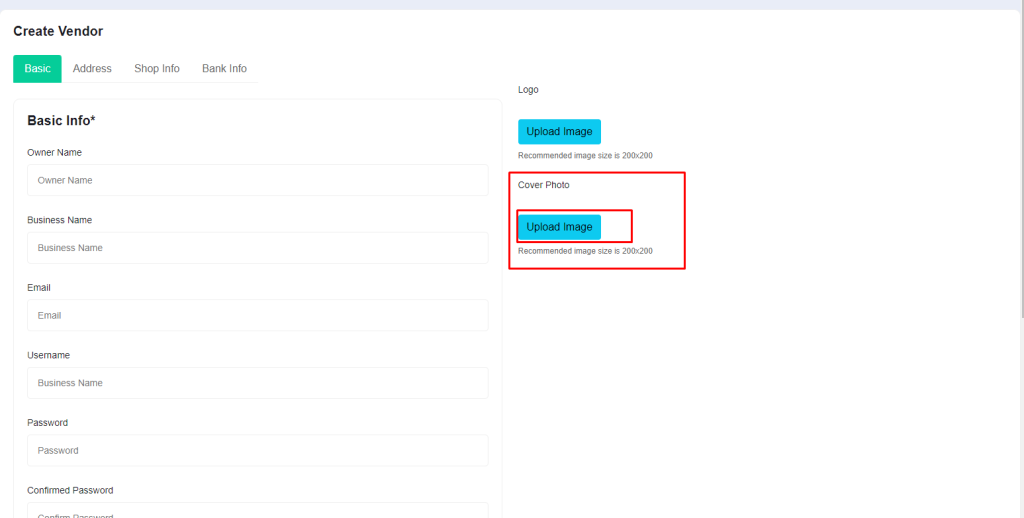 Screenshot
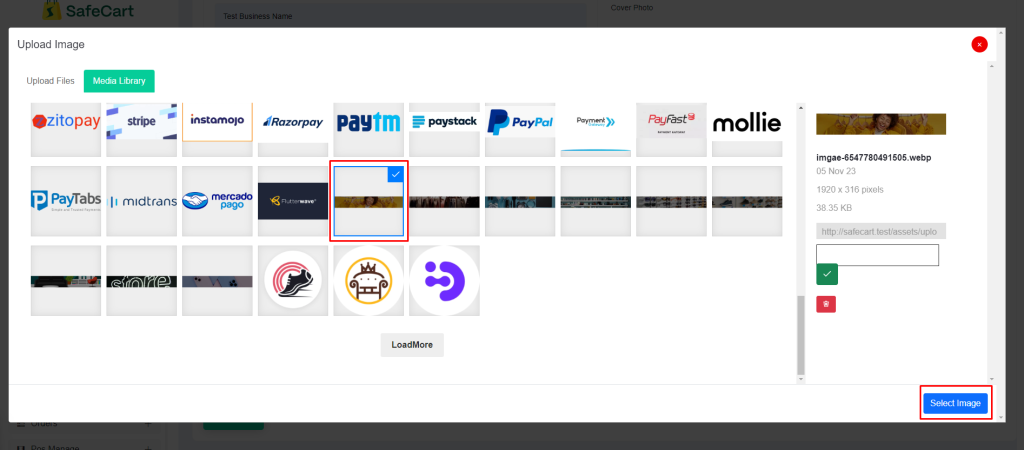 Screenshot
After selecting logo and cover image you will see this page
 Screenshot
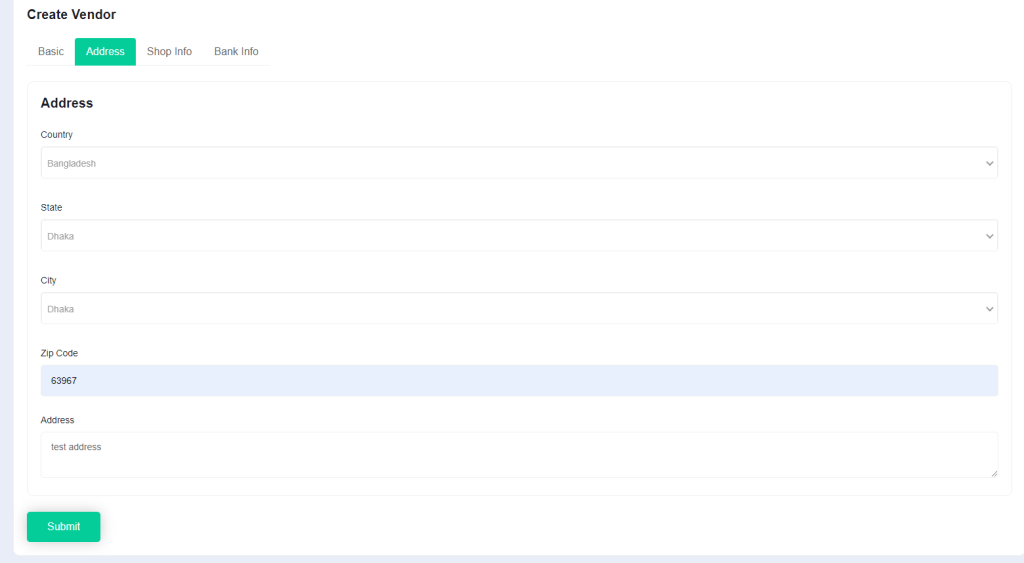
In address section you can select country, state, city, zipcode and address
State, city and zipcode are optional
 Screenshot
here you can set shop location that location will come from google map but you can leave it empty also you can set facebook url, website url,
 Screenshot
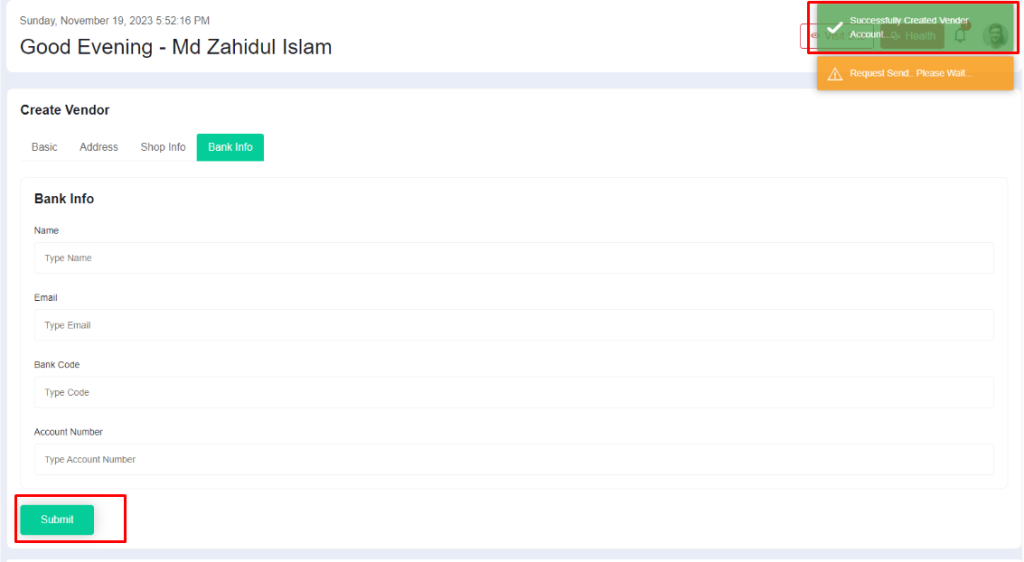
Now you can set vendor bank information if you want to
 Screenshot
When you're ready for creating then click on submit button and everything is okay then you'll get success message on the top right side of the screen
 Screenshot