

Android Configuration
The Provider app uses Google Maps to locate service requests, navigate to client addresses, and display coverage zones.
Steps
-
Obtain an Android Google Maps API Key from the Google Cloud Console.
-
Enable Maps SDK for Android and Geocoding API in APIs & Services → Enabled APIs.
-
Open
android/app/src/main/AndroidManifest.xmland insert your key inside<application>:
<meta-data
    android:name="com.google.android.geo.API_KEY"
    android:value="YOUR_ANDROID_GOOGLE_MAPS_API_KEY" />
Legacy docs also reference project/lib/customizations.dart mapApiKey and a generic android:value example with screenshots — keep both in sync for this provider app.
- Also update
mapApiKeyinlib/customization.dart:
String mapApiKey = 'YOUR_ANDROID_GOOGLE_MAPS_API_KEY';
Preserve the existing screenshot reference for the map key insertion if present in your checkout:
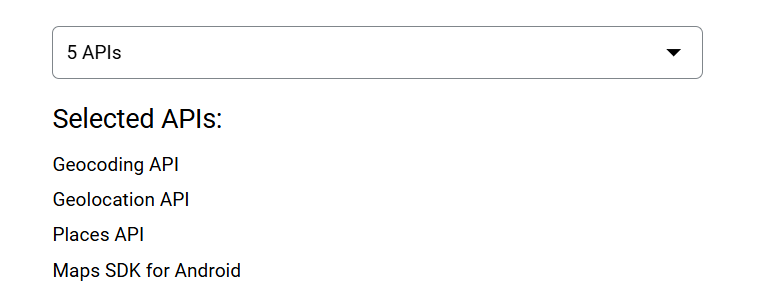 Screenshot
Verify
Build and open a map screen; tiles should load without the “API key missing” banner. Check adb logcat for Authorization failure if tiles fail.