

Appearance Settings
Jump to: 404 Page Manage · Maintain Page Manage · Media Images Manage · Disable Automatic Image Optimization on Hostinger
404 Page Manage
This cms you can 404 page manage easily, go to ” Appearance Settings> 404 page Manage”.
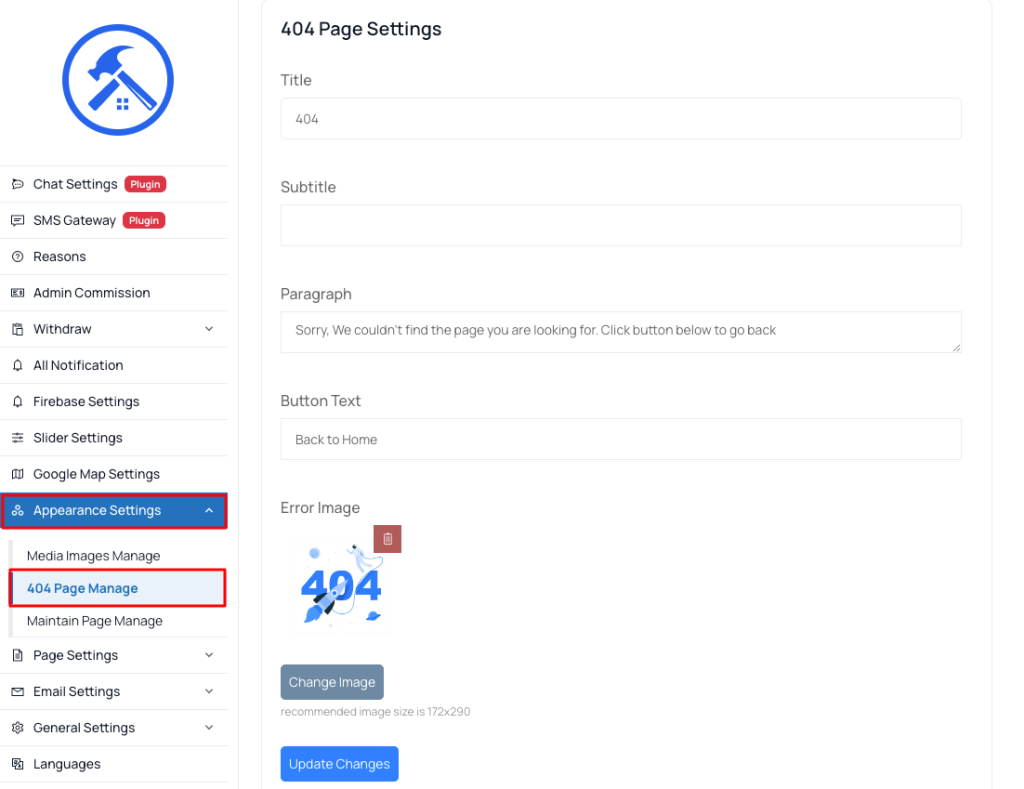 Screenshot
Maintain Page Manage
This cms you can maintain page manage easily go to ” Appearance Settings> Maintain Page Manage.”.
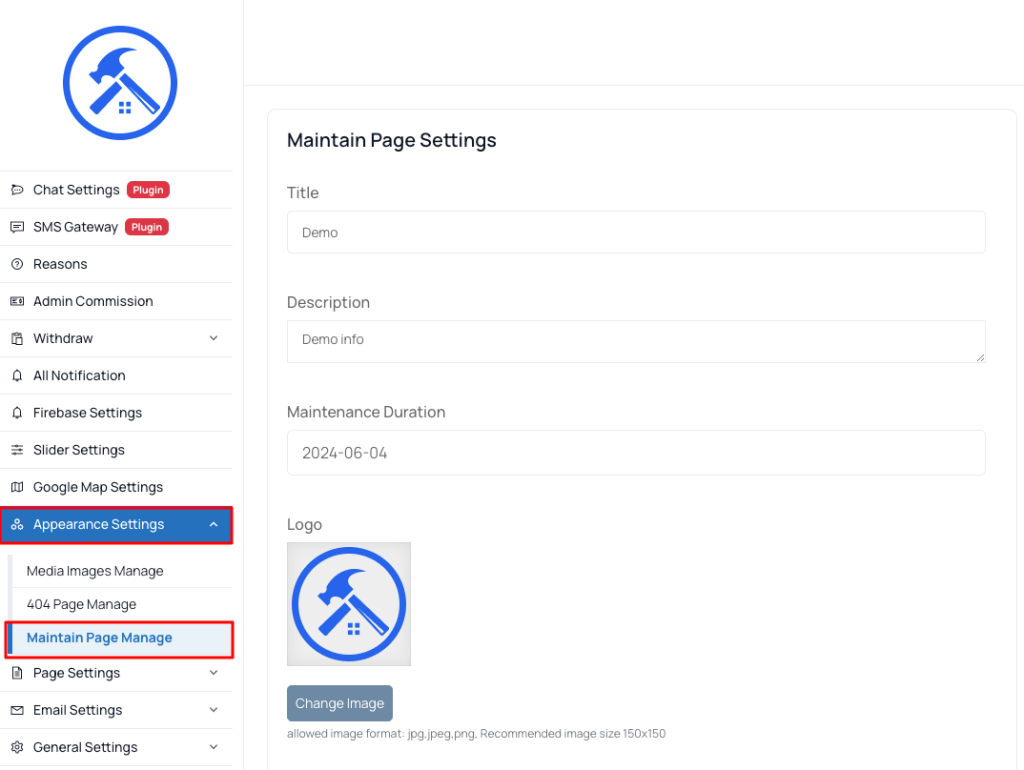 Screenshot
Media Images Manage
This cms you can Media Images manage easily, go to ” Appearance Settings> Media Images Manage”.
 Screenshot
Disable Automatic Image Optimization on Hostinger
If you're uploading high-resolution images but they display at a reduced resolution, Hostinger's automatic image optimization may be the cause.
This guide explains how to disable these features to serve original, uncompressed images.
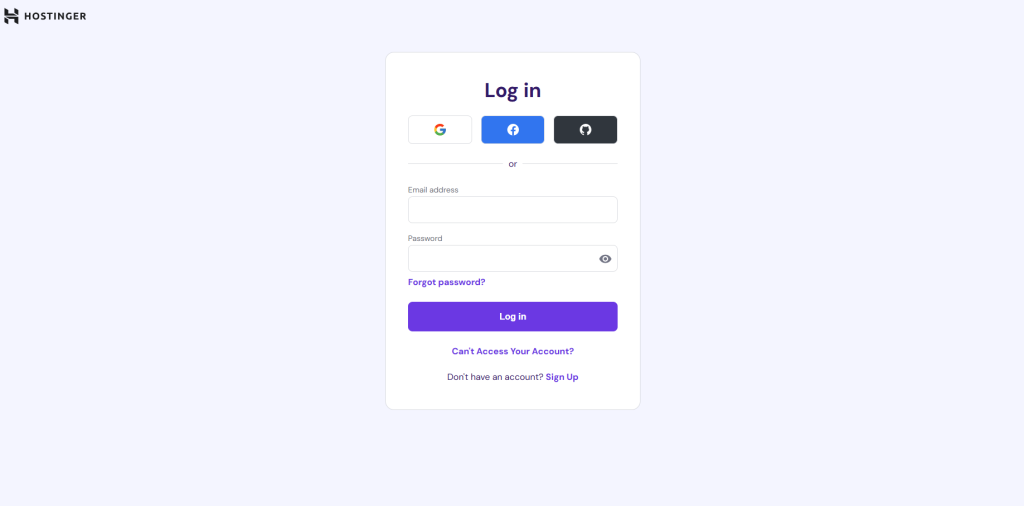
Step 1: Log in to Hostinger hPanel
-
Log in with your Hostinger account
 Screenshot
Step 2: Access Website Performance Settings
-
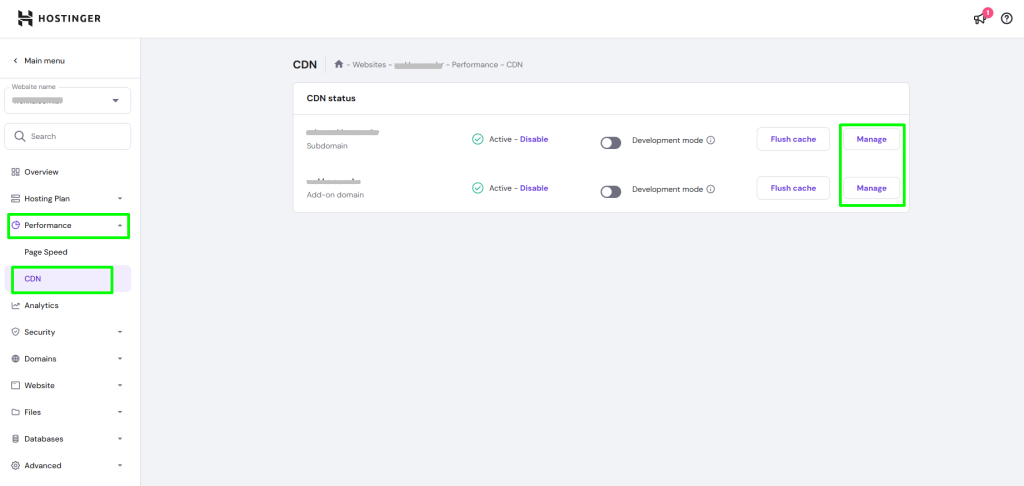
Select your website from the list
-
Find & Click on Performance
-
Open the CDN tab
-
Go to your Website & click Manage options
 Screenshot
Step 3: Disable Optimization Features
Go to Website Optimization optionTurn off the following options:
-
WebP Image Compression
-
Smart Image Optimization
 Screenshot